How do I add and test a key?
Settings → AI, choose the provider, paste the key, press Test & save. The test calls your provider once before storing anything, so a key that is wrong tells you immediately instead of at the moment you needed it.
The panel is a two-step layout, labelled Step 1 and Step 2 — pick the provider, then give it a key.
The key field is masked. Paste into it and you see dots; there is a Show control if you need to check what landed. Underneath it is a Need a key? Get one from … link straight to that provider's own key page, so you do not have to go hunting for it.
Test & save does what it says, in that order. Each provider is validated differently, and one of those differences is worth knowing:
- OpenAI, Groq and OpenRouter are checked by listing models or reading the key's own status. No tokens are consumed — the test is free.
- Anthropic has no free endpoint of that shape, so the test sends a one-token message. It costs a fraction of a cent. Not enough to matter, but it is a real API call rather than a lookup.
If the test fails, the panel shows Validation failed in red with the provider's own error text beside it, which is usually specific enough to fix — a truncated paste, a key from the wrong account, or a plan with no credit.
Save without testing exists for when a provider is having a bad day and you know the key is good. Use it knowingly; an untested key looks identical to a working one until a feature asks it a question.
Making it the active one. Your first key is active as soon as it saves. A second provider saves as Saved, not active, and a Use this key button appears on its tile to switch AI features over. Only the active provider answers; the others stay available for economy routing and for fallback.
Step by step
- Open Settings and choose AI in the left sidebar, under App.
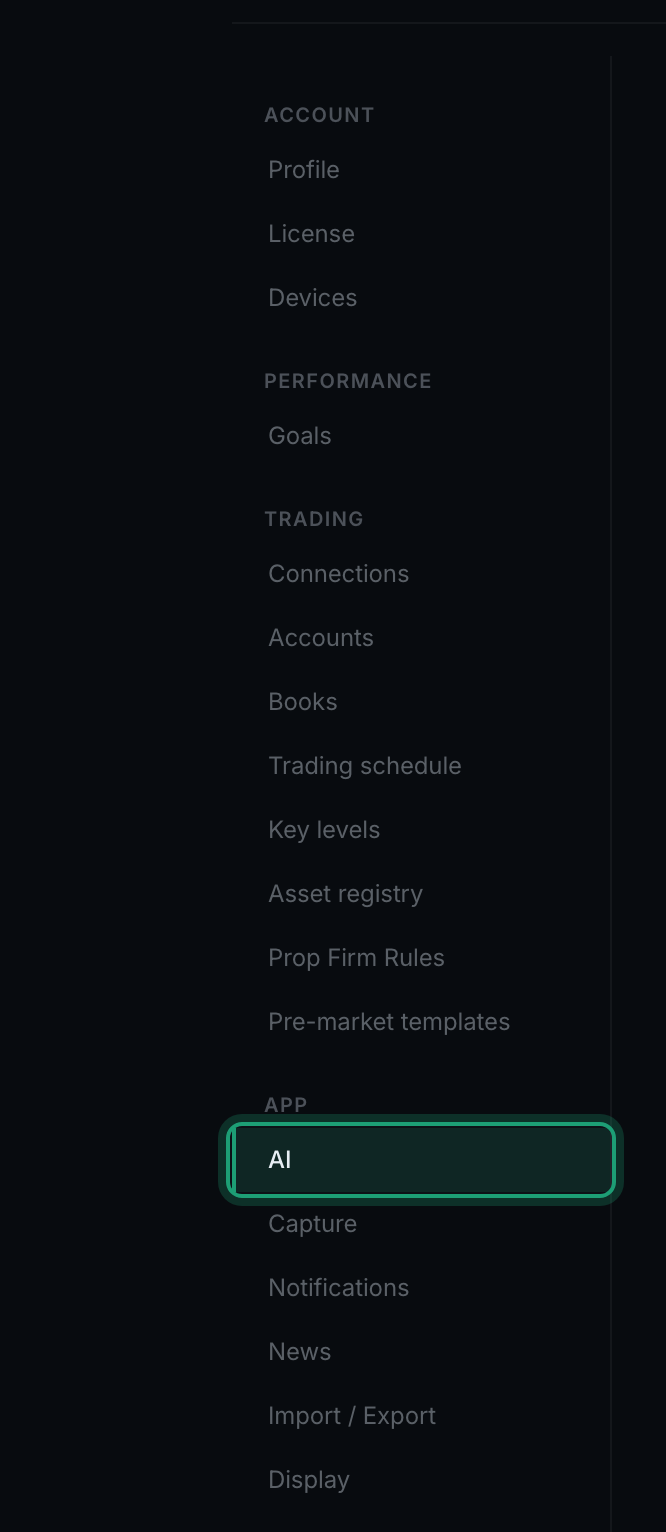
the Settings sidebar with AI ringed, in the App group above Capture - Under Step 1, click the provider you have an account with. Each tile shows the key format it expects and links to that provider's key page.

the four provider tiles and the legend naming the three dot states: Active, Saved not active, and No key - Under Step 2, paste your key into the masked field.

the masked API key field, the link to the provider's own key page, and the Test & save and Save without testing buttons - Press Test & save. A green line confirms the key is verified; a red Validation failed carries the provider's own message.
- Your first key becomes the active one on save. If another provider was already active, this one saves as amber — Saved, not active — with a line telling you to press Use this key to switch AI features over.
- Choose a model from the Model dropdown if the default is not what you want. The line underneath shows what the selected model can do and what it costs per million tokens.

the Model dropdown with Refresh models beside it, and the selected model's capabilities and price on the line below