How do I add an API key?
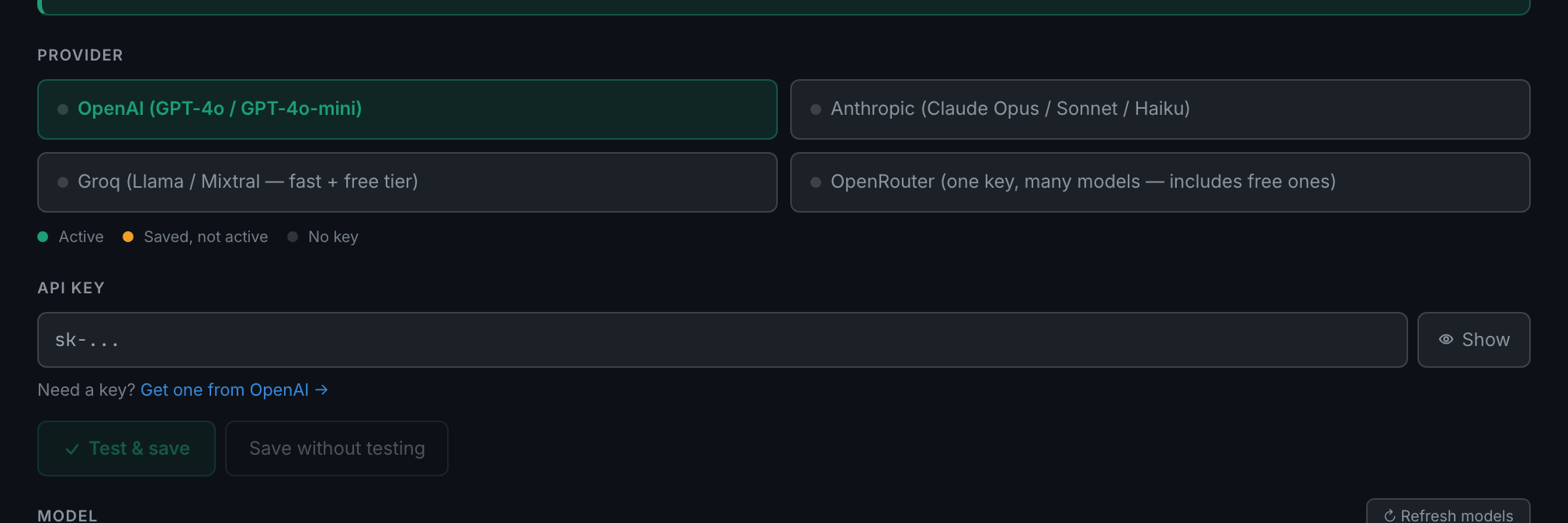
Settings → AI, pick a provider, paste the key into the API key field, save. The key is stored in your browser and never leaves it except to call the provider you chose.
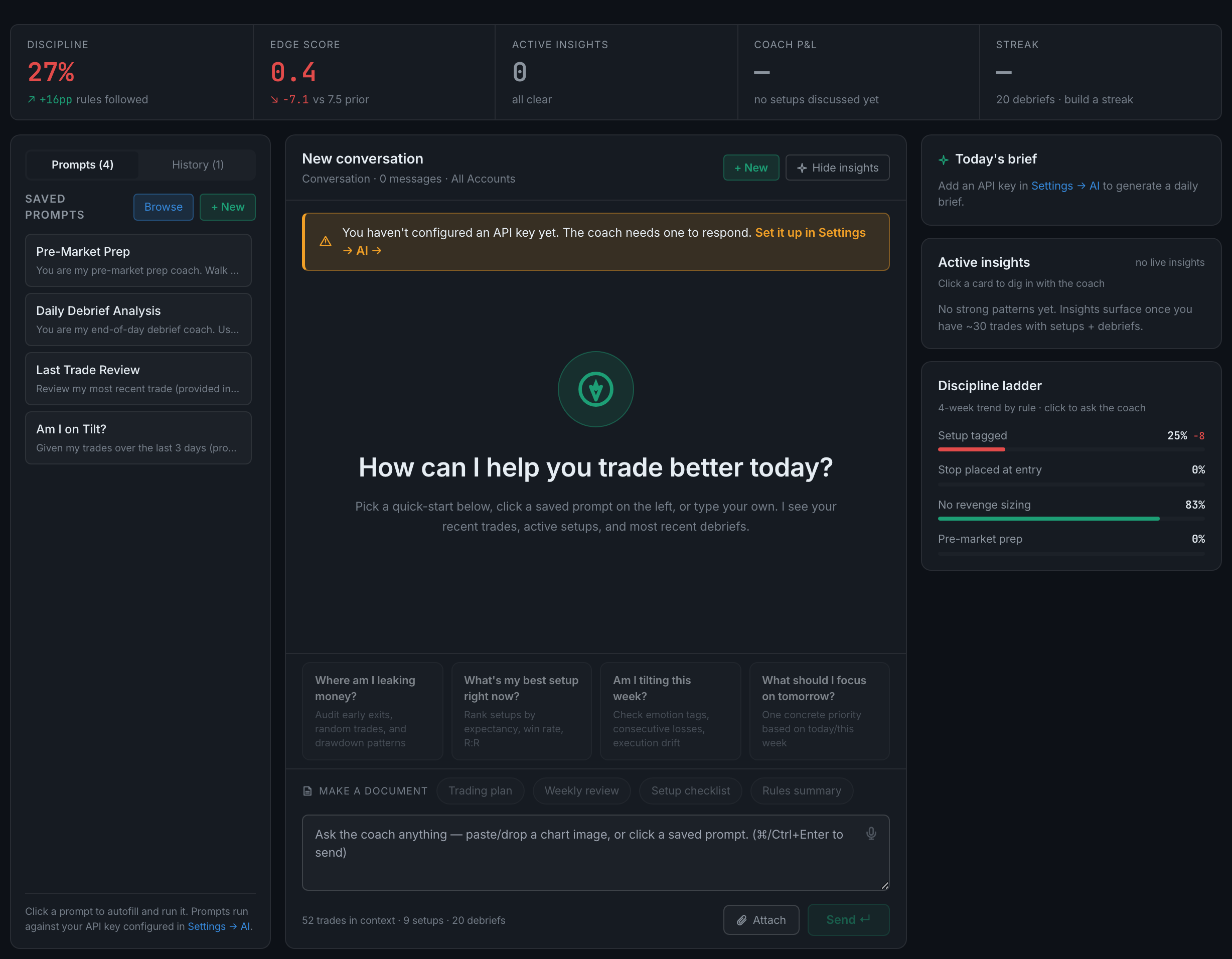
An AI that has read your trades. You ask it questions in plain English and it answers from your actual journal — your setups, your key levels, your debriefs, your results — rather than from general trading advice.
No questions on this page match that. Search all 15 areas
The Coach is the one part of the app that does not work out of the box, and it is worth saying that first rather than letting you discover it on the page.
Everything here runs on your AI provider account, not on ours. You bring a key, the app stores it in your own browser, and every question you ask goes from your machine to the provider you chose. Until you add one, the page renders its full surface but the input box is disabled and an amber banner reads: You haven't configured an API key yet. The coach needs one to respond.
That design is deliberate. It means your journal is never sent anywhere you have not chosen, and it means the app is not marking up somebody else's tokens. It also means there is a setup step, and this is it.
Settings → AI, pick a provider, paste the key into the API key field, save. The key is stored in your browser and never leaves it except to call the provider you chose.
Your recent trades, your playbook setups, your key levels, your debriefs and your performance history. It answers from those, not from generic advice.
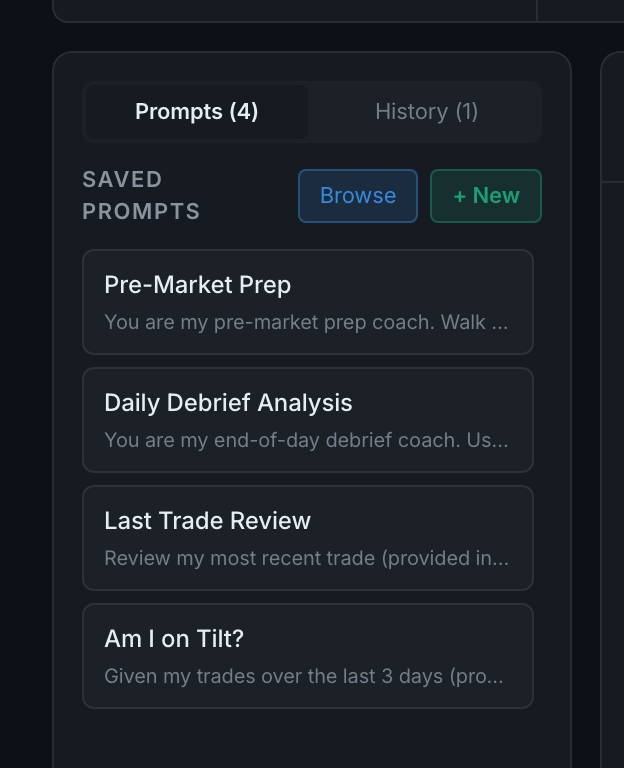
Read the full guideQuestions you have saved so you can re-ask them with one click. Click one and it fills the box and runs.
One-click prompts that produce a whole document rather than an answer — a trading plan, a weekly review, a setup checklist or a rules summary.

Five cards — Discipline, Edge Score, Active Insights, Coach P&L and Streak. Each one opens a drill-down.

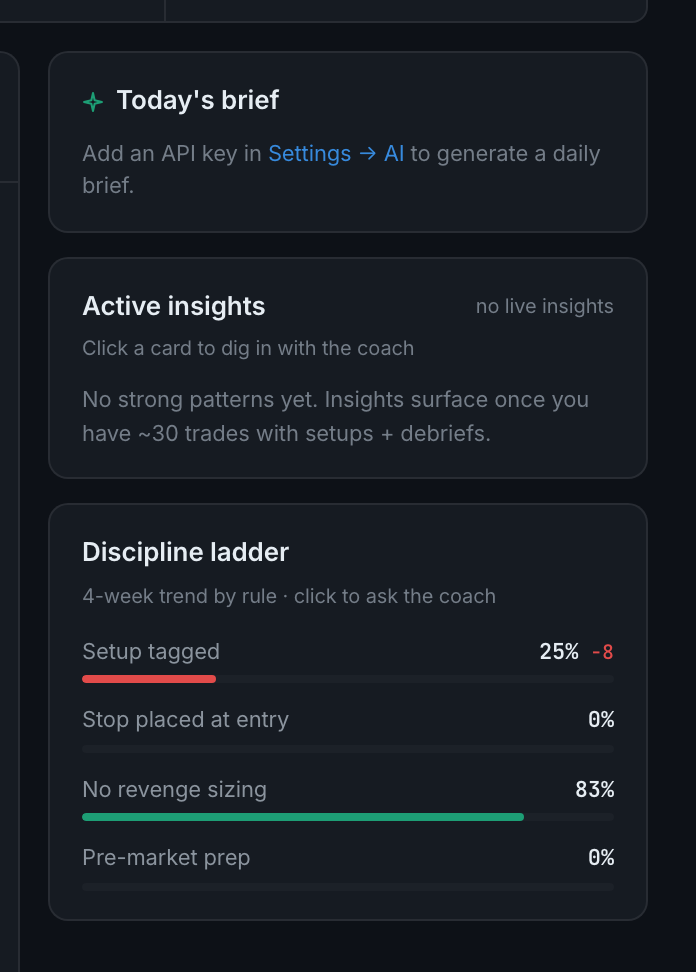
The right-hand rail. A short briefing for the day, the findings the Coach currently has open, and the rules you keep breaking, ranked.
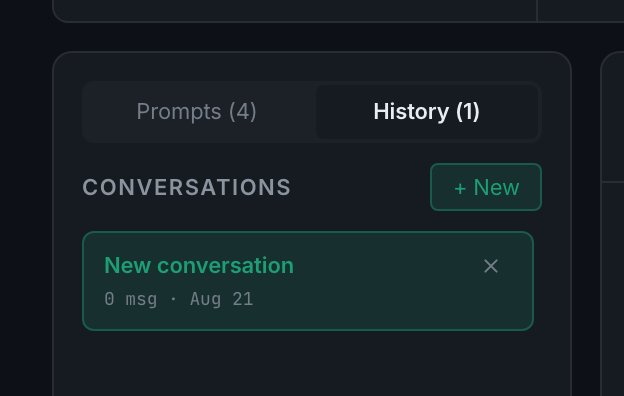
The History tab in the left sidebar. Starting a new conversation with + New keeps the current one rather than replacing it.
A PDF, always — there is no format choice on the whole-conversation Export button. Individual answers are different: those give you a choice of Markdown, plain text or PDF.
Read the full guideYes. Settings → Capture → Audio setup → Coach voice, tick Speak Coach replies aloud. It is off until you do.
