How do I add an API key?
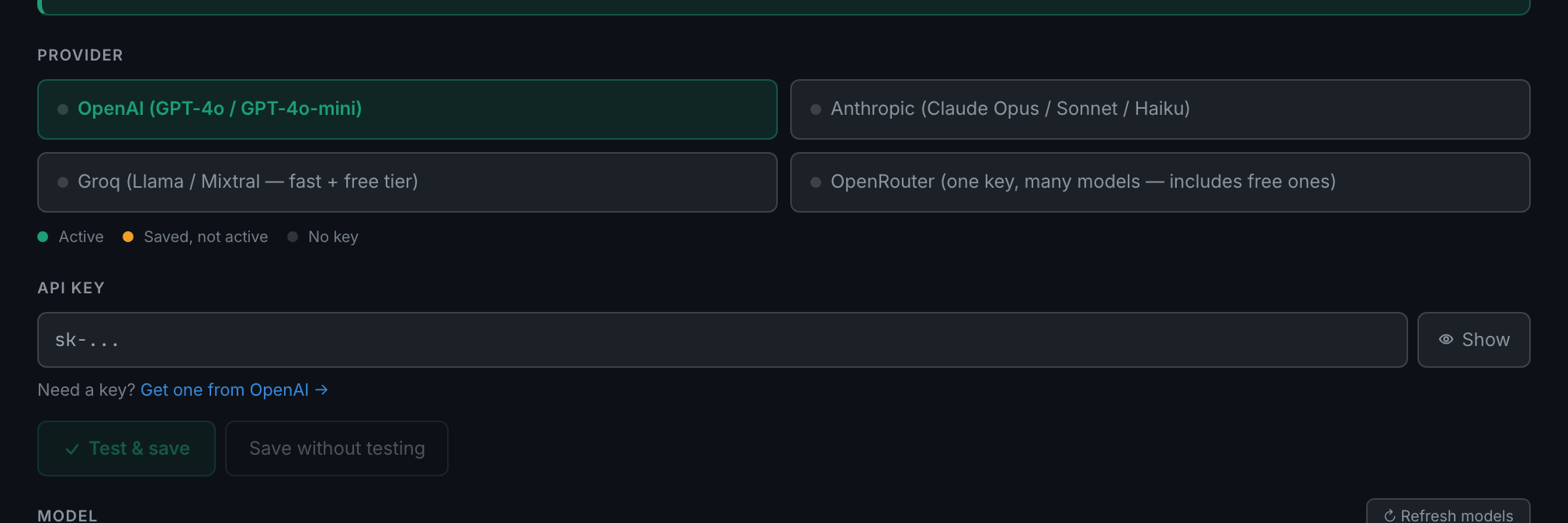
Settings → AI, pick a provider, paste the key into the API key field, save. The key is stored in your browser and never leaves it except to call the provider you chose.
Four providers are supported, and the choice is mostly about cost.
- OpenAIGPT-5 mini, GPT-5.1 and GPT-4o mini. Keys start
sk-..., from platform.openai.com. - AnthropicClaude Haiku 4.5, Sonnet 5 and Opus 5. Keys start
sk-ant-..., from console.anthropic.com. - GroqLlama models, fast, with a free tier. Keys start
gsk_..., from console.groq.com. - OpenRouterOne key, many models behind it, including free ones. Keys start
sk-or-..., from openrouter.ai.
The tiles for OpenAI and Groq still carry older model names in their labels; the model list under each is the accurate one. For the full picture — pricing, routing, and what each model can do — see AI, models & costs.
You can save a key for each and switch between them. There is no subscription on our side; you pay each provider directly for what you use.
Step by step
- Go to Settings and open the AI tab.
- Choose your provider from the list. Each one shows a status dot: green for the key that is currently active, amber for a key that is saved but not in use, grey for a provider with no key.
- Paste your key into the API key field. It is a password field, so what you paste shows as dots — press Show if you need to check it, and it goes back to dots when you press Hide.
- Press Test & save. It calls your provider once before storing the key, which is worth the extra second: a key that is saved but wrong looks identical to one that works until something asks it a question. Save without testing is there for when the provider is having a bad day and you know the key is good.
- Pick a model from the dropdown underneath if you want something other than the default. The line below it shows what the selected model can do and its price per million tokens, so the cost of a question is not a mystery.

the Model dropdown, with the selected model's capabilities and price beneath it - Come back to the Coach. The banner is gone and the input box is live.
The key never leaves the machine you typed it on. It is held in that browser's own local storage and it is deliberately excluded from the settings that sync between your devices — a provider key is your money, and the sync mirror is not encrypted. Two consequences worth planning around: if you use the app on a laptop and a desktop, you paste the key on both, and clearing that browser's data removes it.
The dot beside each provider says where you stand: green for the key currently in use, amber for one that is saved but not active, grey for a provider you have not given a key to.
You can save keys for several providers and switch between them; the green dot shows which is active.