TradePerformance

Getting started

New here? Start with this. The honest answer to "how do I set this up" is that about four things have to be configured and everything else can wait until you want it — so most of what follows is a short answer and a pointer to the guide that goes deep.

If you read only one thing here, read the minimum you need before your first session.

Your first session

What happens the first time I log in?

A ten-step setup runs, in a modal over the app. It asks about how you trade and seeds the parts of the app that depend on that — your schedule, your levels, your instruments, a starter playbook. You can skip any step, or all of them, and do it later.

Read the full guide
What do the onboarding steps actually ask me for?

Ten steps: Style, Schedule, Levels, Assets, Playbook, Risk, AI, Capture, Theme, Connect. Each seeds a part of the app, and every one has its own guide in this help centre.

Read the full guide
Can I skip onboarding and set things up later?

Yes, entirely. Skip all — or Escape — closes it, and everything it would have asked is available in Settings. The app says as much when you skip.

Read the full guide
Can I re-run onboarding after I've finished it?

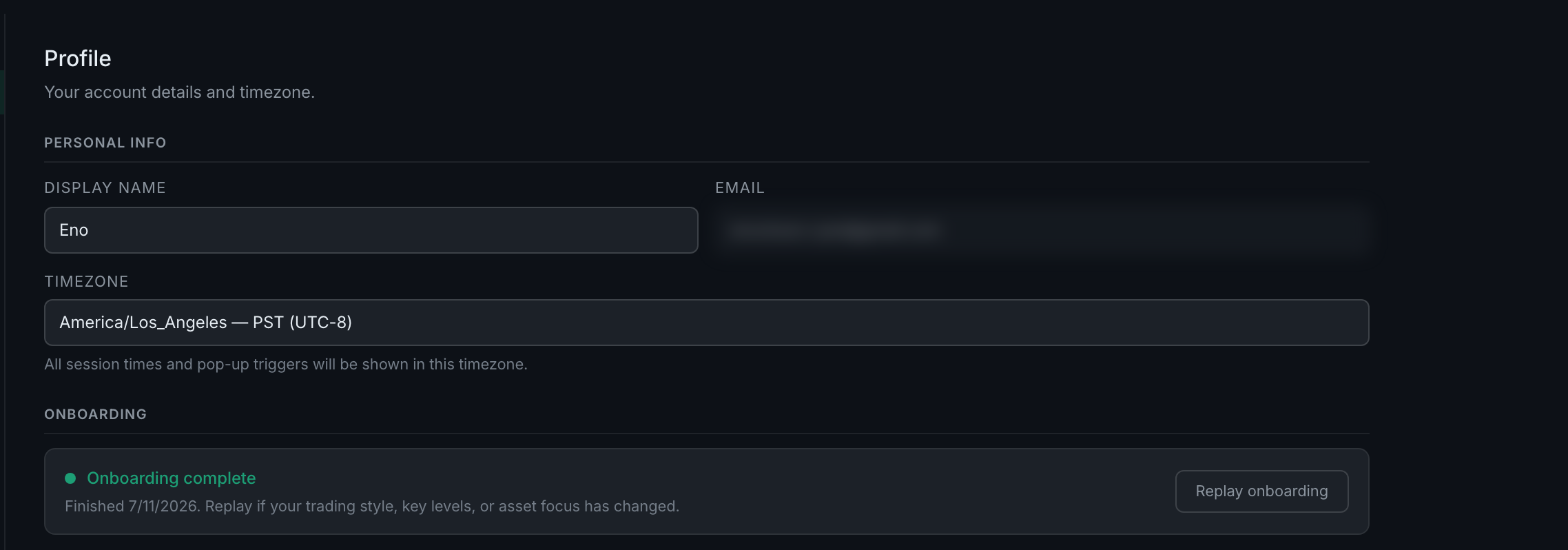
Yes. Settings → Profile → Onboarding shows whether you finished and when, with a Replay onboarding button beside it.

Settings → Profile, where the onboarding status and its replay button live
Read the full guide
What is the minimum I need configured before my first session?

Four things: your timezone, an account, your trading schedule, and a way for trades to arrive. Everything else is improvement rather than setup.

Settings → Profile, where the timezone everything else is derived from is set
Read the full guide

Getting set up

How do I set my starting account balance?

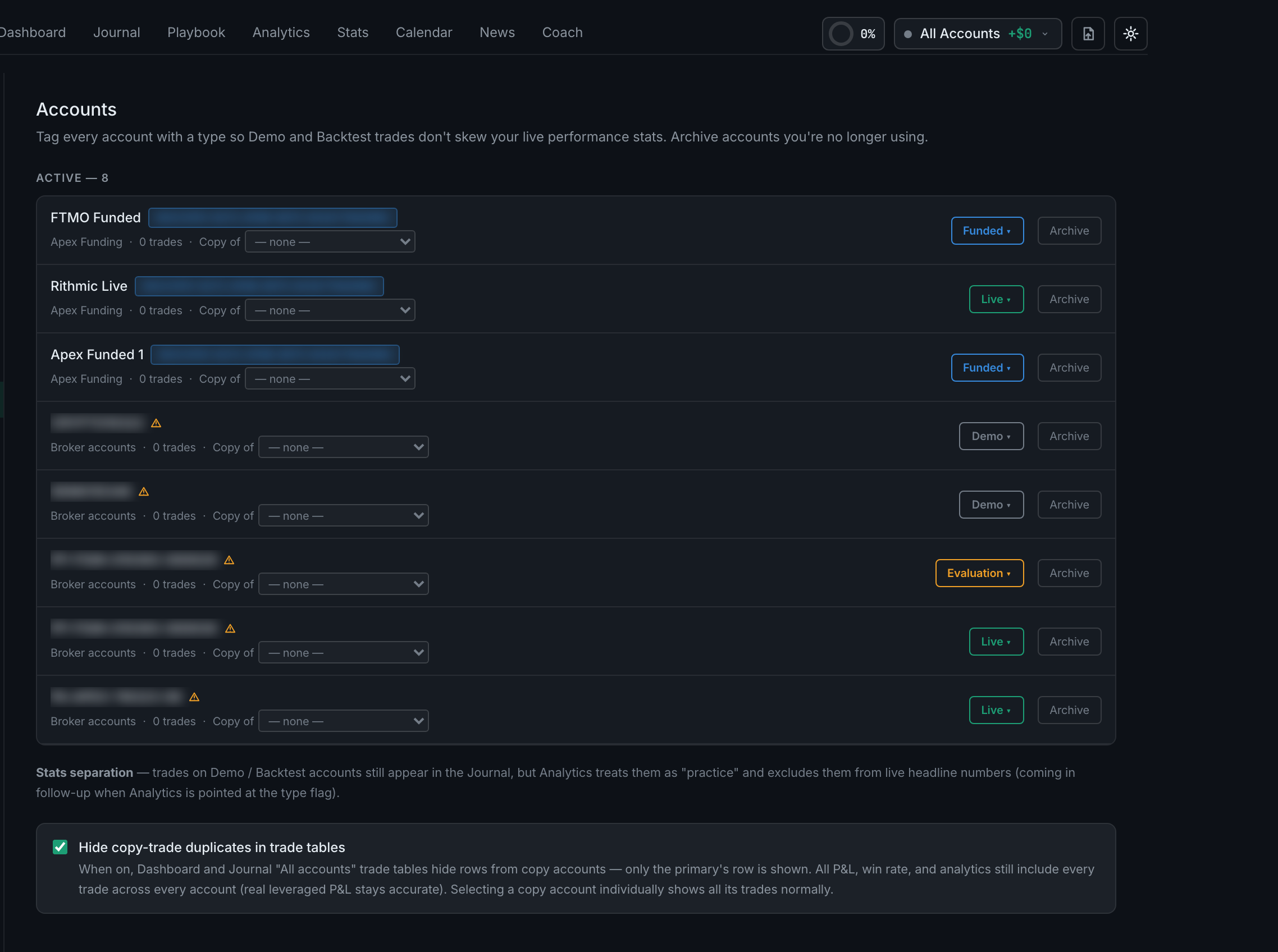
You do not set it by hand — there is no field for it anywhere in the app. An account's balance is your realized P&L on it, unless a connected broker is reporting a real figure or the account was auto-detected from a prop firm, in which case the detected size is used as the base.

Settings → Accounts, where your accounts and their types live
Read the full guide
What is the fastest way to get my existing trade history in?

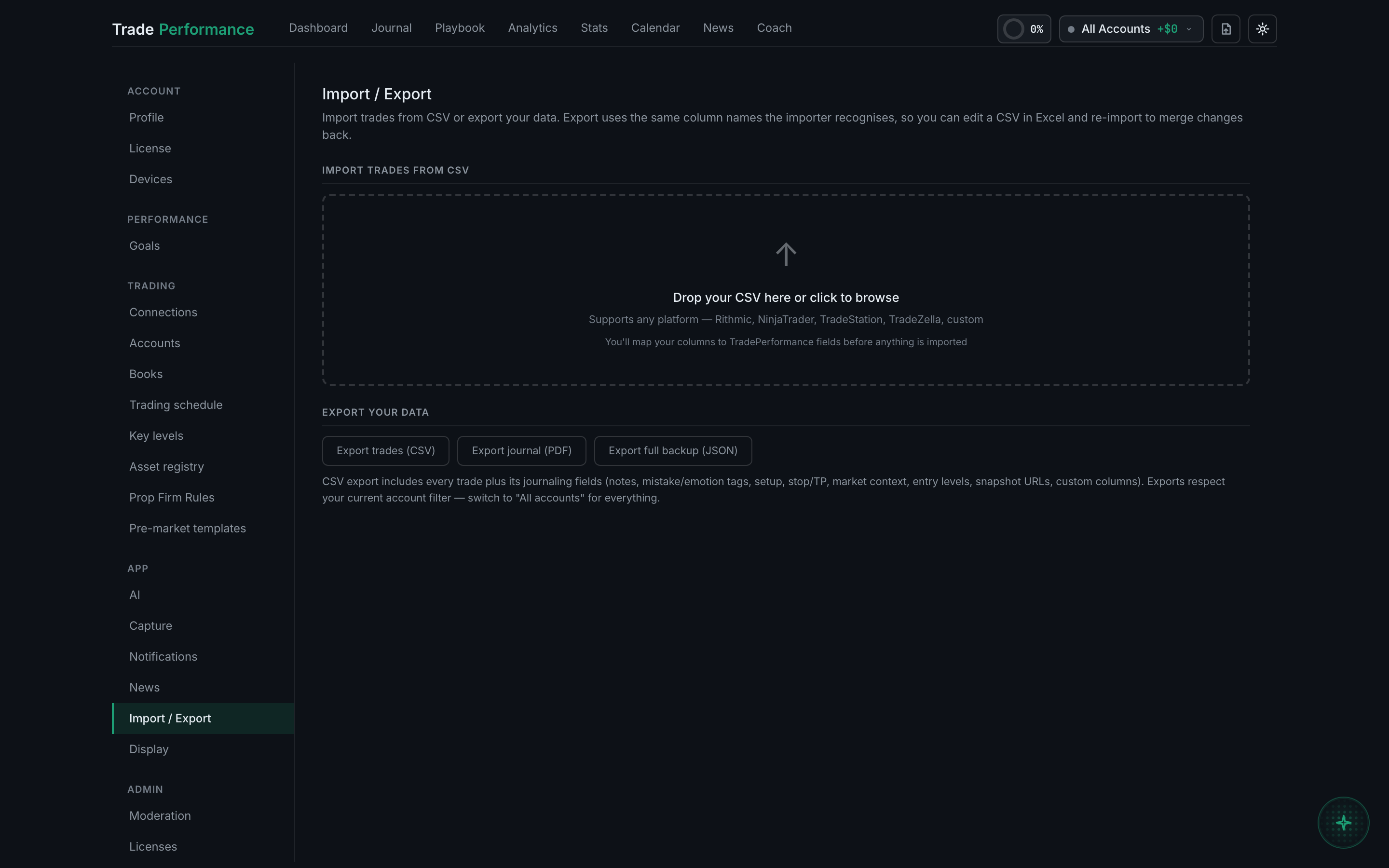
A CSV export from your platform, imported at Settings → Import / Export. It is the only route that moves months of history in one action.

Settings → Import / Export, where a CSV comes in and where an export goes out
Read the full guide
Do I need an AI key to use the app at all?

No. Every number, chart, statistic and report is computed from your own trades without any model involved. A key adds interpretation on top — the Coach, chart reads, weekly reports, auto-tagging — and nothing else changes.

Settings → AI, where a provider key is pasted and tested
Read the full guide

Devices and the trial

How many devices can I use one license on?

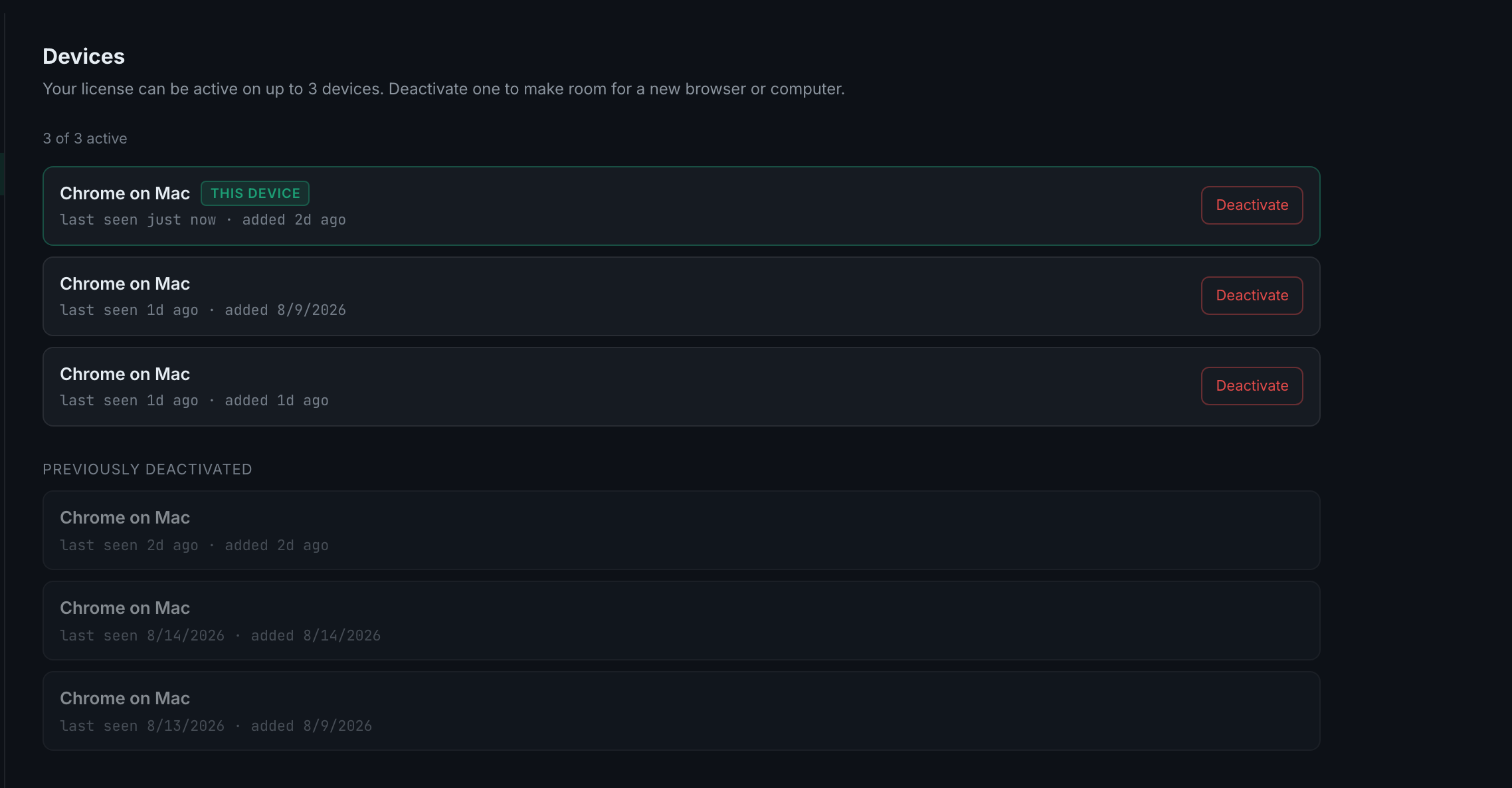
Three at a time. Settings → Devices lists them and shows the count as N of 3 active.

Settings → Devices: the three-device explanation and the list of what is using your slots
Read the full guide
I hit the device limit — how do I free a slot?

Press Deactivate on a device you no longer use. The slot frees immediately and the next sign-in takes it.

the device list, with last seen on every row
Read the full guide
Does deactivating a device delete anything?

No. Nothing at all. Your trades, settings, goals and licence are on your account, not on the device — a device is only a permission to reach them.

the deactivated devices are still listed, greyed out under **Previously deactivated**: a record, not a loss
Read the full guide
How long is the trial and what happens when it ends?

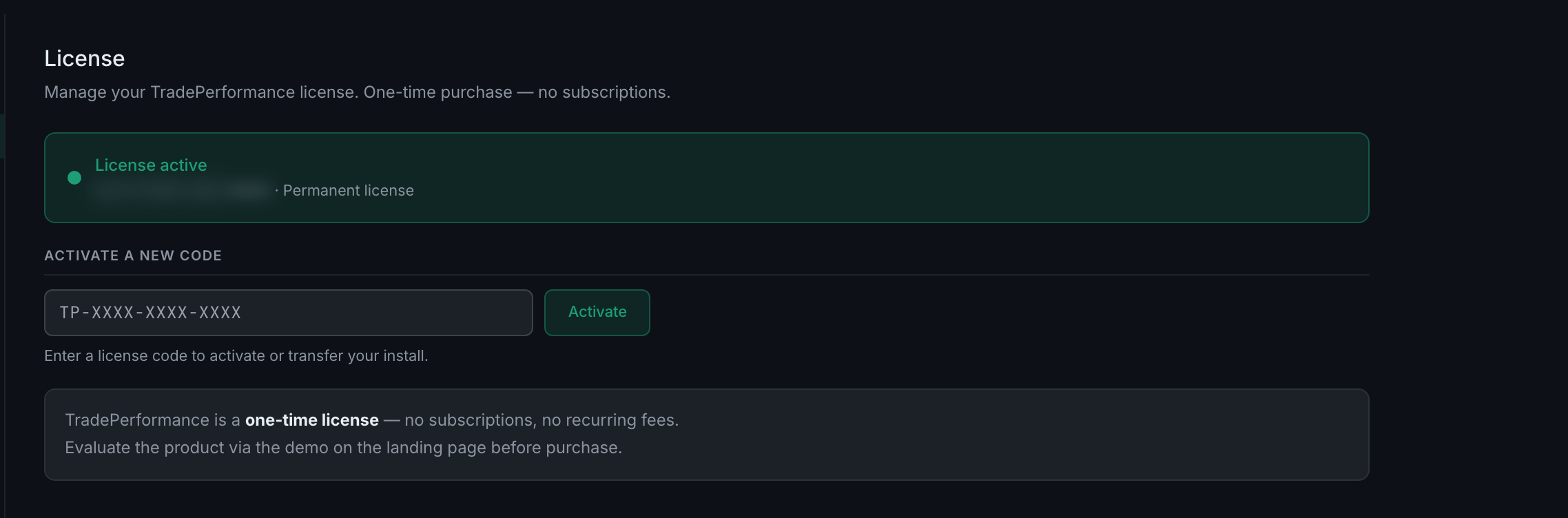
Fourteen days. When it ends the app shows a gate instead of the journal, offering to upgrade, with a Have a code? link for anyone holding one. Your trade data is not touched.

the License tab, which states the one-time licence in its own words
Read the full guide

Getting trades in

What are all the ways a trade can get into the app?

Six. By hand, by voice, by CSV import, from a connected broker, from a platform connector running inside your charting software, or from a TradingView webhook.
the + Trade button, in the day header row where it lives
Read the full guide