How do I create a setup?
Click + New setup on the My Playbook tab. Three steps: what it is, its rules, then risk and session. Only the name is required.
The three steps are ordered by how much you are likely to know. The first is what the setup is, the second is how you know you are looking at one, and the third is the risk shape you expect from it — which is the part people usually fill in later.
You can stop after step one. A named setup with nothing else filled in is already enough for the Journal to filter by and for Analytics to group on. The rules matter for the AI health check, which has nothing to check without them.
Step by step
- Open Playbook from the menu across the top, and stay on the My Playbook tab.

the Playbook link in the top navigation, highlighted - Click + New setup.

the + New setup button above the setup list, highlighted - Step 1 — Basic info. Give it a name, which is the only required field: Next stays disabled until you type one. Then pick a direction — long, short or both — the asset classes it applies to from futures, equities, forex and crypto, and write a description of a sentence or two.
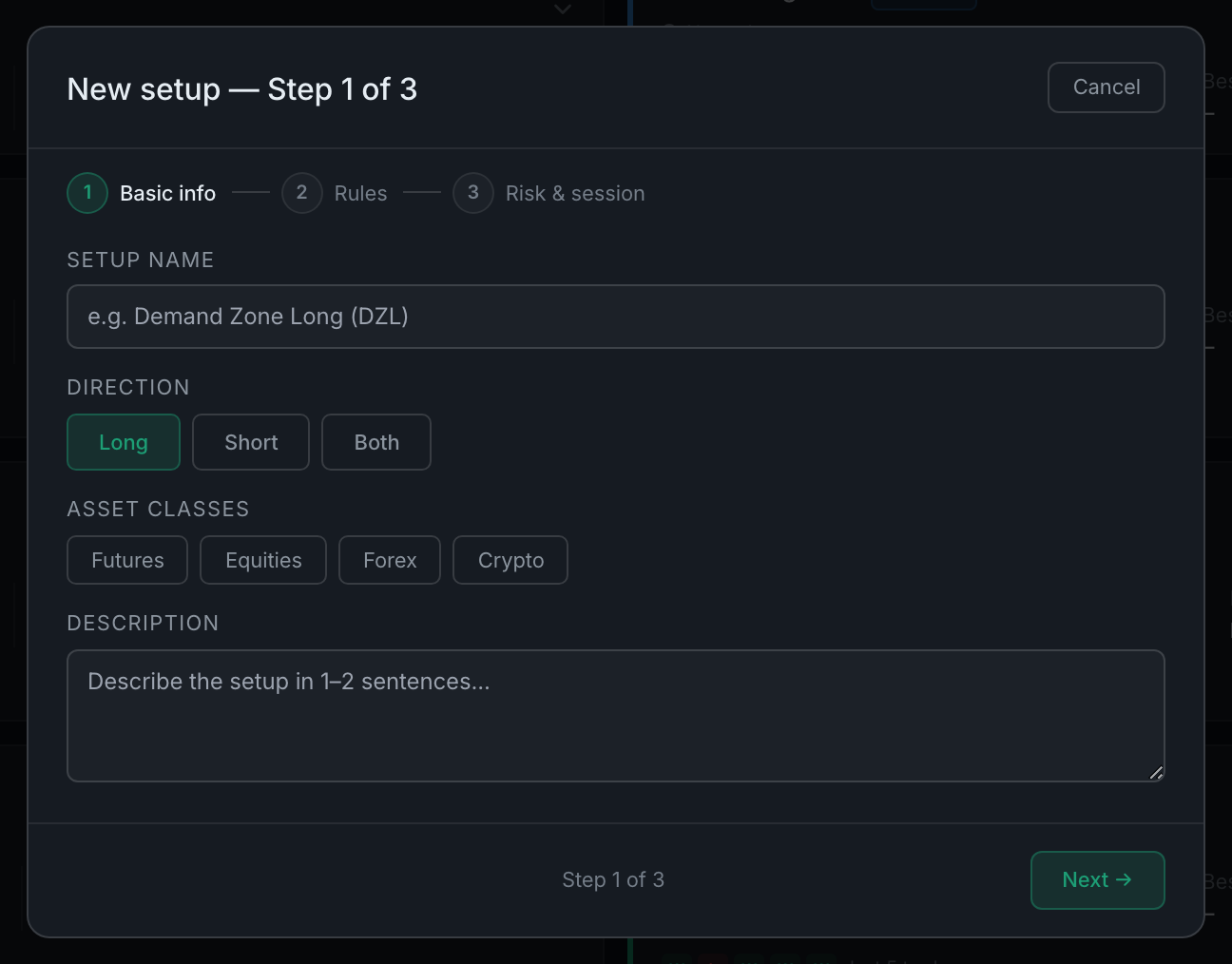
step 1 of the new-setup form, with name, direction, asset classes and description - Step 2 — Rules. Add your entry rules one at a time, pressing Enter after each: the conditions that have to be true for this to be your setup. Then add a confirmation checklist — the things that must be true before you enter. The two lists are stored separately and the health check reads both. On the expanded card afterwards the second list is headed Pre-trade checklist; it is the same list under a different name.
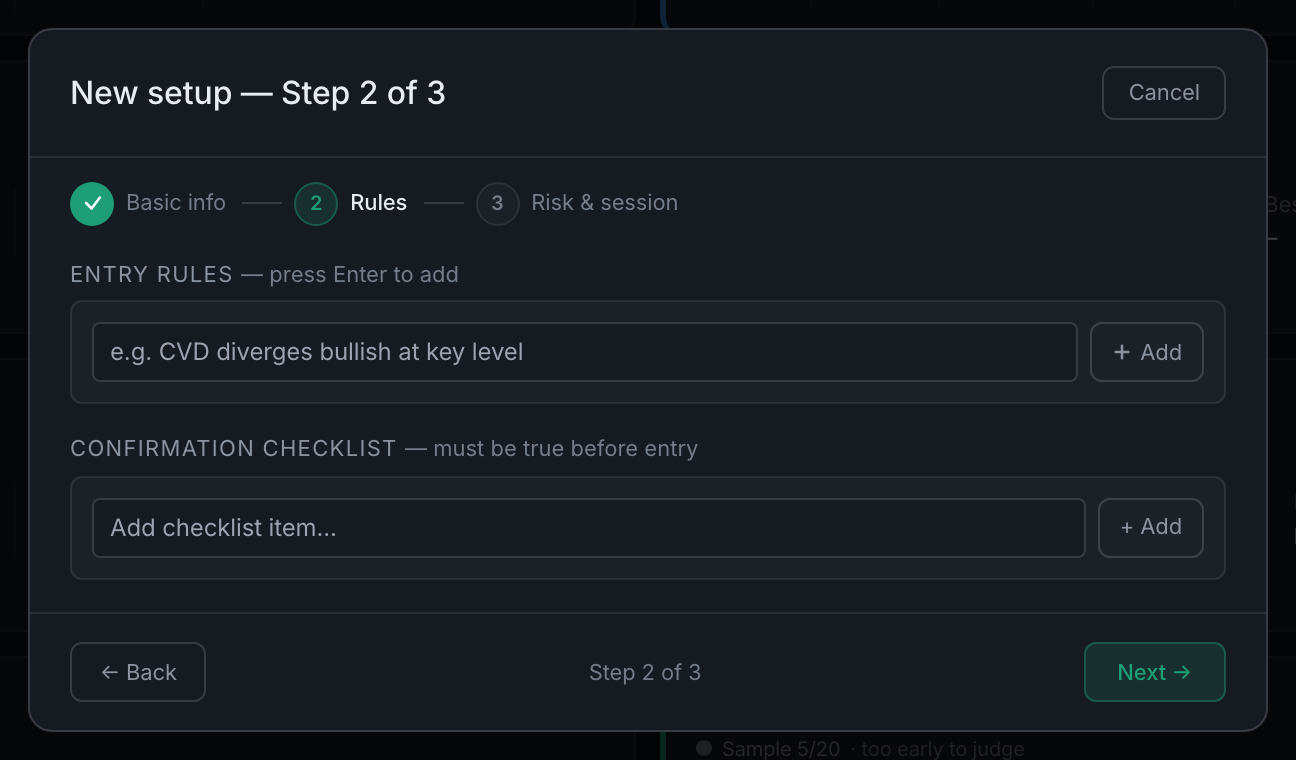
step 2, with the entry rules and confirmation checklist lists - Step 3 — Risk & session. Optional, all of it: stop distance and TP1 distance in ticks, a minimum and maximum R:R, max contracts, your best session, and any initial notes on what you know about the setup so far.
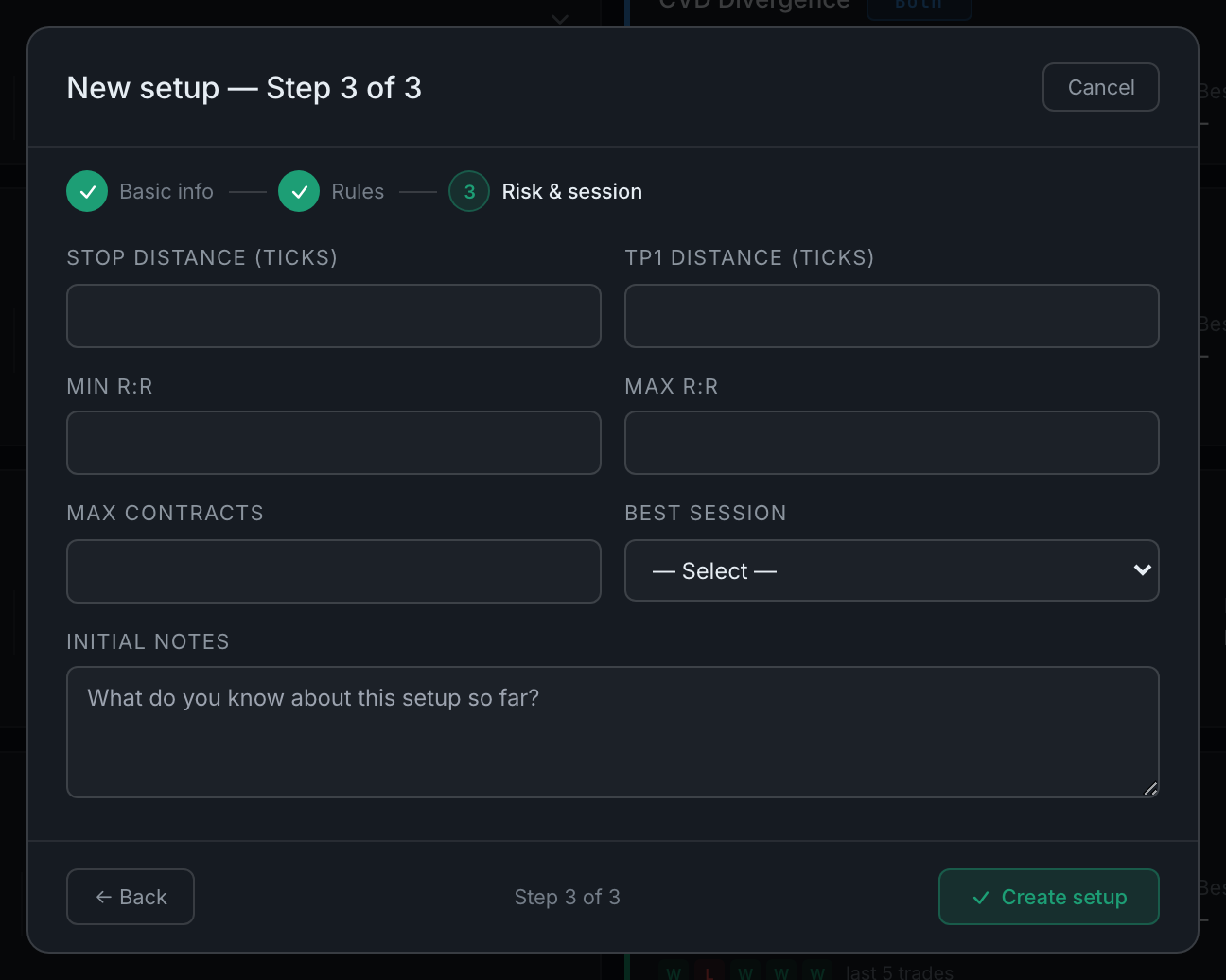
step 3, with the risk figures and the best-session picker - Click Create setup. It appears as a card on the My Playbook tab, and the setup's name is now available in the Setup dropdown on every trade.
Rules and checklist items are rewritten each time you save, so editing a setup and saving it keeps whatever is in those lists at that moment.