What is the Playbook for?
It is where you write down the setups you trade, with their entry rules and checklist, so the rest of the app can measure your trades against your own plan.
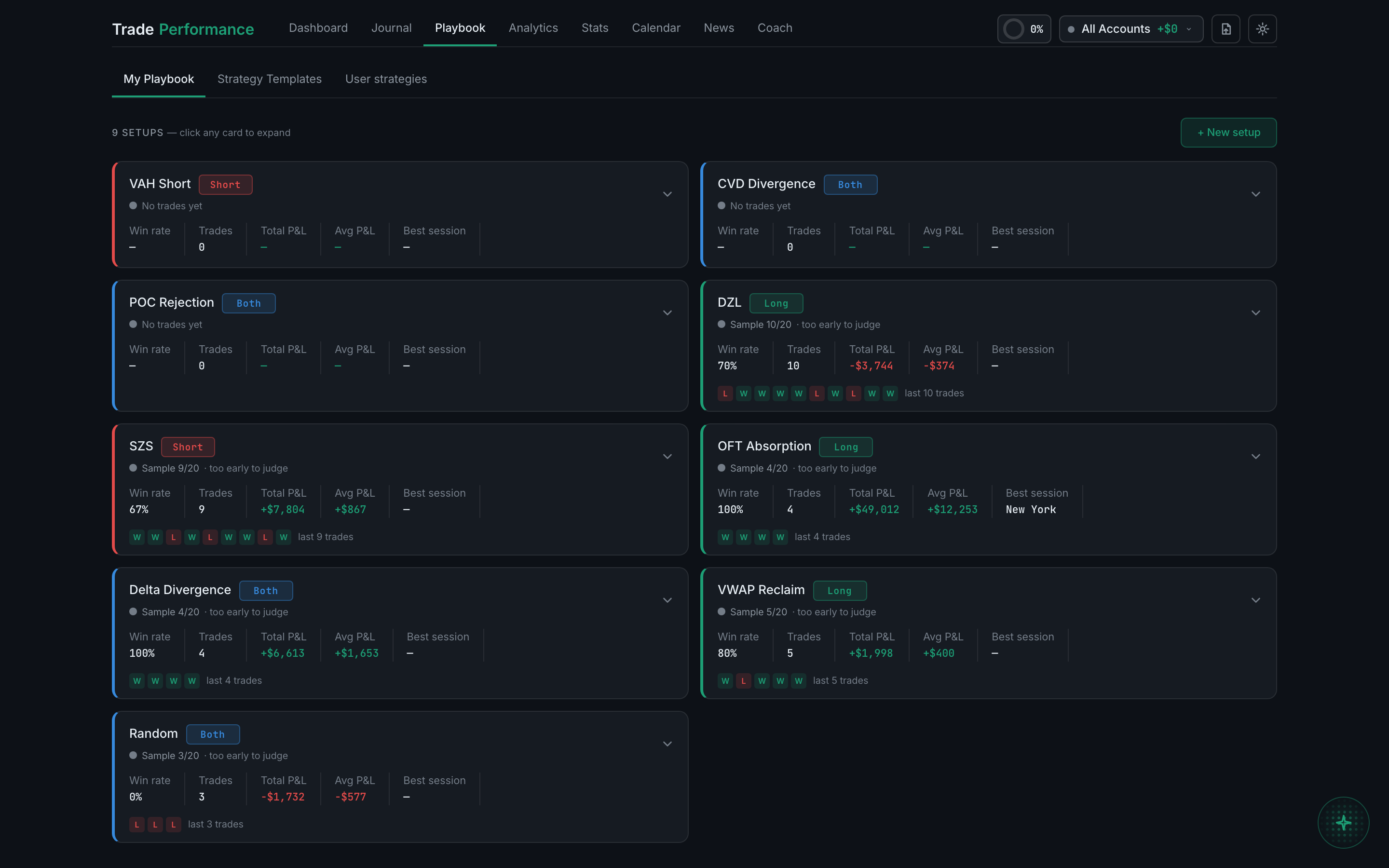
Your setups live here — the strategies you have decided to trade, written down with their entry rules and a confirmation checklist. The Playbook is the half of the app that says what you meant to do, so that everything else can measure what you actually did against it.
A trade that came from a plan and a trade that came from boredom look identical in a P&L column. The Playbook is what tells them apart.
Every setup you write down becomes a thing the rest of the app can group by. Filter the Journal to one setup and you see only those trades. Open Analytics and your setups are scored against each other. Turn on the Grade column and one of the five things it checks is whether the trade was in your playbook at all.
There is one setup you did not create, called Random. It is the bucket for trades that were not part of any plan, and Analytics uses it as the control group — your playbook trades on one side, your random ones on the other. You cannot edit it, remove it, or share it, because it is not a strategy; it is the absence of one.
Three things to know before you start.
No questions on this page match that. Search all 15 areas
The My Playbook tab lists every setup you have as a card. Click a card to expand it.
It is where you write down the setups you trade, with their entry rules and checklist, so the rest of the app can measure your trades against your own plan.
Win rate, trade count, total and average P&L, your best session and a strip of recent results — plus a coloured verdict, which only appears once the setup has 20 trades behind it.
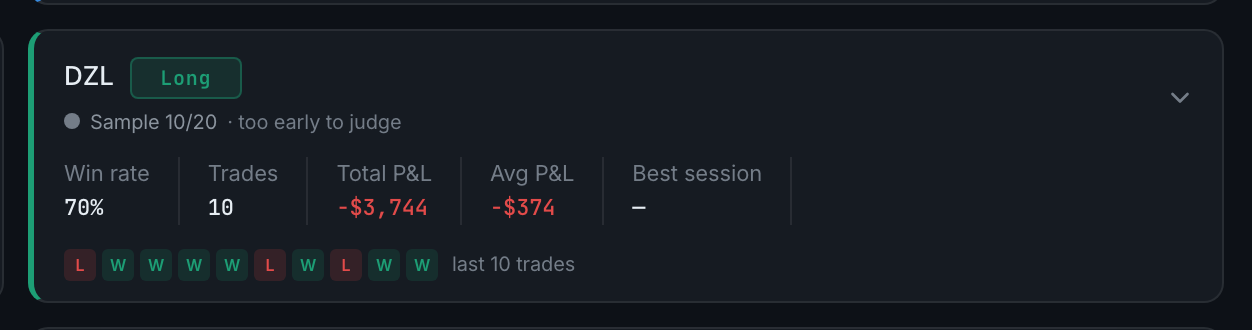
The range your true win rate is probably in. A wide range means you do not have enough trades to know yet, however good the headline number looks.
Click + New setup on the My Playbook tab. Three steps: what it is, its rules, then risk and session. Only the name is required.

Expand the card. Edit setup reopens the same three-step form. Remove does one of two things depending on whether anything uses the setup: it deletes an unused one, and archives one your trades reference. Either way your history keeps its setup.
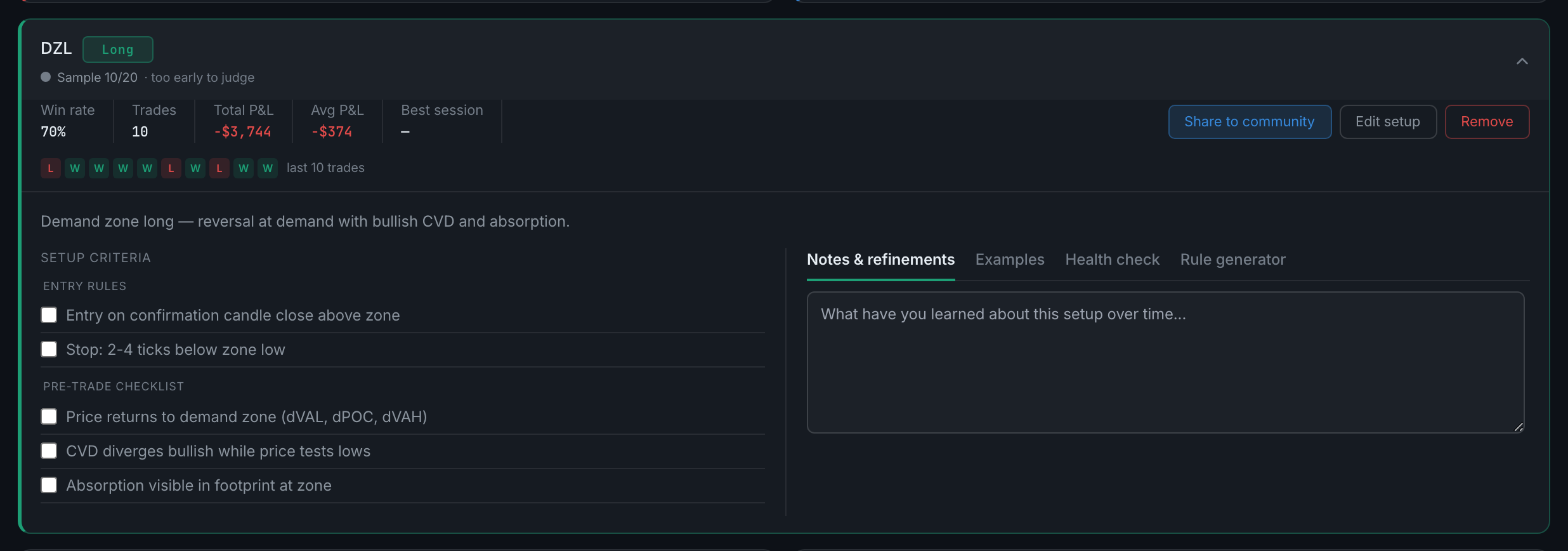
The bucket for trades that were not part of any plan. Analytics uses it as your control group, and it cannot be edited, removed or shared.
Read the full guideTwo tabs sit beside My Playbook: Strategy Templates, which ships with the app, and User strategies, which is what other traders have published.
Ready-made setups grouped into categories, each with its entry rules and checklist already written. Import one and it becomes yours to edit. The tab shows how many there are.
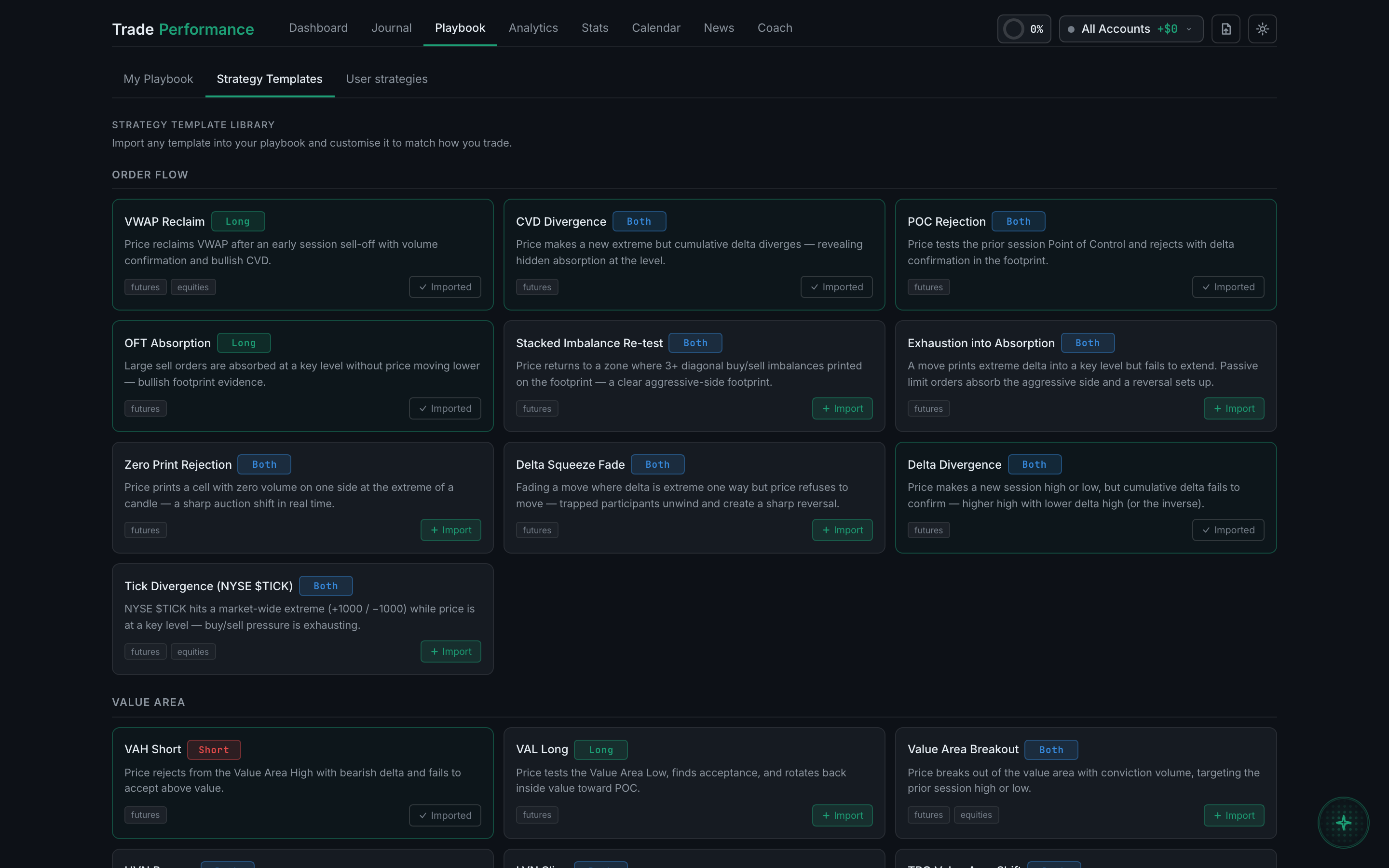
Open Strategy Templates, find one, and import it. It lands in My Playbook with its rules and checklist already filled in.
Expand the setup and click Share to community. It publishes a copy of the setup — never your trades or your P&L.
The User strategies tab. Expand one to read its rules, then click Import to my Playbook — you get your own editable copy.

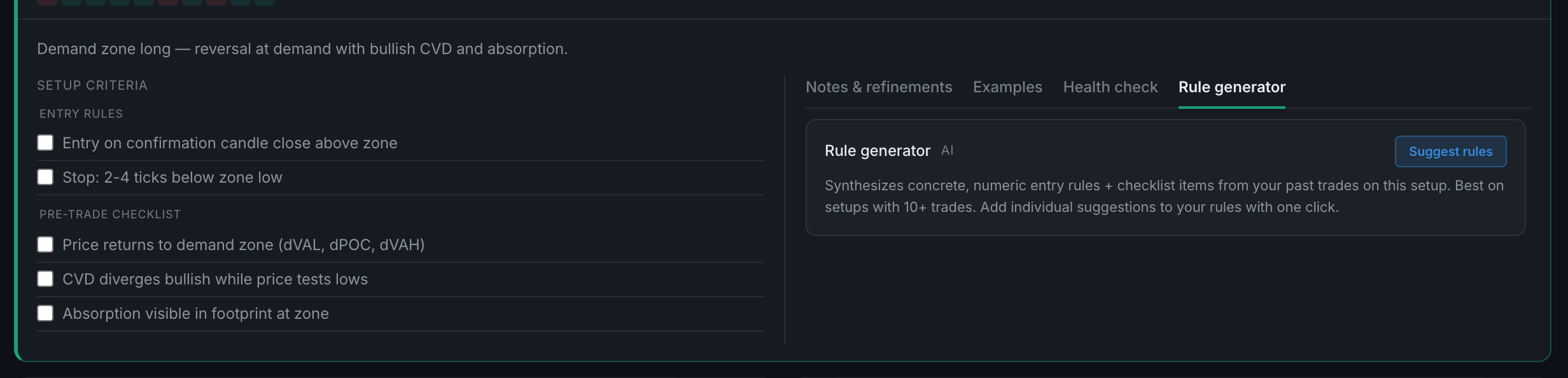
Expand any setup and the right-hand side of the card has four tabs: Notes & refinements, Examples, Health check and Rule generator. The last two need an AI key.
An AI pass that reads your entry rules and checklist against your actual trades on that setup, and marks each rule Enforced, Inconsistent or Broken.
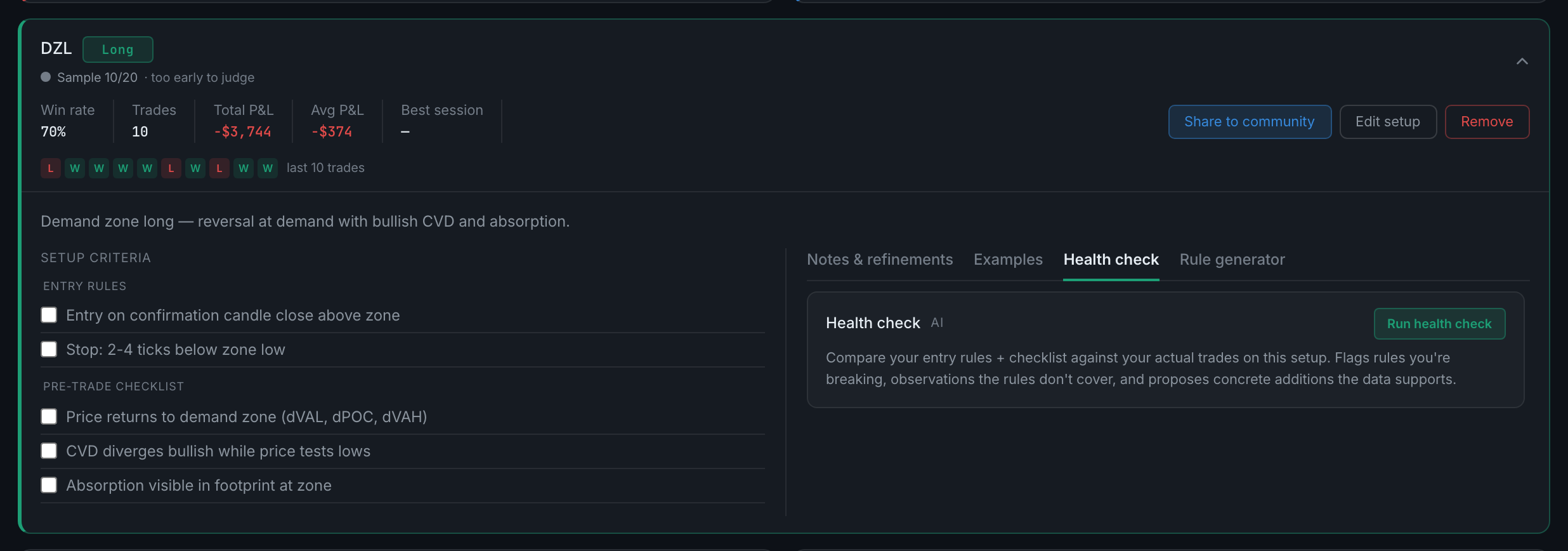
Three to run at all, and twenty before it stops calling itself provisional.
Read the full guideBecause your rules or your trades have changed since the last run. The cached result is still shown, but it was written about a state you are no longer in.
Read the full guideAn AI pass that proposes entry rules and checklist items from your trades on the setup. You accept the ones you want, one at a time.
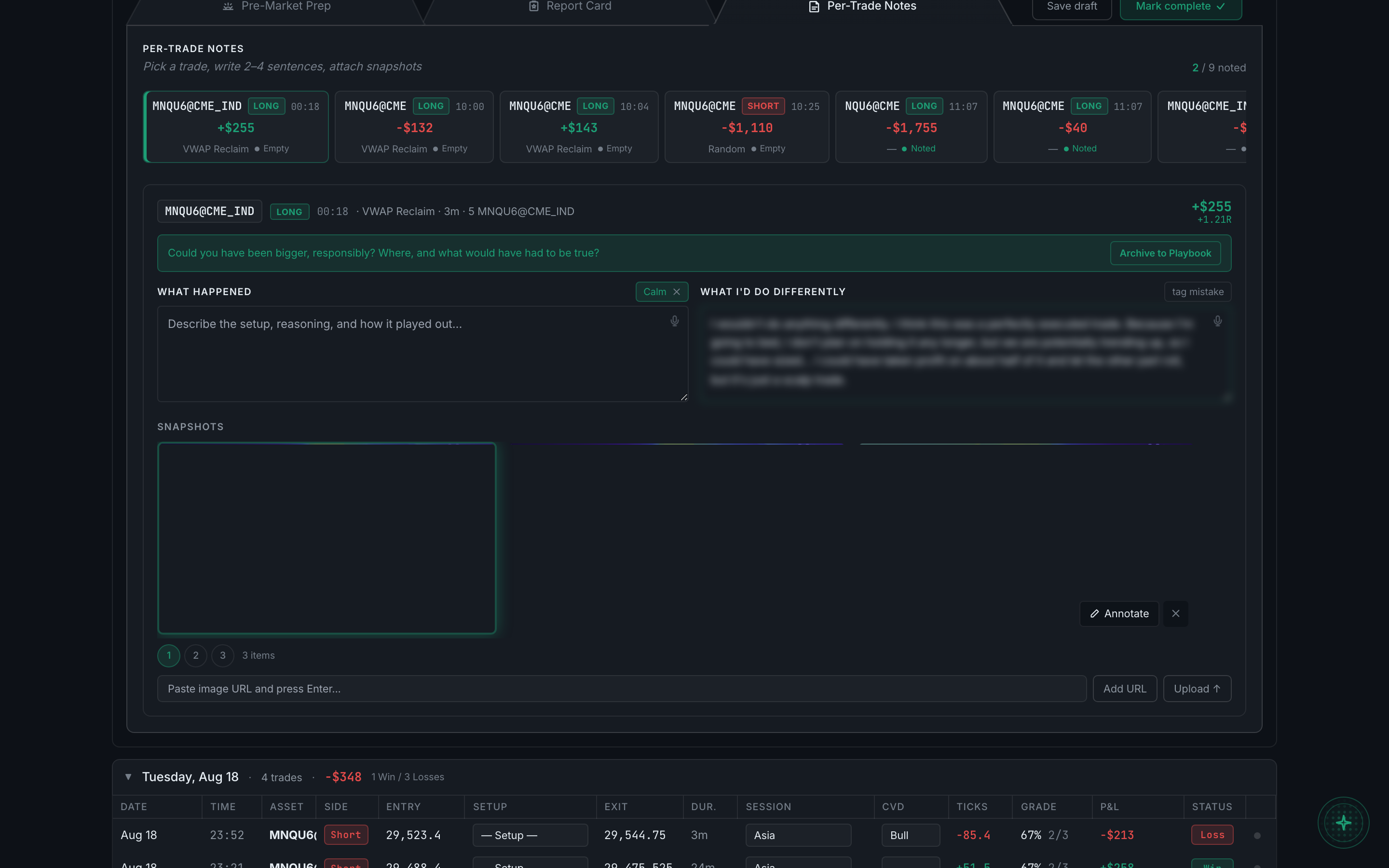
From a day's debrief, on the Per-Trade Notes tab, using Archive to Playbook. The trade then shows under that setup's Examples tab.