How do I share a setup to the community?
Expand the setup and click Share to community. It publishes a copy of the setup — never your trades or your P&L.
Sharing publishes the setup's name, direction, asset classes, description, entry rules and checklist. Nothing about your account goes with it: not your trades, not your win rate, not your P&L. The modal lists exactly what is going out under What you're sharing, including the counts of rules and checklist items, and you have to tick the community content policy agreement before it will publish.
What you publish is a copy and it stays a copy. Editing your setup afterwards does not change anyone's imported version, and their edits never touch yours.
Your own strategies are marked YOURS in the list. You cannot upvote them, and the import and report controls do not appear on your own.
Step by step
- On My Playbook, expand the setup you want to publish.
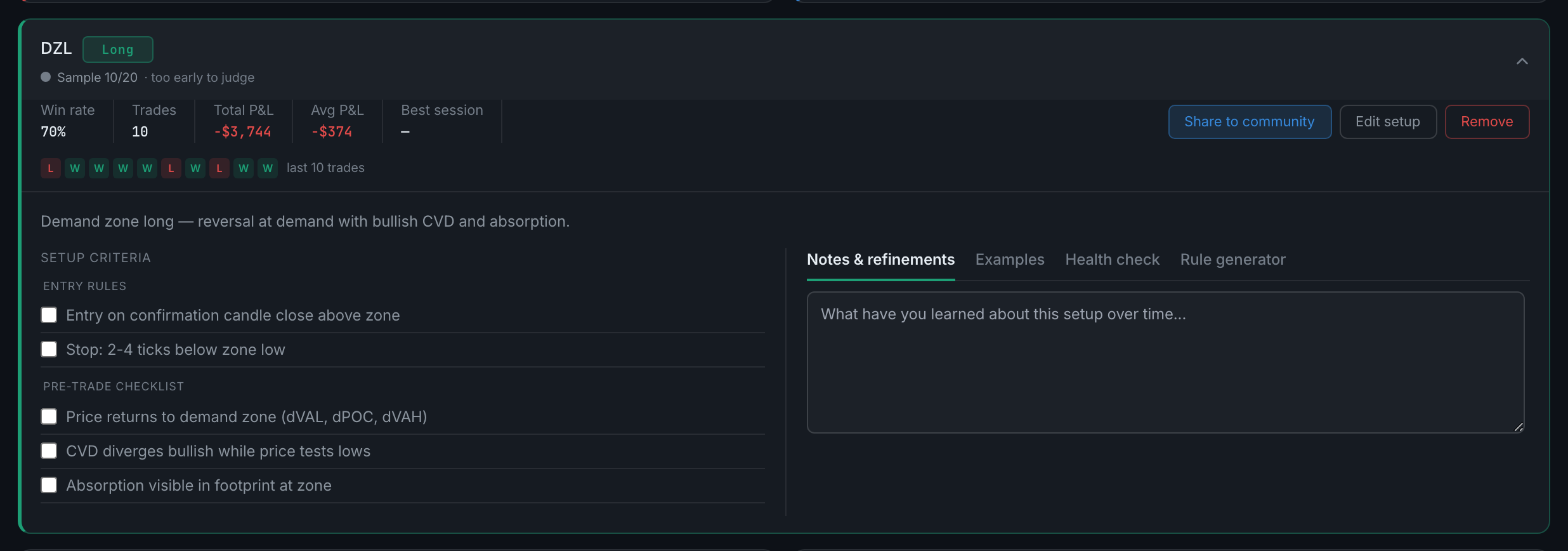
the Share to community button on an expanded setup - Click Share to community.
- Check the title and the description, and read What you're sharing — the direction and the rule and checklist counts going out with it.
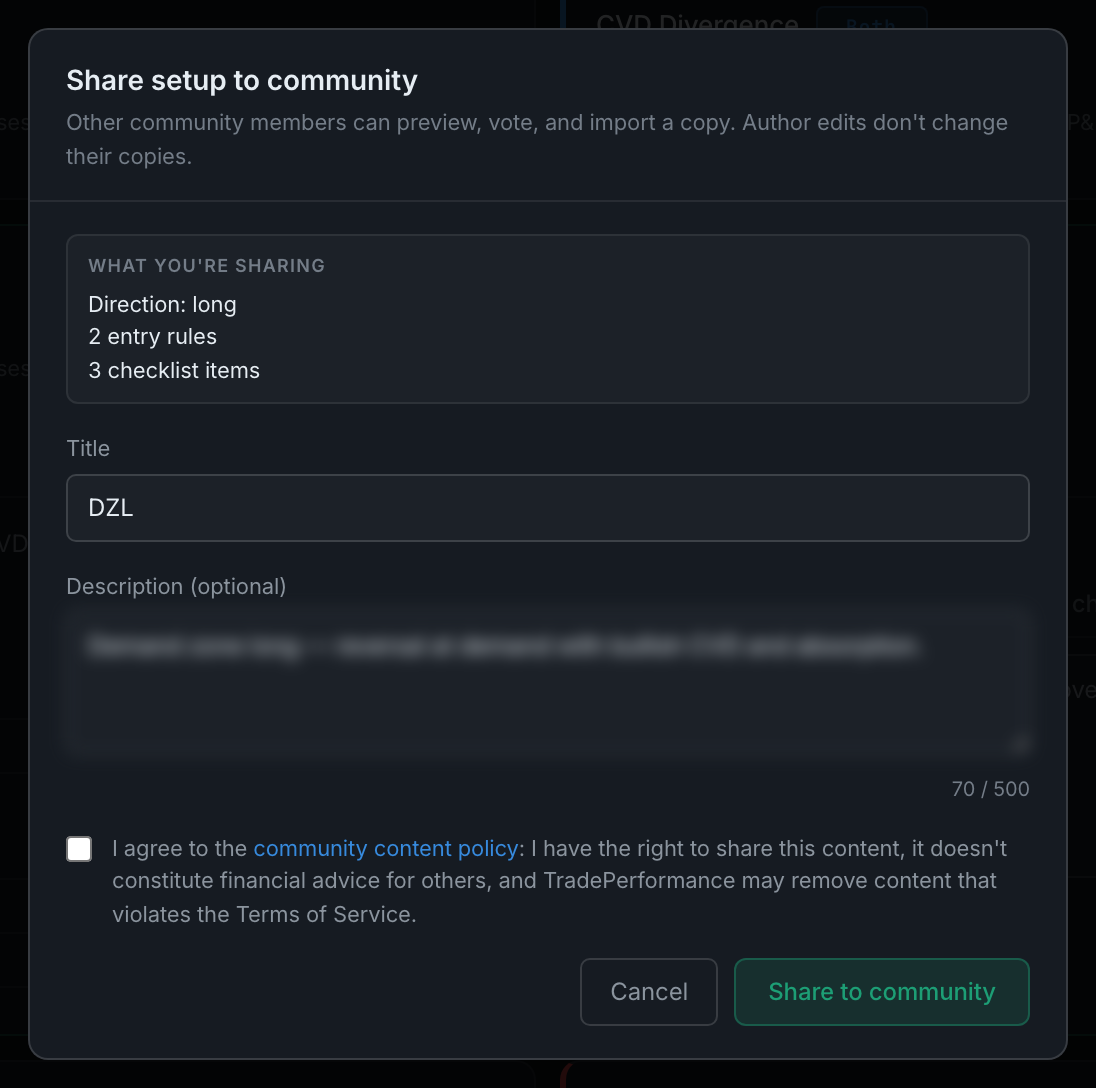
the share modal, listing exactly what is published - Tick the content policy agreement, then click Share to community to publish.
If you would rather the community was not part of your playbook at all, it can be switched off for your account, and then neither the tab nor the Share button appears.