How do I set up a snapshot webhook?
Settings → Connections → Snapshot webhook. Click to expand, press Generate Snapshot Webhook URL, and paste the address into the ready-made snippet for your platform. There is a Test webhook button that tells you whether the token works and which trade a snapshot would land on — before you send a real one.
Despite being about screenshots, this lives on the Connections tab rather than this one, alongside the other integrations that receive data from outside the app.
Generating the URL creates a token unique to you and embeds it in the address. Treat that URL as a secret — anyone holding it can write images into your account. Two copy buttons are offered: Copy takes the whole URL, and Token takes the token alone, for tools that prefer to assemble the address themselves.
Four snippets are provided, tabbed, each already filled in with your own URL:
- cURL / BashThe general case, and the one to test with by hand.
- AutoHotkey (Windows)A complete script binding F9 to "screenshot the primary screen, send it". Uses the
curlthat ships with Windows 10 and 11, so there is nothing to install. - Hammerspoon (macOS)The same thing in Lua for
~/.hammerspoon/init.lua, bound to ⌘⌥9, with a confirmation alert on success. - JSON / HTTPThe raw request shape, for wiring into anything else. The image goes in as a base64 data URL.
Both payload shapes carry an optional time field. Send it as an ISO 8601 timestamp for when the screenshot was actually taken; leave it out and the upload time is used instead. It only matters if your tool queues uploads.
Test before you trust it. Test webhook sends a dry run — no upload, nothing written — and reports one of three things. Green means the token is valid and names the trade a real snapshot would attach to. Amber means the token is valid but nothing is in the matching window right now, which is the expected answer when you are not in a trade. Red means the token is wrong or has been revoked.
If the URL leaks, Revoke & Regenerate — at the foot of the expanded card, under the snippets — invalidates it immediately. You are asked to confirm, and the old address stops working the moment you do, so update your scripts with the new one.
Step by step
- Open Settings and choose Connections in the left sidebar. Find the Snapshot webhook card and click it to expand.

Settings → Connections: the Snapshot webhook card, collapsed, with its one-line description and its status - If you have never set one up, click Generate Snapshot Webhook URL. Your own URL appears, with Copy and Token buttons beside it — and a Test webhook button underneath.
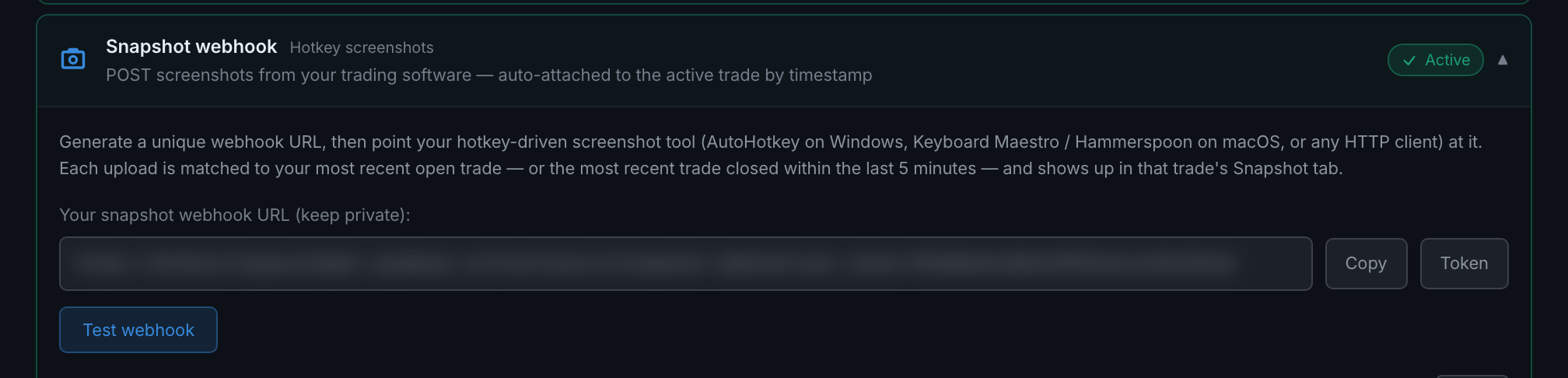
the expanded card: the generated webhook URL with its Copy and Token buttons, and the Test webhook button below it (the URL is blurred here — yours is a secret) - Click Test webhook. Green means the token works and names the trade a snapshot would land on; amber means it works but nothing is in the matching window right now.
- Pick the tab for your platform and copy the snippet. It already has your URL in it.

the four snippet tabs — cURL / Bash, AutoHotkey, Hammerspoon and JSON — the ready-to-paste command with the URL blurred, and Revoke & Regenerate below - Bind it to a key in your screenshot tool, take a trade, and press the key.