TradePerformance

Capture

A screenshot of the chart you were looking at when you took the trade is the one piece of evidence a journal cannot reconstruct afterwards. Capture takes it for you — automatically, at the moment of the fill, from the monitor you nominate — and attaches it to the right trade without you touching anything.

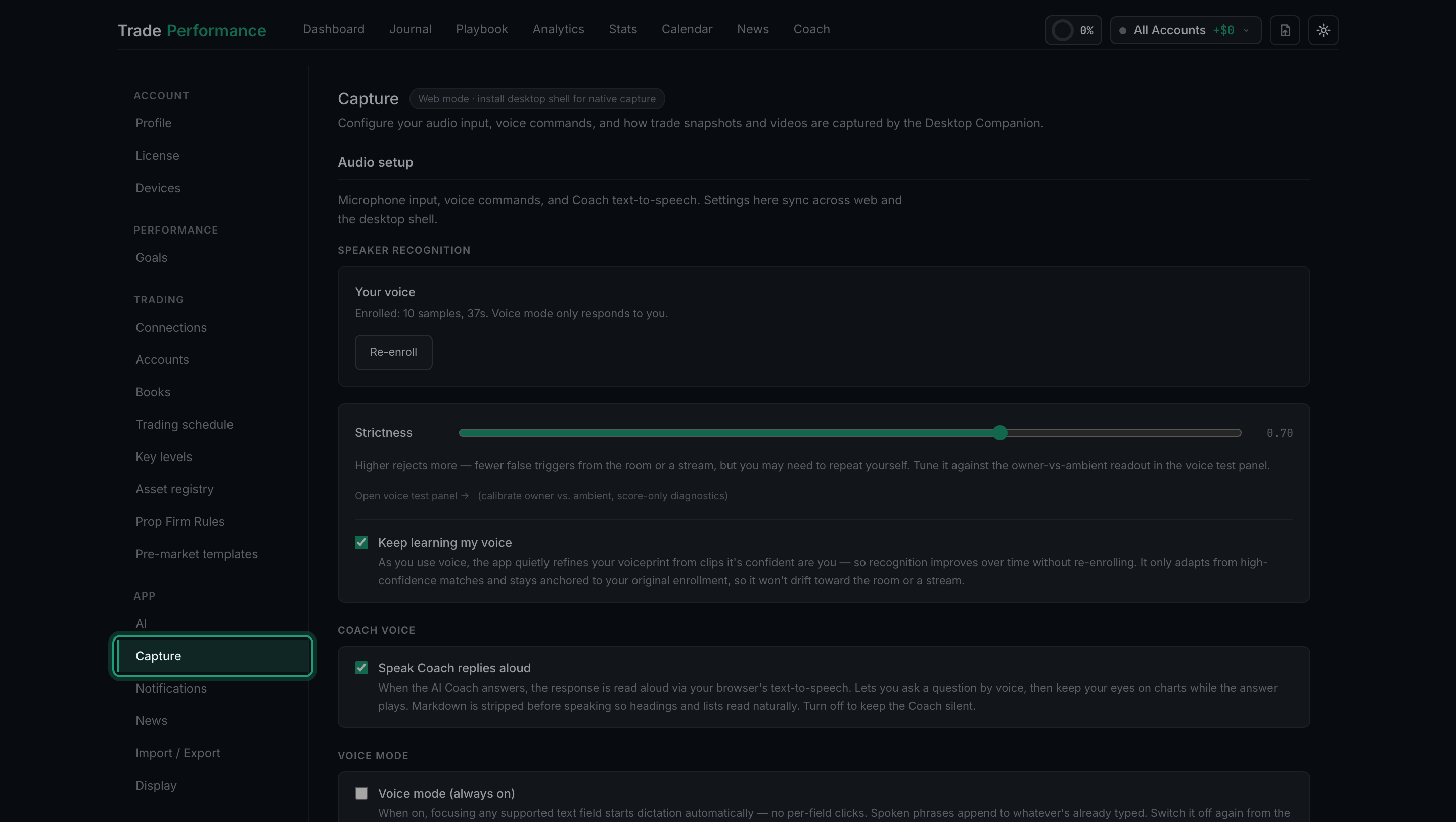
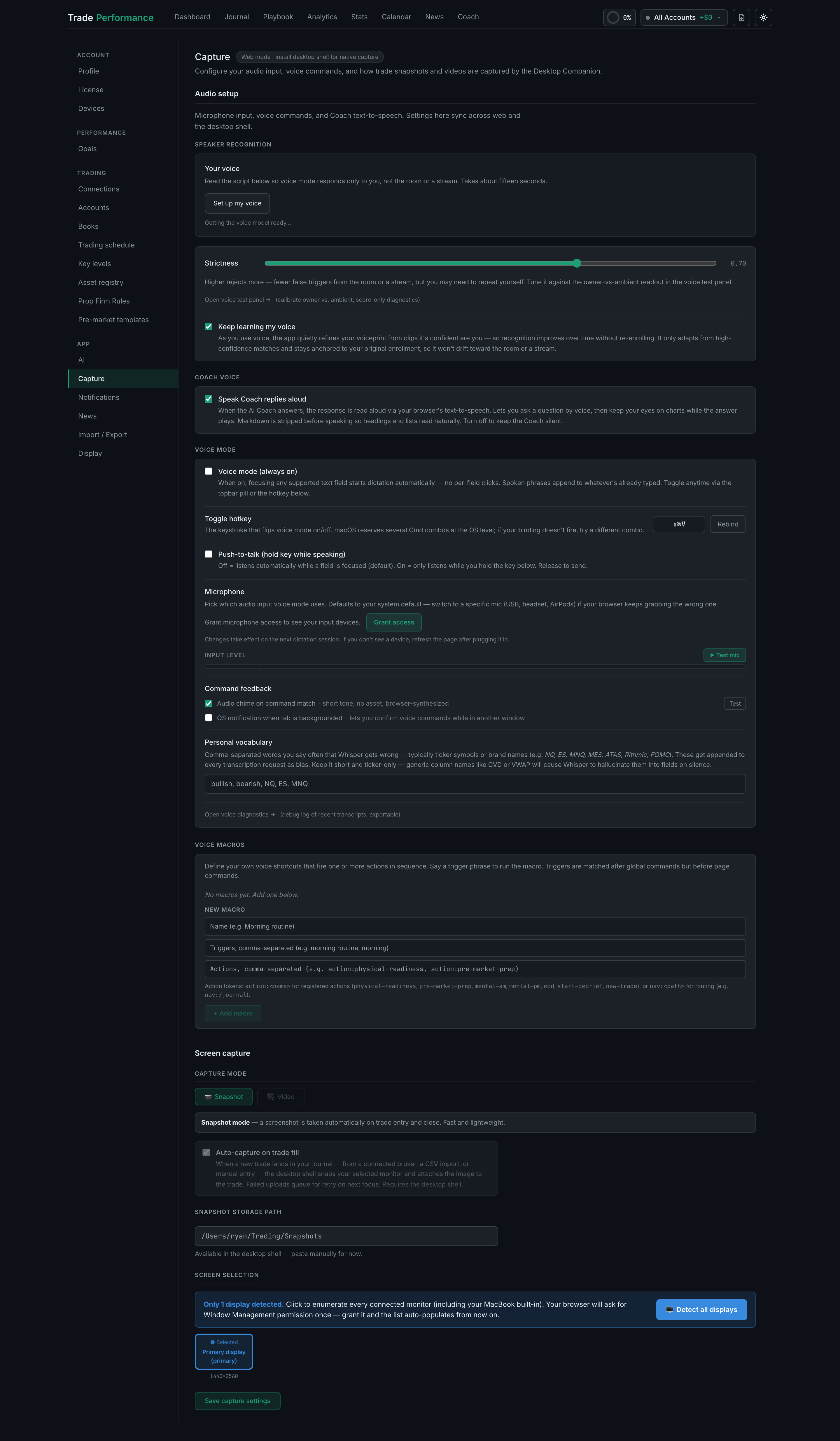
Everything on this page is configured in one place: Settings → Capture, under App in the sidebar. The tab has two sections. Audio setup at the top is voice mode, covered in Voice. Screen capture below it is this page.

Settings → Capture: the whole tab, with the sidebar showing Capture under App, Audio setup at the top and Screen capture below it

What the app captures

What can the app capture automatically — pictures, video, or both?

Both, but not at the same time, and neither happens in a browser tab. Capture mode is a choice between 📷 Snapshot — a still of your screen at entry and at close — and 🎥 Video, a clip covering the whole trade. Snapshot is the default. Automatic capture of either kind runs in the desktop companion only.


the Capture mode row: Snapshot selected, Video dimmed, and the description of the selected mode below
Read the full guide
What can't a web app capture, and what does the desktop companion add?

A browser tab can only photograph itself. It cannot see your trading platform, your charts, or any other window on your machine — that is a security boundary in the browser, not a missing feature. The desktop companion is what does the actual capturing.

the Auto-capture on trade fill toggle, dimmed in the browser with the note that it requires the desktop shell
Read the full guide
Why would I capture a whole screen instead of one chart?

Because the reason you took the trade is rarely all in one chart. A full-screen shot catches the higher timeframe, the order-flow pane and the depth ladder that were also on your desk — and the AI chart read is built to use every one of them.

Screen selection, where you nominate the display the whole arrangement sits on
Read the full guide
How do I capture multiple charts at once for multi-timeframe analysis?

Put them on one monitor and point capture at that monitor. There is no multi-chart setting to switch on — a full-screen capture of a four-panel template is the multi-timeframe capture, and the chart read handles it panel by panel.

Read the full guide

Setting capture up

What are the capture modes and when does each fire?

Snapshot fires twice per trade — once when the trade appears, once when it closes. Video marks the entry when the trade appears and cuts the finished clip a set number of seconds after the close. Neither fires at all unless Auto-capture on trade fill is ticked.

the Settings sidebar with Capture ringed, in the App group below Trading
Read the full guide
How do I choose which screen or display gets captured?

Under Screen selection. If the app only lists one display, click 🖥 Detect all displays and grant the permission your browser asks for — your monitors then appear as tiles, and you click the one running your platform. A blue border and a brief pulse confirm the pick.

Screen selection showing the single-display notice and the Detect all displays button
Read the full guide
Where are my snapshots stored, and how do I change the location?

In the cloud, on your account, always. The Snapshot storage path field sets an additional local folder the desktop app mirrors each still into — it is a backup, not the primary location, and leaving it blank costs you nothing.

the Snapshot storage path field with its placeholder and the note about the desktop shell
Read the full guide
Where are my videos stored, and how do I change the location?

On your own drive, and only there. Save videos to offers Local only, Cloud only and Both — but Cloud and Both are marked Coming soon and cannot be selected. Video archive folder sets where on disk the clips go.

Read the full guide

Snapshots from your trading platform

When should I use a snapshot webhook instead of screen capture?

Use the webhook when you want to take the picture yourself, at a moment of your choosing, with a hotkey — or when you are not running the desktop companion at all. Automatic capture fires at the fill; the webhook fires whenever you press the key.

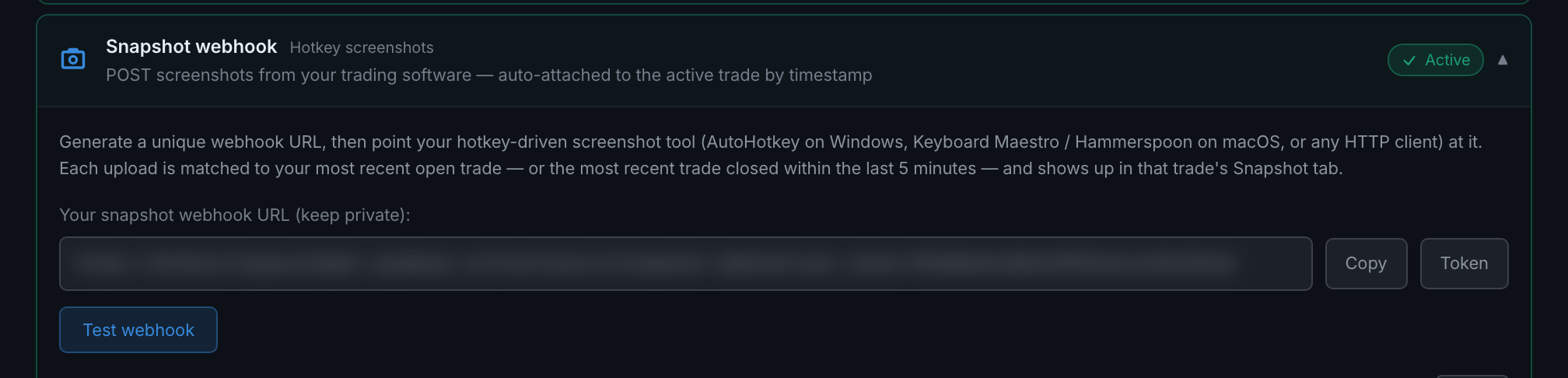
the Snapshot webhook card on Settings → Connections, the other way a screenshot reaches a trade
Read the full guide
How do I set up a snapshot webhook?

Settings → Connections → Snapshot webhook. Click to expand, press Generate Snapshot Webhook URL, and paste the address into the ready-made snippet for your platform. There is a Test webhook button that tells you whether the token works and which trade a snapshot would land on — before you send a real one.

Settings → Connections: the Snapshot webhook card, collapsed, with its one-line description and its status
Read the full guide

Where each picture lands

How do captured images get attached to the right trade?

Two different ways. An automatic capture is fired by a specific trade, so it is attached to that trade with no guessing. A webhook upload has to be matched by clock: your open trade first, otherwise a trade that closed within the last five minutes.

the webhook's own explanation of how it picks a trade: the open one, or one closed in the last five minutes
Read the full guide
What happens to snapshots that don't match a trade?

They are kept, not discarded — and the Dashboard shows an amber banner offering to attach them by hand. Nothing you send is thrown away for failing to match.

Read the full guide