Can I change which columns the panel shows?
Yes — Columns in the panel header. It is the same chooser as the Journal, and the choice applies to both.
Set your columns once and both pages follow. There is no separate Dashboard column setting.
Step by step
- Columns is the right-hand one of the three controls in the Recent trades header.

the Columns button highlighted in the Recent trades header - Click it. The chooser opens beneath, in three sections.
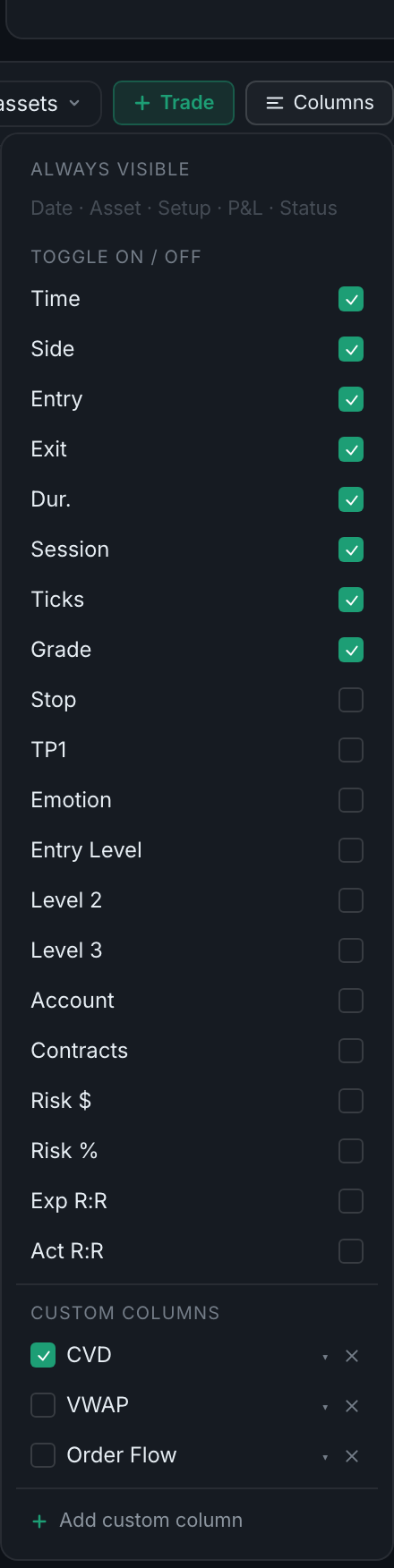
the column chooser open, showing its three sections - Always visible at the top lists the six that cannot be turned off: Date, Asset, Setup, Side, P&L and Status.
- Toggle on / off below it holds everything else the app tracks — Time, Entry, Exit, Duration, Session, Ticks, Grade, Stop, TP1, Emotion, Entry Level and Levels 2 and 3, Account, Contracts, Risk $, Risk %, Exp R:R and Act R:R. Tick or untick any of them and the table updates immediately.
- Custom columns is the last section — any column you made yourself, each with a ▾ to edit its options and an ✕ to delete it.
Because the setting is shared, a column you turn on here to check something is still on next time you open the Journal.