Can I filter the panel?
Yes, by instrument — the All assets button, the same popover the Journal uses, including its Apply step.
Step by step
- All assets is the left-hand one of the three controls in the Recent trades header.

the All assets button highlighted in the Recent trades header - Click it. The popover opens beneath the button.
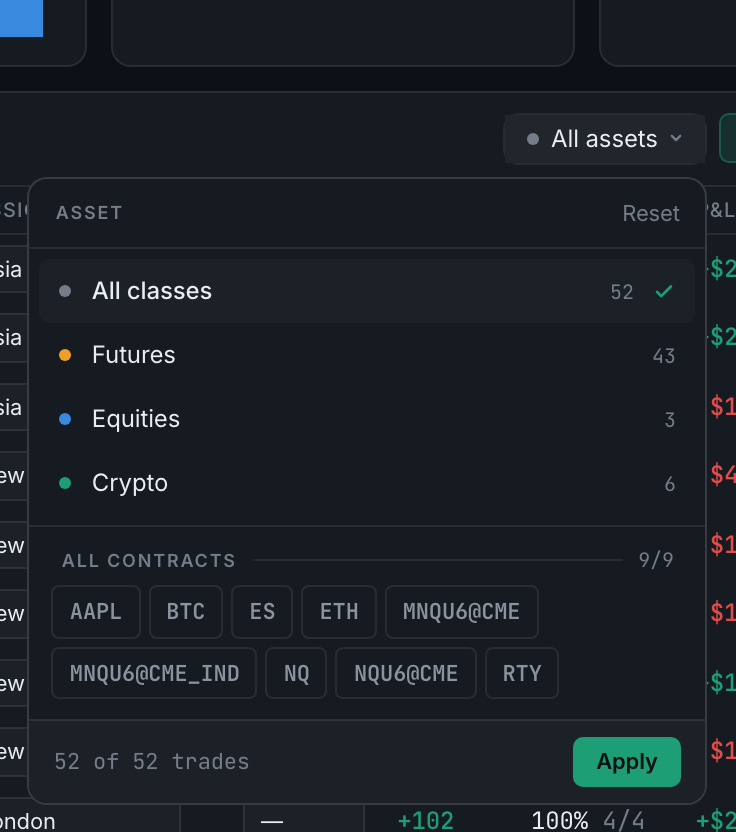
the asset popover open, with classes, contract chips and Apply - Pick an asset class, or tick individual contracts. The running count at the foot tells you what you are about to narrow to.
- Click Apply. Nothing filters until you do — closing the popover without pressing it changes nothing.
This filter is shared with the Journal too, so narrowing here narrows there.
The other filters — account, setup, session, result, tags — are not on the Dashboard. Those live behind the Journal's Filters and Tags buttons.