How do I open a trade from the Dashboard?
Click anywhere on its row in Recent trades. The full detail panel opens at the foot of the panel, below the last row, without leaving the Dashboard.
This is the point of having the real table here rather than a summary. The most common thing you want from the Dashboard is to write up the trade you just took, and that should not mean navigating to another page first.
Step by step
- Find the trade in the Recent trades list. The newest is at the top.

a trade row in the Recent trades panel, highlighted - Click the row — anywhere on it except a dropdown cell, which edits that cell instead of opening the trade.
- The detail panel opens at the foot of the Recent trades panel, under the last row — not under the row you clicked, which is worth knowing when you pick one near the top and nothing appears to happen. The panel header names the instrument, side, contracts and the entry-to-exit times, with the trade's P&L and R-multiple on the right.
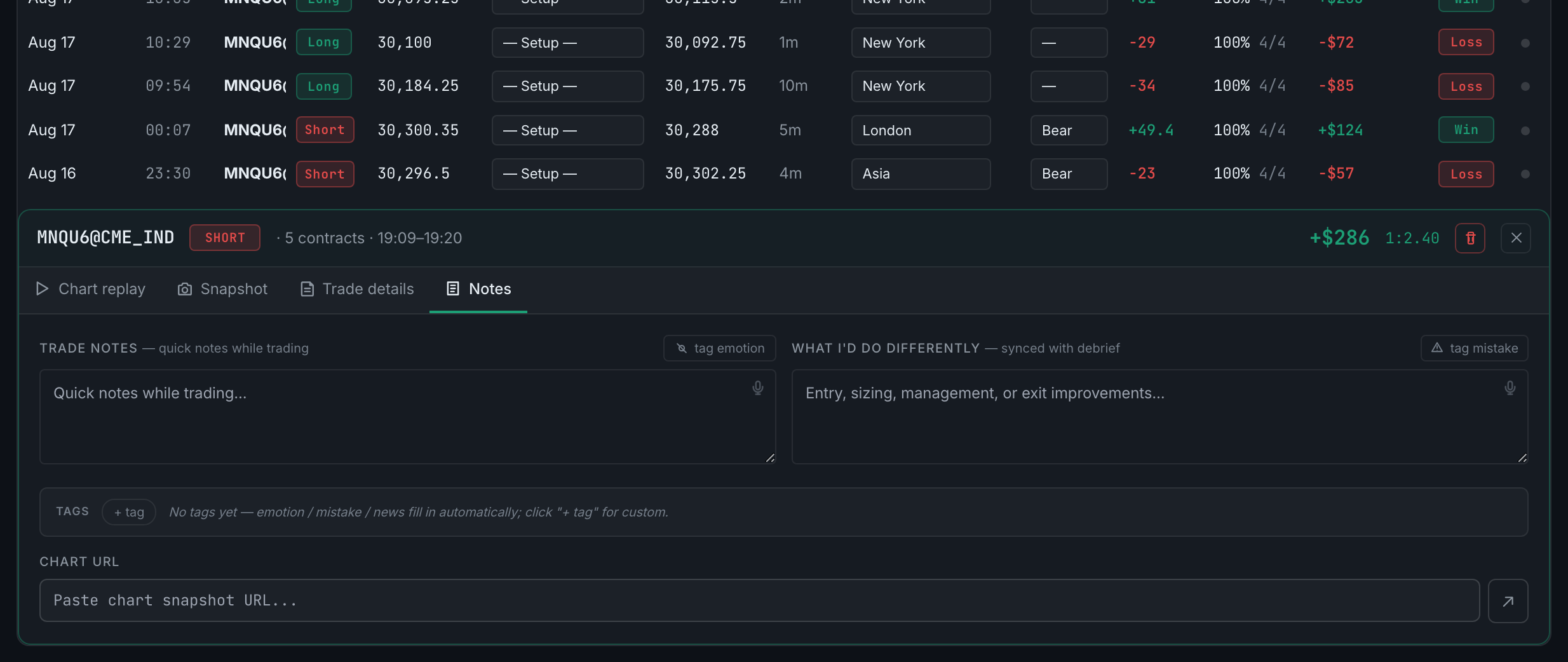
the trade detail panel open at the foot of the Recent trades panel - Work through the four tabs. They are covered in What are the four tabs on a trade?
- Close it with the ✕ at the top-right of the panel header, or click the row again.
The panel is the same one the Journal opens, with the same tabs and the same editing. A trade you write up here is written up everywhere. The one difference is where it appears: the Journal opens it directly beneath the row you clicked, and the Dashboard puts it below the whole list.