What are the four tabs on a trade?
Chart replay, Snapshot, Trade details and Notes — one for what the market did, one for your pictures, one for the numbers and context, one for what you thought.
The tabs run left to right in roughly the order you would use them when reviewing: see what happened, look at what you captured, check the numbers, then write down what you make of it.
Step by step
- Open a trade from Recent trades. The four tabs run across the top of the panel, and it opens on Notes.

the four tabs across the top of an open trade - Chart replay plays the real market around your trade — the historical bars for your instrument, with your entry and exit marked on them — so you can watch the move develop rather than look at a finished chart. Timeframes run from 1m to 1D, with drawing tools down the left and a playback bar along the bottom.dashboard/dash-19-tab-replaythe Chart replay tab open on a trade
- Snapshot holds the chart images attached to the trade, with drawing tools for marking them up. Clips recorded by the desktop companion appear here too, on the machine that recorded them.
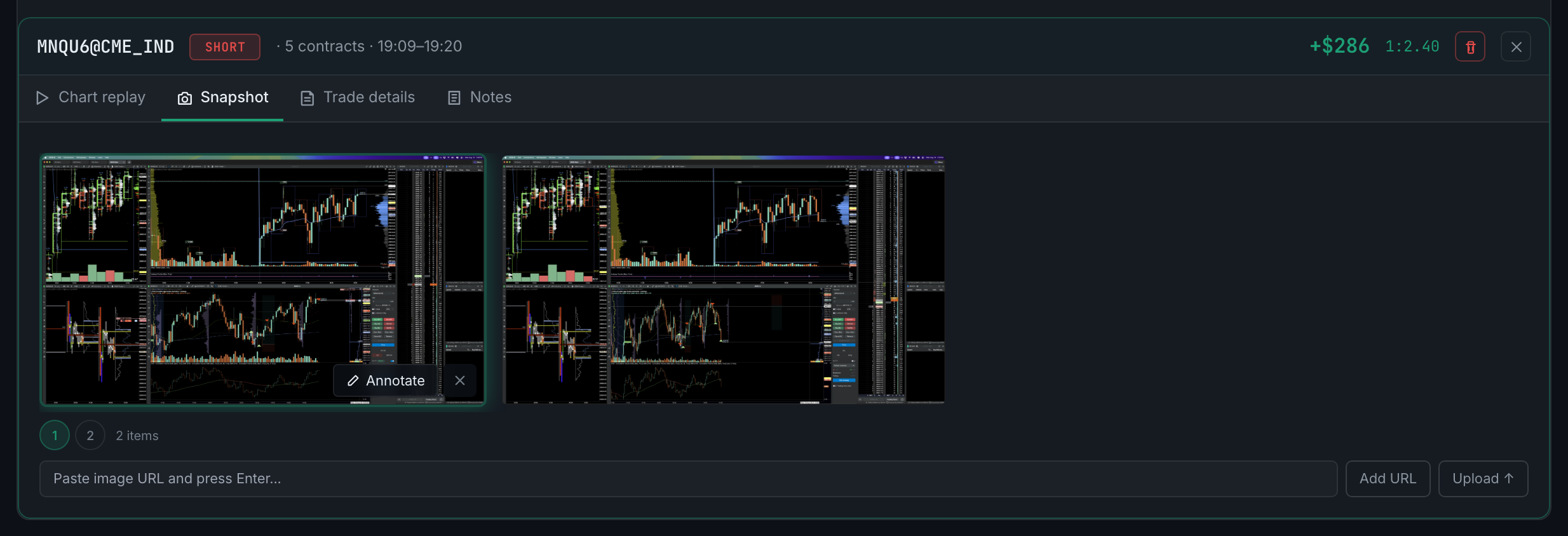
the Snapshot tab, showing the images attached to the trade - Trade details holds the market context — CVD bias, VWAP position, order flow, your entry levels and any custom columns — plus the risk boxes. READ CHART lives here, and reads an attached image to suggest values for those context fields.
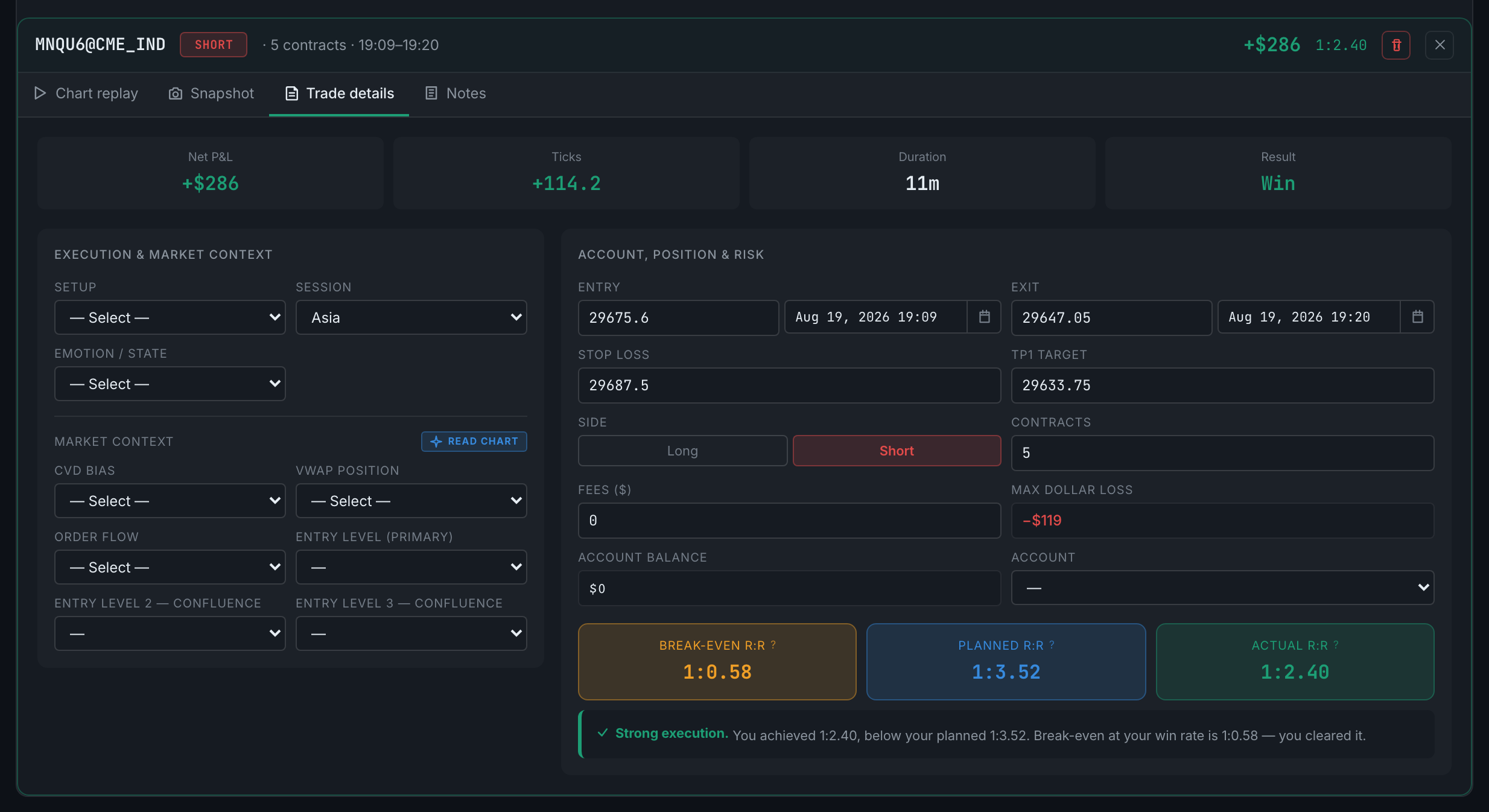
the Trade details tab, with the market context and risk figures - Notes is what happened, what you would do differently, an emotion tag and a mistake tag. This is the tab the Psychology analytics are built from.
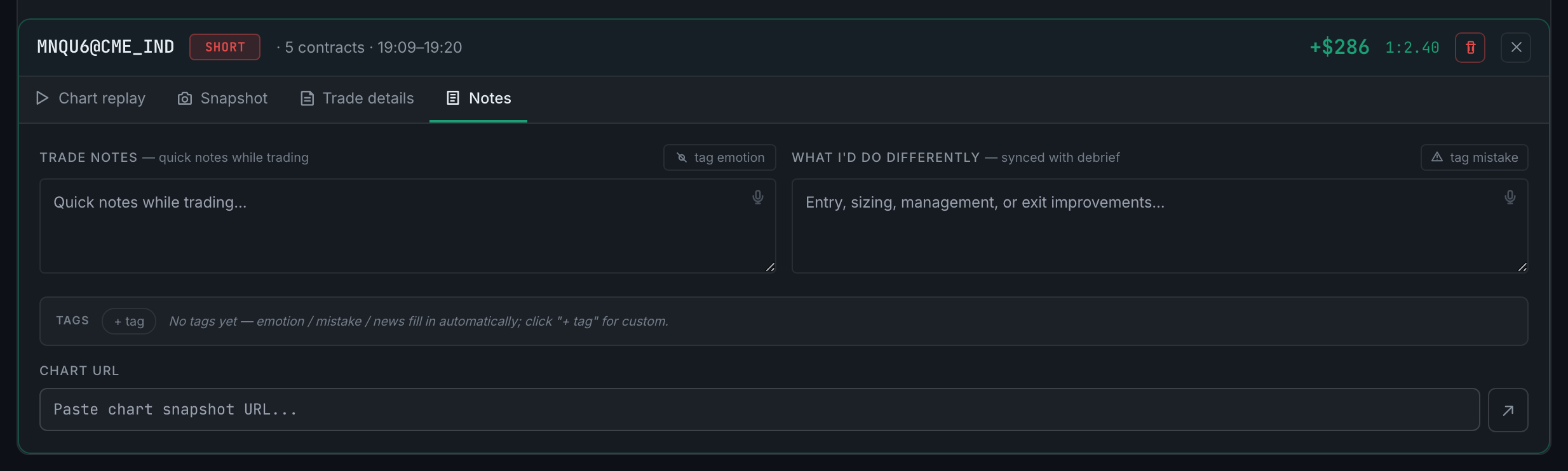
the Notes tab, with both writing boxes and the tag row
Every tab is editable from the Dashboard exactly as it is from the Journal. Prices and contract counts stay locked on trades that came from a CSV or a broker sync; everything you wrote yourself stays open forever.
And this panel is not the only way in. Much of what sits on Trade details — setup, session, emotion, CVD, VWAP, order flow, entry levels, stop, first target — can also be edited straight in the trade table, by clicking the cell. The panel and the table are the same data seen twice, so a change in one shows in the other immediately. The panel is the better place to work through a single trade; the table is the better place to fix the same field across a run of them. See editing a trade without opening it.
Each tab has its own guide under the Journal, where the same panel is reached from the trade list.