How do I find one specific trade?
Narrow the list with the filter buttons at the top-right — All assets, All time, Filters and Tags. They combine, so three clicks usually gets you to a single trade.
The Journal opens showing everything you have ever logged, which on a busy account is hundreds of rows. Rather than scrolling, you describe the trade you are looking for and let the page discard the rest.
The four buttons each cover a different kind of description.
- All assetsWhat you traded.
- All timeWhen you traded it.
- FiltersThe account it was on, the setup you were trading, the session, and whether the trade won or lost.
- TagsHow you felt, or what went wrong.
They are additive rather than exclusive. Choosing NQ does not clear your date range — it narrows within it. So the way to think about it is that you are peeling the list down, one description at a time, and the trade count on the left tells you how far you have got.
Step by step
- Click Journal in the menu running across the top of the screen.

the Journal link in the top navigation, highlighted - The page opens on your full trade list. On the left you will see a count — something like "51 trades · 13 days" — and on the right, the four filter buttons. That count is worth watching, because it is how you tell whether a filter did anything.

the four filter buttons at the top right of the Journal - Start with the instrument, since it usually cuts the list hardest. Click All assets.

the All assets button highlighted in the filter bar - A panel drops down. The top half lists your asset classes with the number of trades in each, so you can see at a glance where your activity actually is. Only classes you have traded appear — if you have never traded forex, there is no Forex row. The bottom half lists every individual contract as a small chip.
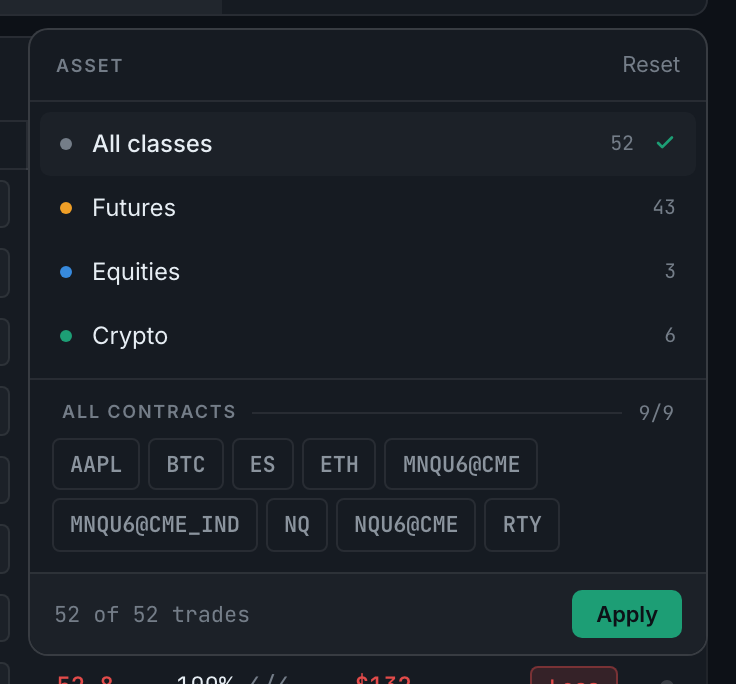
the Asset panel open, showing classes with trade counts and the contract chips - Pick a class, or tick one or more individual contracts. This does not filter anything yet. Watch the line at the bottom of the panel — it reads something like "12 of 51 trades", telling you what you are about to narrow to.
- Click the green Apply button to actually apply it. This catches people out: close the panel without pressing Apply and nothing changes.
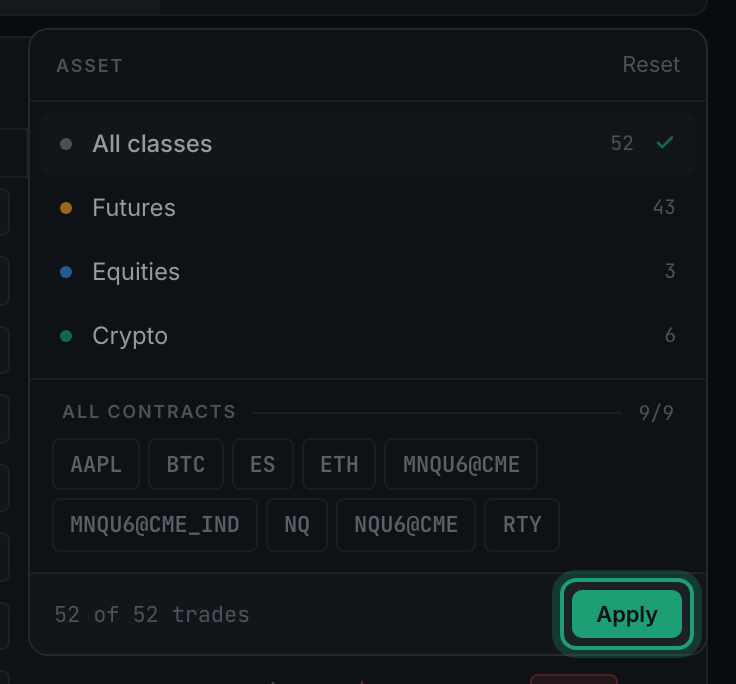
the Apply button and the running trade count at the foot of the Asset panel - The button now names your choice instead of reading "All assets", and the trade count on the left has dropped. That renamed button is how you tell, later, that a filter is still switched on.
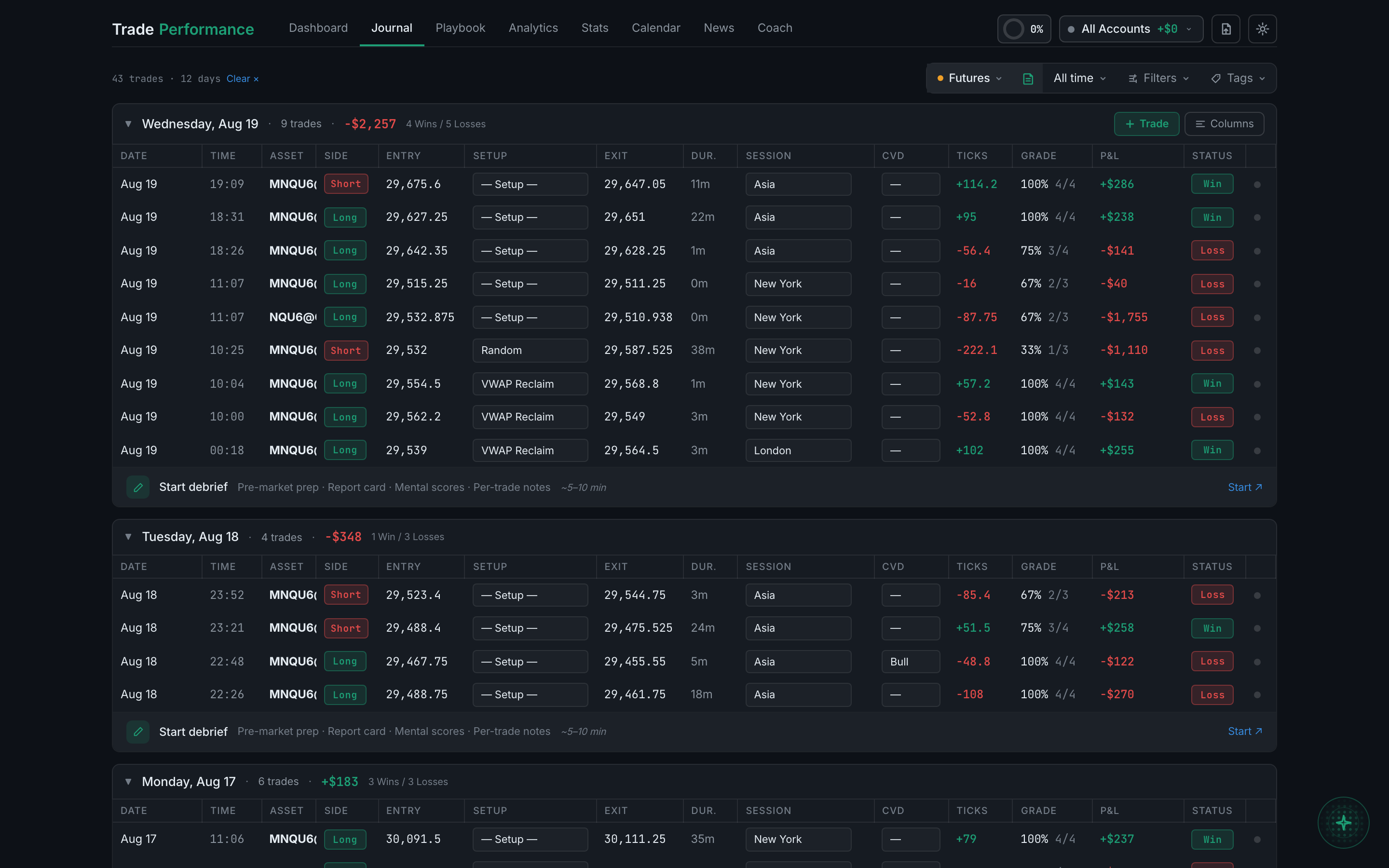
the trade list narrowed, with the filter button naming the current selection - Narrow further with Filters for account, setup, session or result, or with Tags for emotion and mistakes. Each has its own section below.
If you end up with an empty list, you have almost certainly stacked two filters that cannot both be true — a setup you only trade in the New York session, combined with the Asia session, for instance. Clearing one at a time is the quickest way to find which.