How do I find one specific trade?
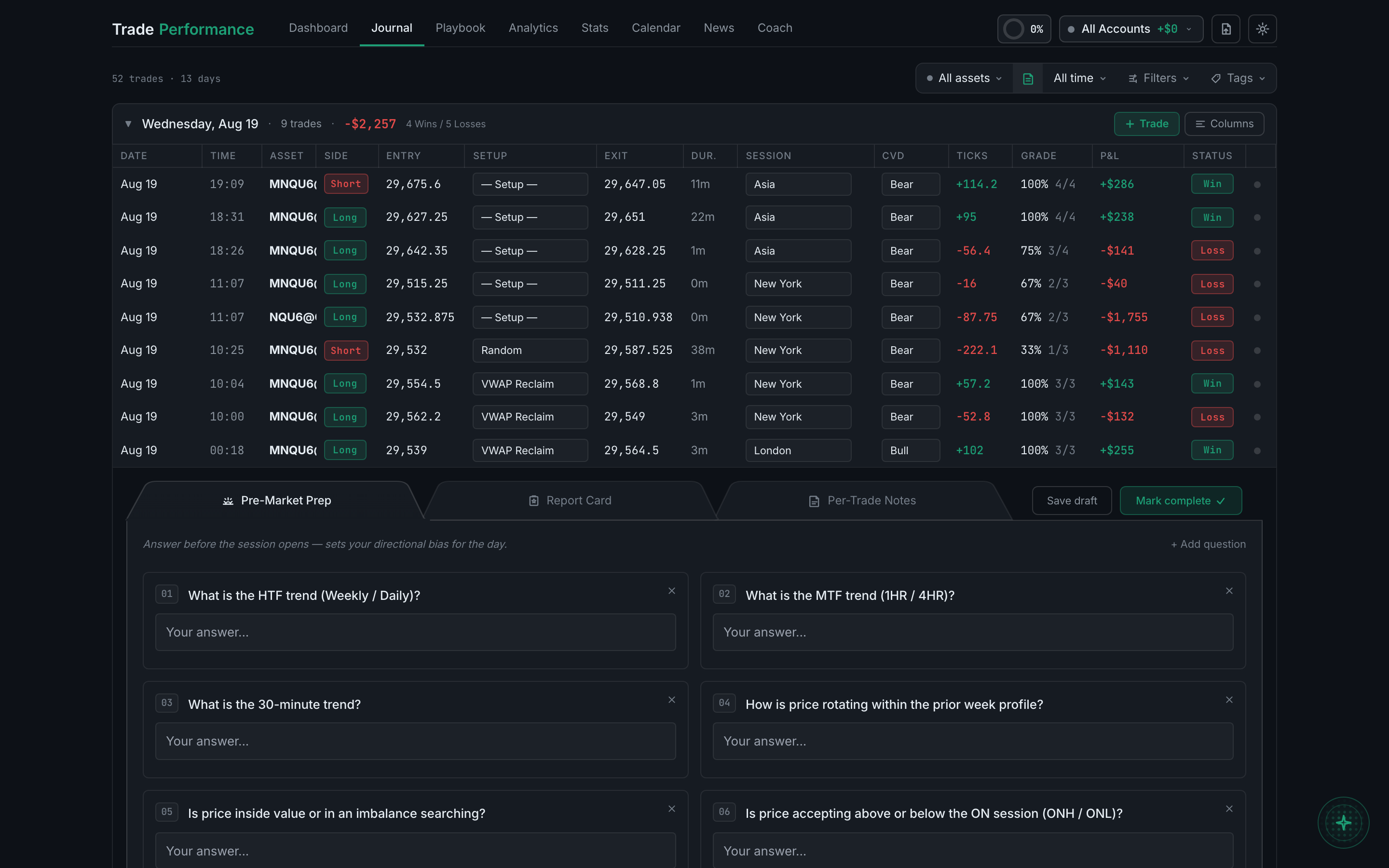
Narrow the list with the filter buttons at the top-right — All assets, All time, Filters and Tags. They combine, so three clicks usually gets you to a single trade.

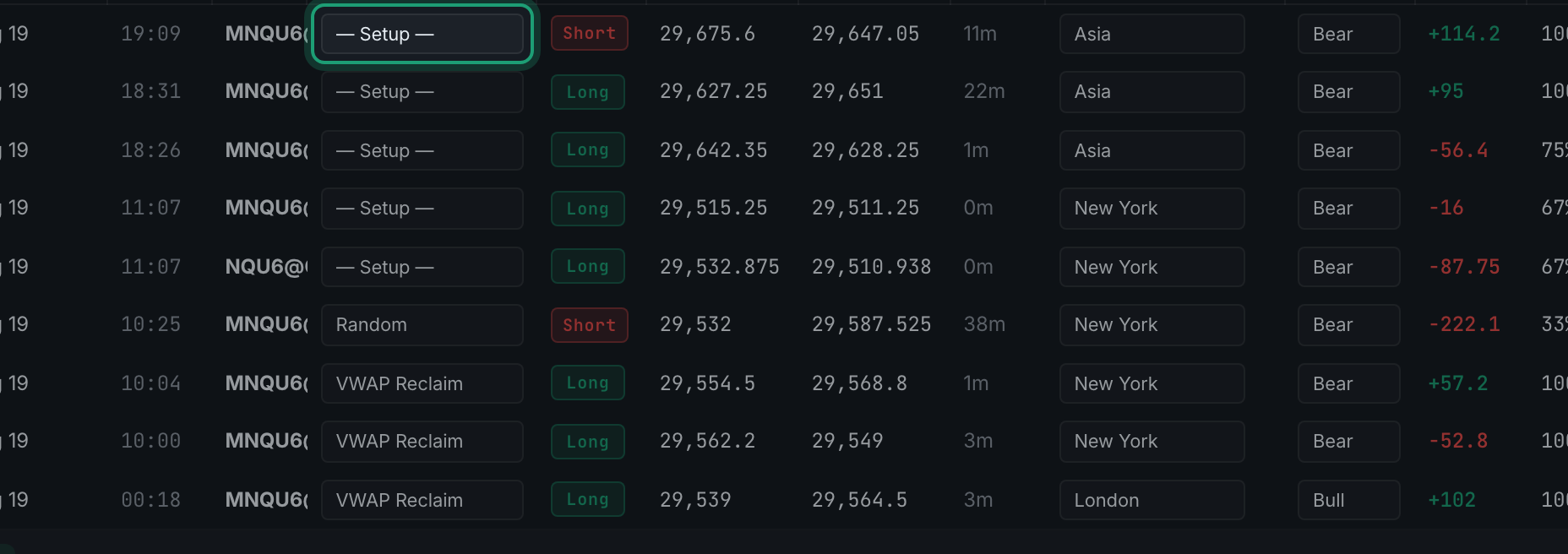
Every trade you log ends up here. The Journal is the full record — one row per trade, newest first — and it is where you go to find a particular trade, review how a day went, or fill in the detail you had no time for while you were actually trading.
Think of it as two jobs in one page.
The first is looking things up. You remember a bad NQ trade last Tuesday and you want to see what you were thinking. The filters at the top narrow 500 trades down to the one you mean in about three clicks.
The second is filling things in. A trade arrives from an import or your platform with the numbers already correct — price, size, profit and loss — but with nothing about why you took it. The Journal is where you add the setup, the market context, how you felt, and what you would do differently. That written-in detail is what the Analytics and Psychology pages are later built from, so a Journal you never annotate produces analytics with nothing in them.
A few things are worth knowing before you start.
No questions on this page match that. Search all 15 areas
Four buttons sit at the top-right of the page and they all stack, so each one you add narrows what the last one left.
Narrow the list with the filter buttons at the top-right — All assets, All time, Filters and Tags. They combine, so three clicks usually gets you to a single trade.
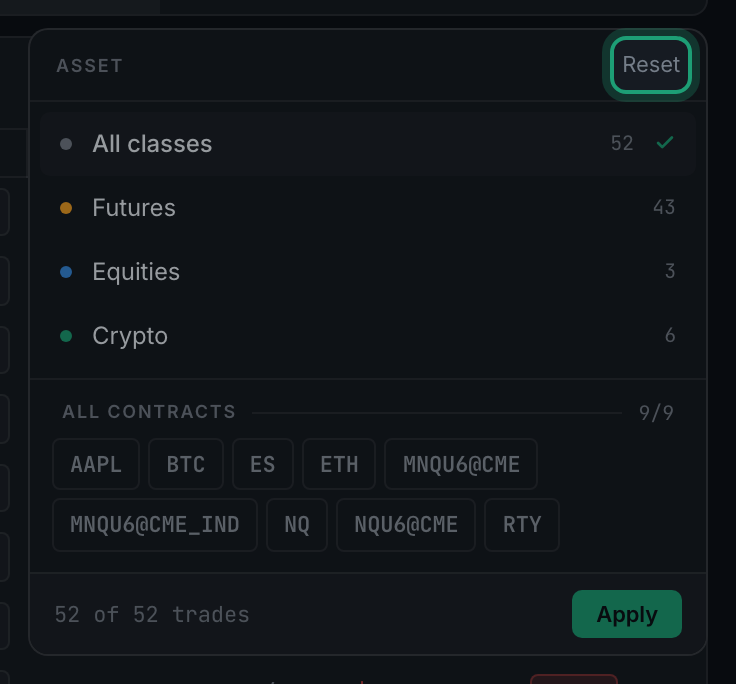
The Filters button holds four more: which account, which setup, which trading session, and whether the trade won or lost.

The Tags button. It filters by emotion, by the mistake you logged, or by a news event that was happening at the time.

Trades come grouped by day. The small icon button between All assets and All time switches to a single flat list, and back.

No. Clicking a column heading does not sort — trades are always listed newest first. To see one asset on its own you filter to it, which gets you the same view.

Each panel has its own Reset link in its top-right corner. There is no single button that clears everything at once.
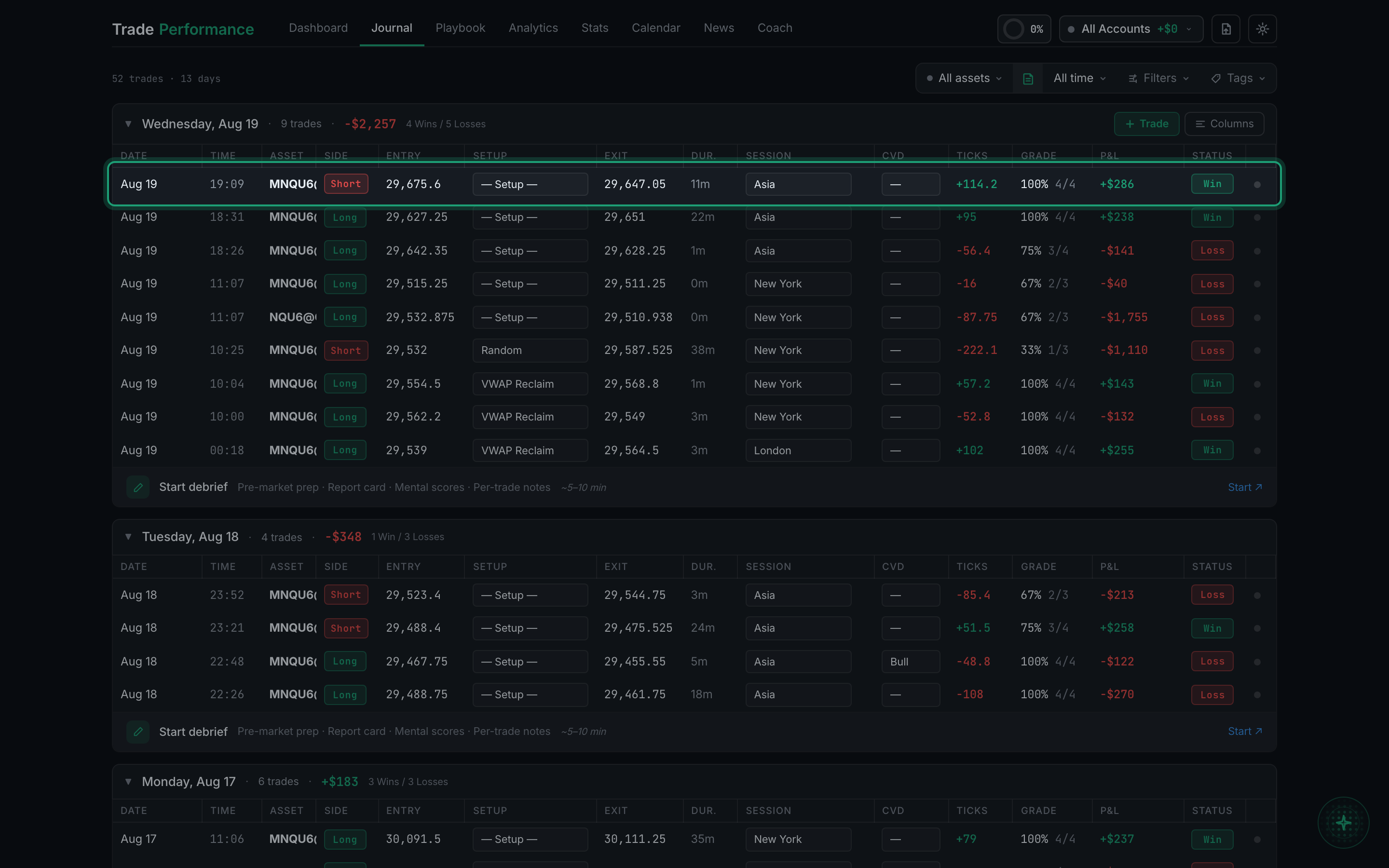
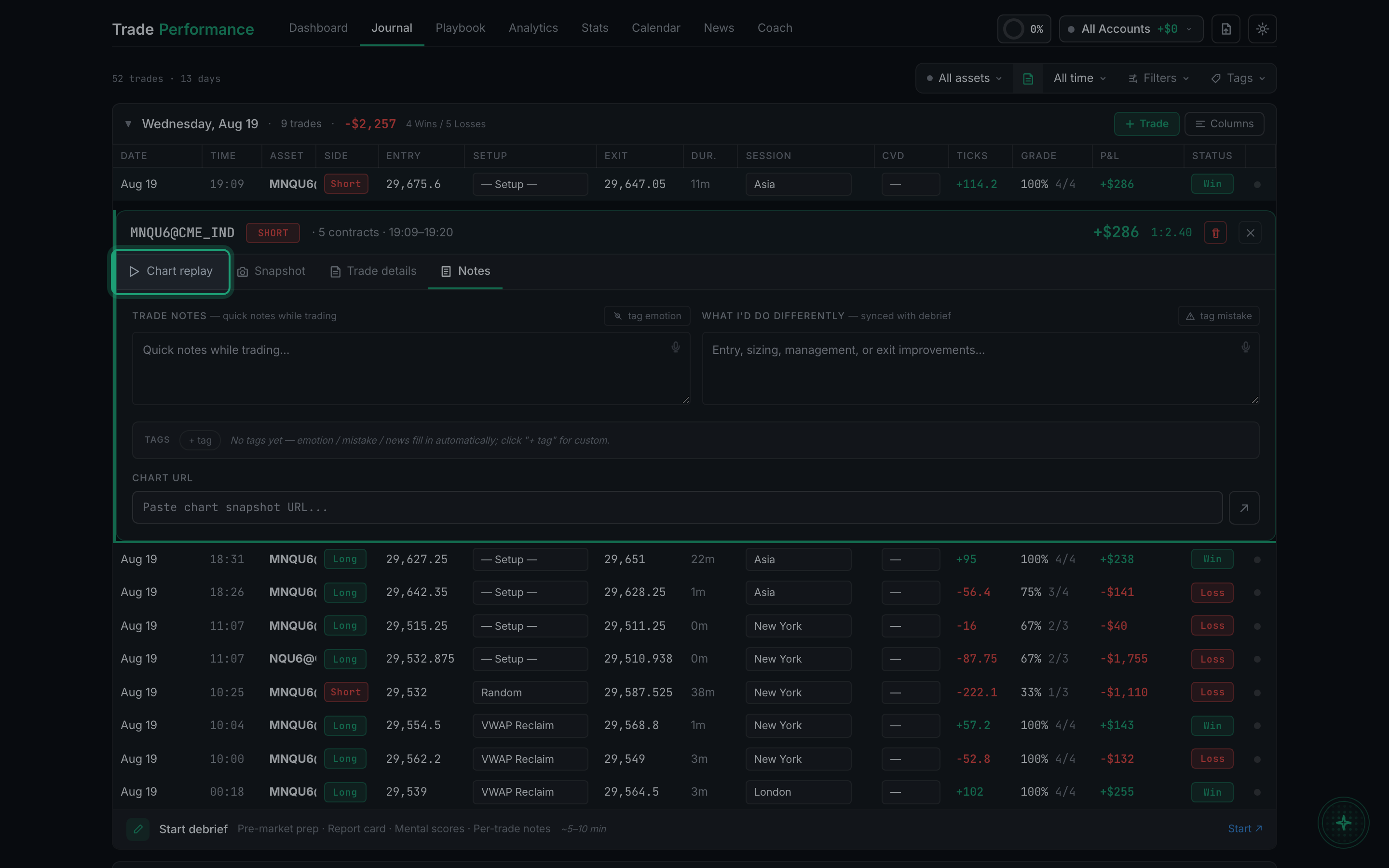
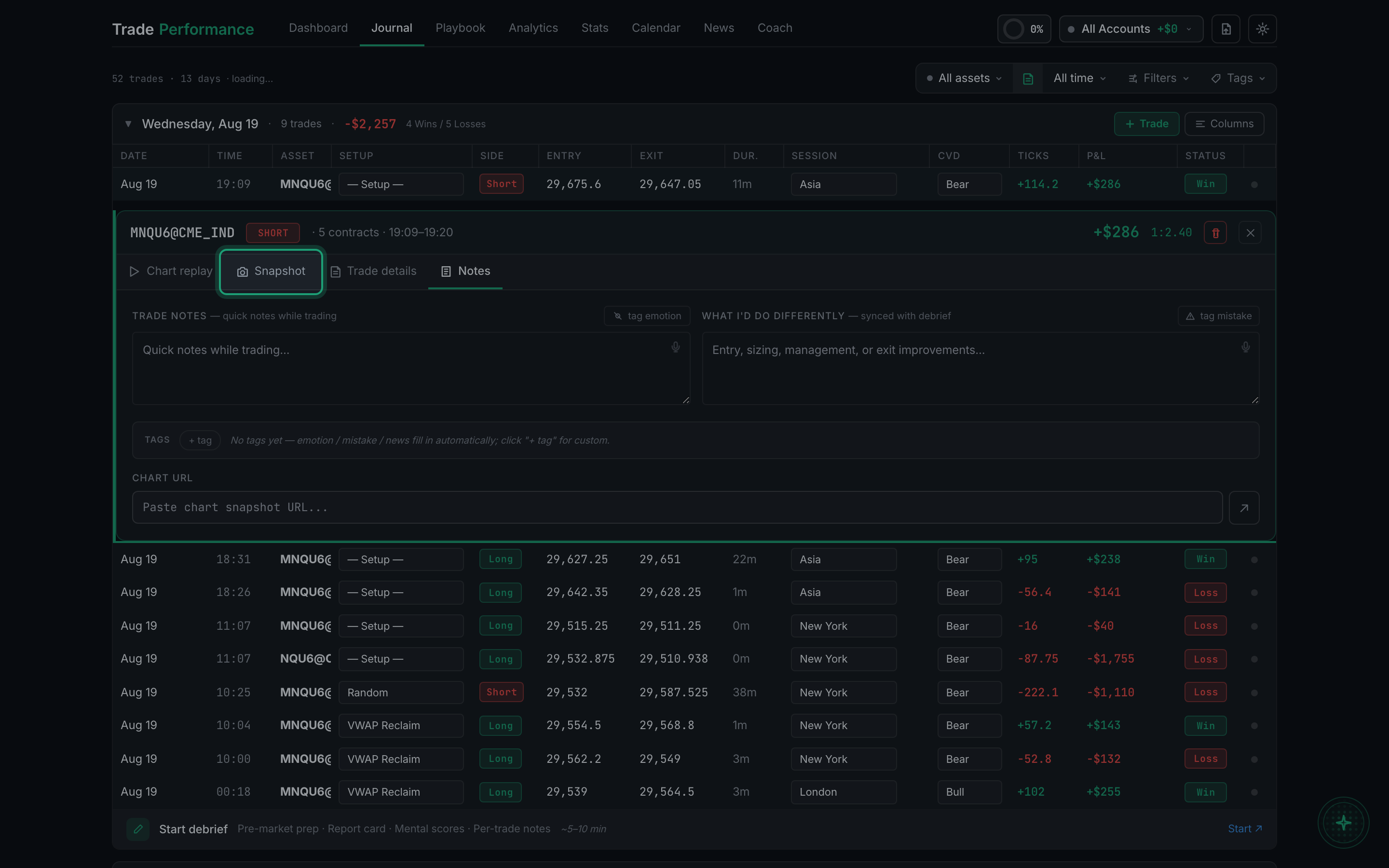
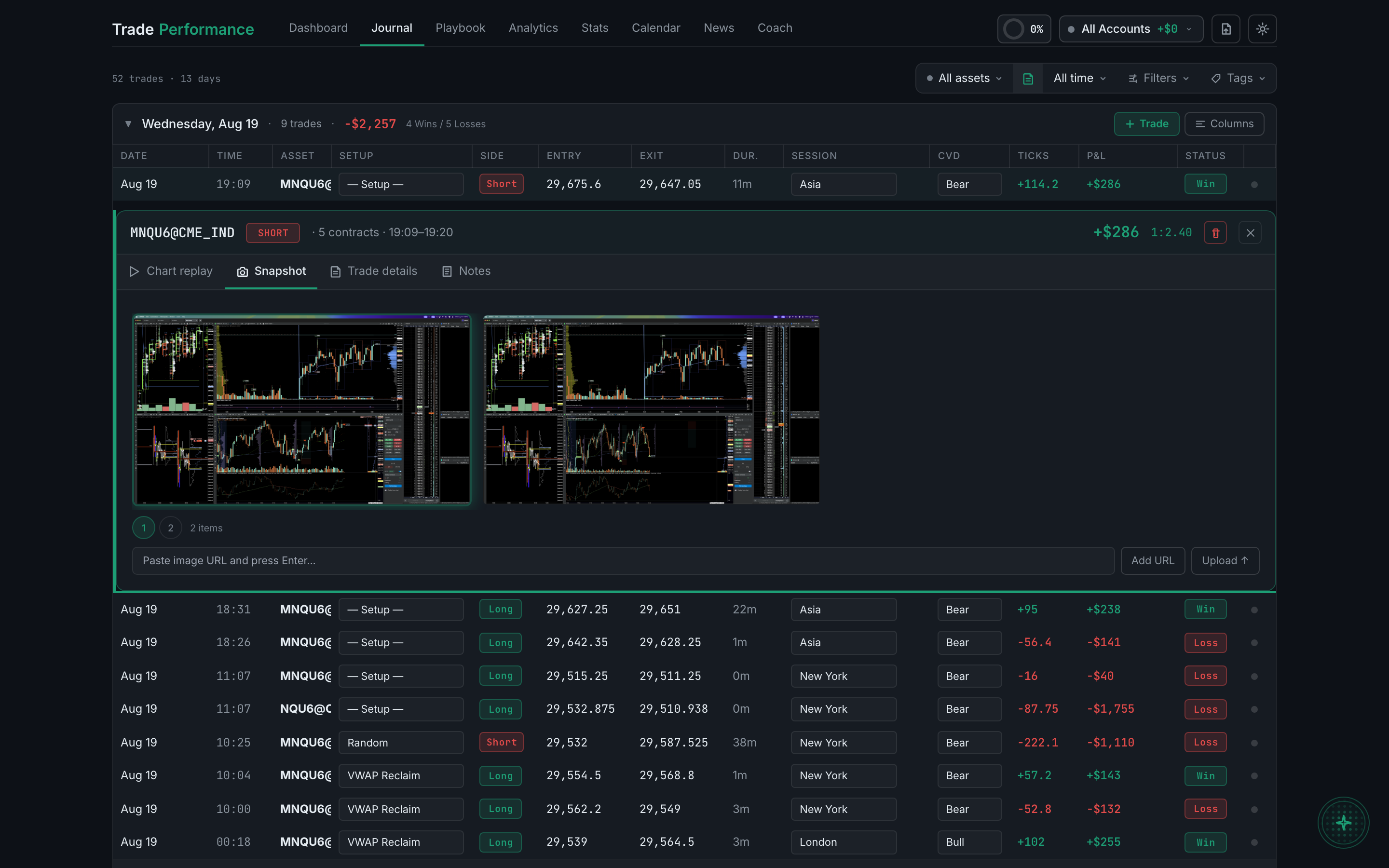
Clicking any trade row opens its detail panel, and almost everything you add to a trade after the fact happens in there. It has four tabs, and each one is really its own screen.
Four tabs — Chart replay, Snapshot, Trade details and Notes. Replay animates the move, Snapshot holds your images and video, Trade details holds the numbers, and Notes is where you write what you learned.
A replay of the real market around your trade — actual historical bars, with your entry and exit marked, that you can play back at up to 4× and draw on.
The Snapshot tab. Upload images yourself, or let captures arrive automatically, then switch between them with the numbered tabs.
Open the image on the Snapshot tab and use the markup toolbar — nine tools and six colours, drawn on a layer above the image so the original is never altered.
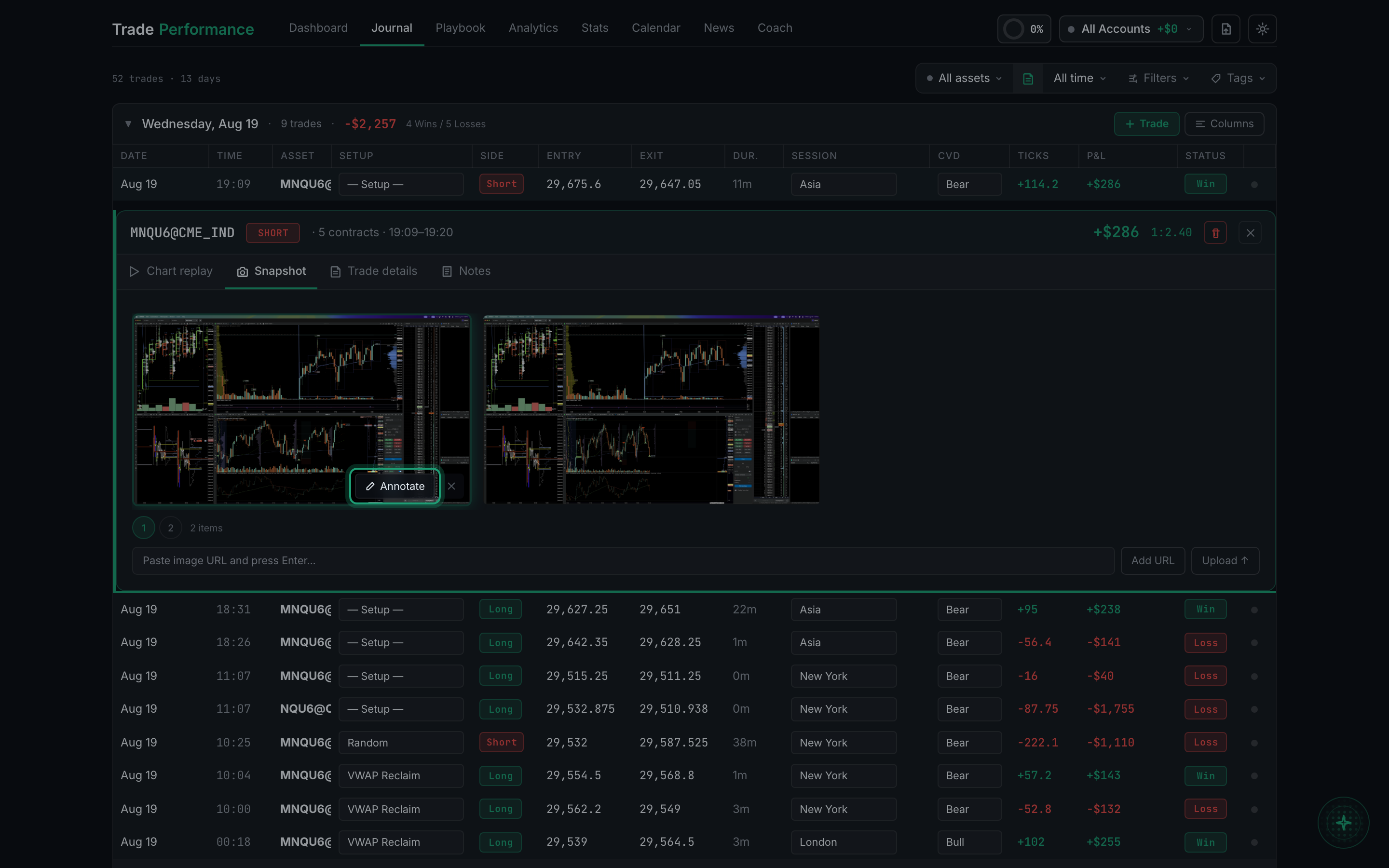
In the desktop app, on the Snapshot tab. Clips recorded by the desktop companion are stored on the machine that recorded them, and the web app does not list them at all.
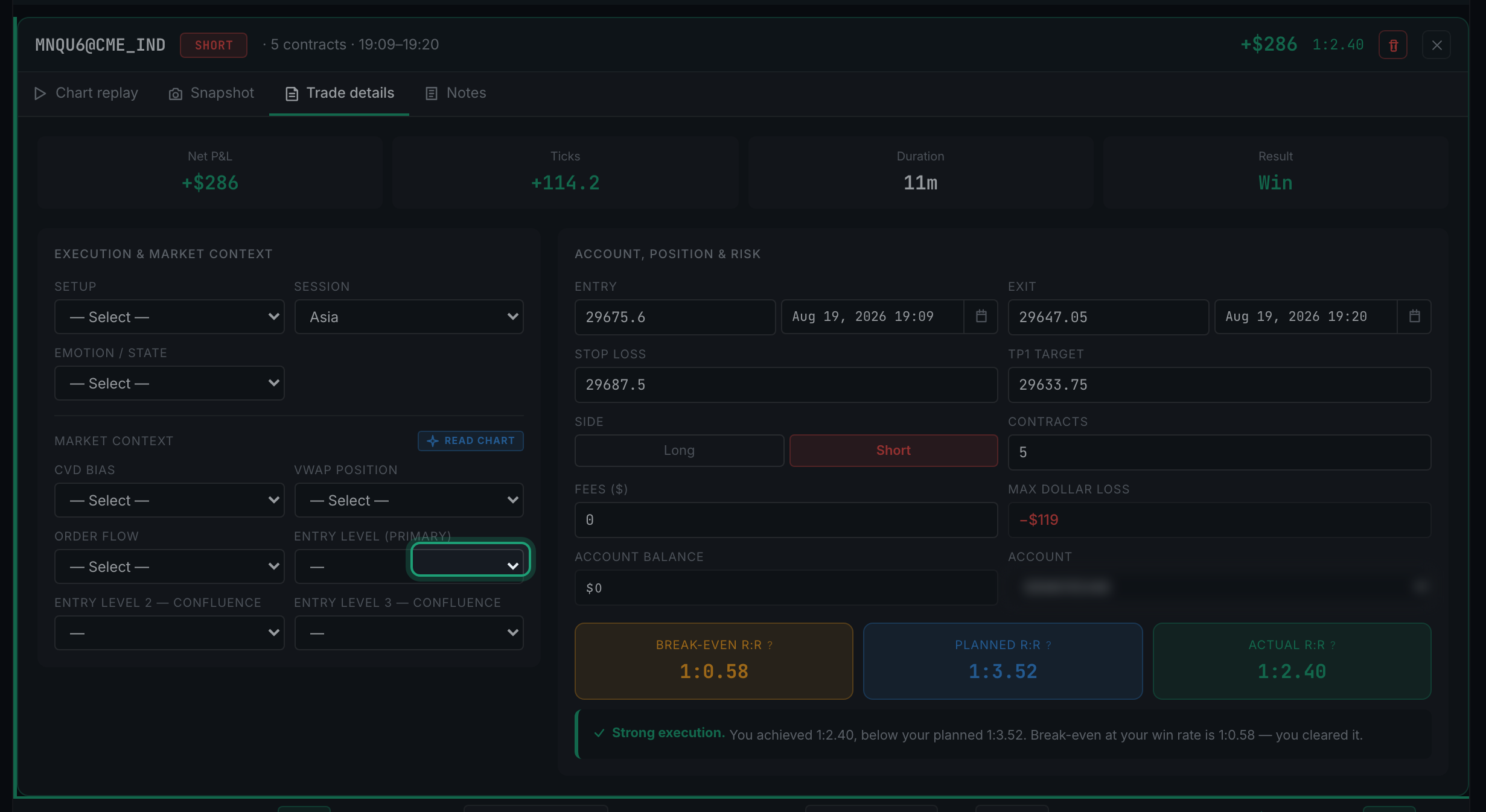
The numbers and the market context, in two columns — what the market was doing on the left, and your position and risk on the right, including three different risk-to-reward figures.
It reads a chart screenshot you have attached and suggests values for the market context fields, so you do not have to type them.
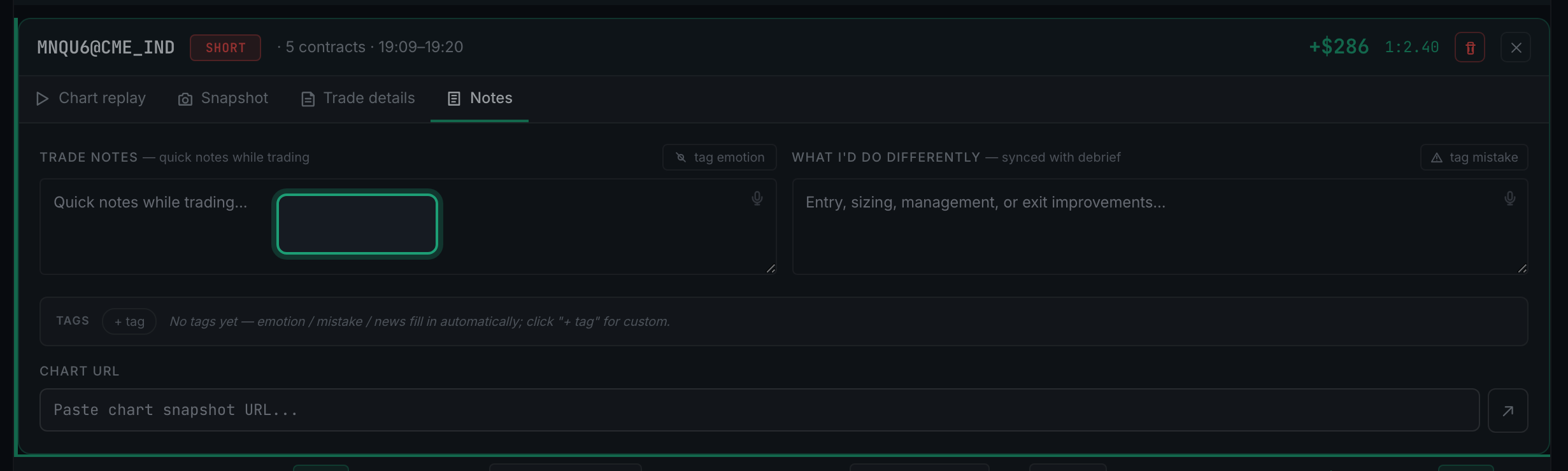
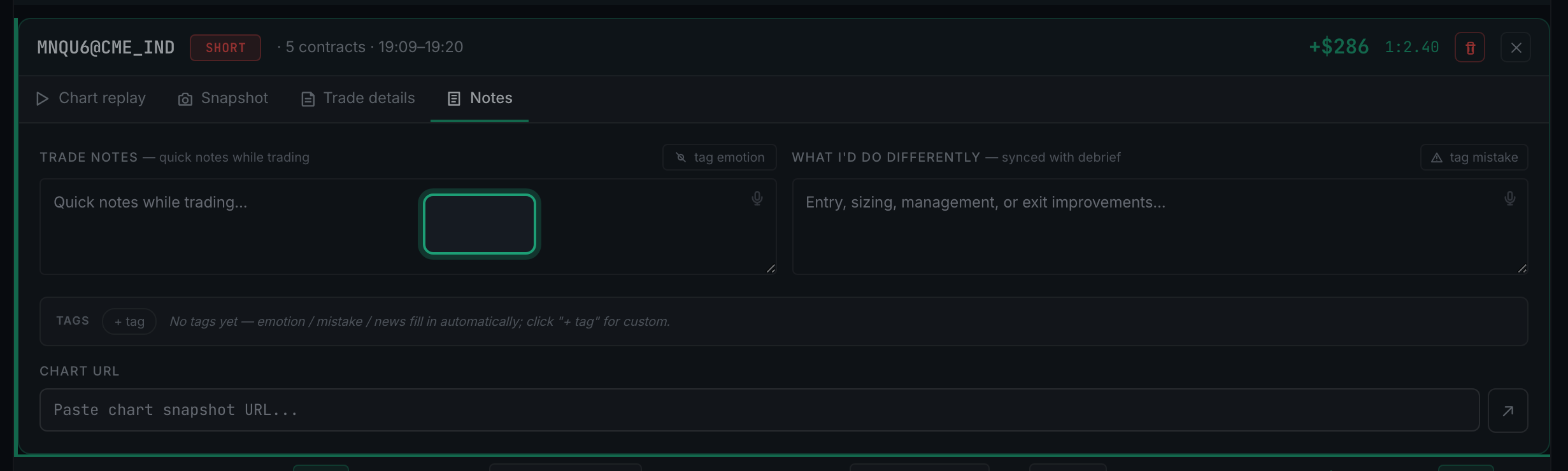
The Notes tab — the one the panel opens on. Two writing boxes you can type or dictate into, buttons to tag an emotion and a mistake, a row for your own custom tags, and a field for a chart URL.
Yes. Which columns you show, what order they're in, the period you picked, and the account you selected are all saved to your account and restored next time. Your column choices are shared between the Journal and the Dashboard, so setting them up once covers both pages. Instrument and result filters are the exception — those reset, because they're usually a one-off search rather than a preference.
Read the full guideEvery day of trades carries a debrief bar underneath it. Clicking that bar opens the day's review — your morning prep, a report card for the session, and a note per trade — without leaving the Journal.

Yes — it's the first section of that day's debrief. Open the day's debrief from the Journal or the Calendar and your prep answers are at the top.
Click the account name in the bar across the top of the screen. A panel drops down listing every account, and you pick one.

Yes. The account panel has an all-accounts option, and there's a separate toggle for whether practice accounts are included.
Click the green + Trade button in the header of the day you want to add it to. It sits at the right-hand end of each day's header row, next to Columns.
Four things you type — entry, exit, contracts and fees — multiplied by what one point of that instrument is worth. A blank preview is not a bug. Either the trade has no exit price yet, or the instrument has never been told what a point is worth — and in the second case the form would rather show you nothing than a confident wrong number.
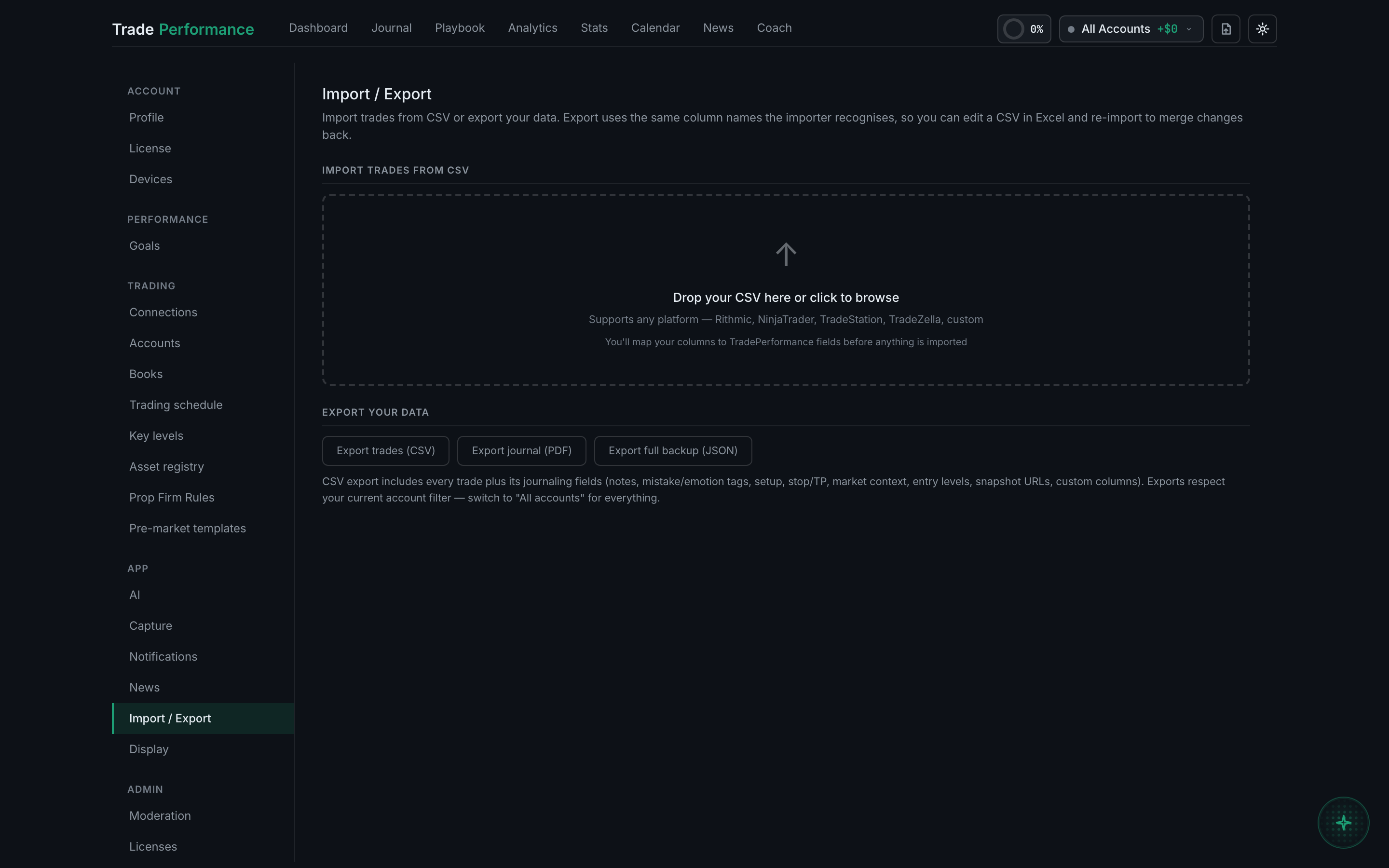
Read the full guideIn Settings → Import / Export. There is no import button on the Journal itself. Drop the file in, check the column mapping it has worked out for you, then press Import.
Click Columns at the right-hand end of a day's header row. Six columns are permanent; everything else you can switch on or off.

Drag a column heading sideways to move it. Drag the edge between two headings to resize.

Yes, for most fields. Click straight into the cell in the table and change it there.
It scores how well you followed your own process on that trade, with profit and loss deliberately left out of the calculation. It is off by default.
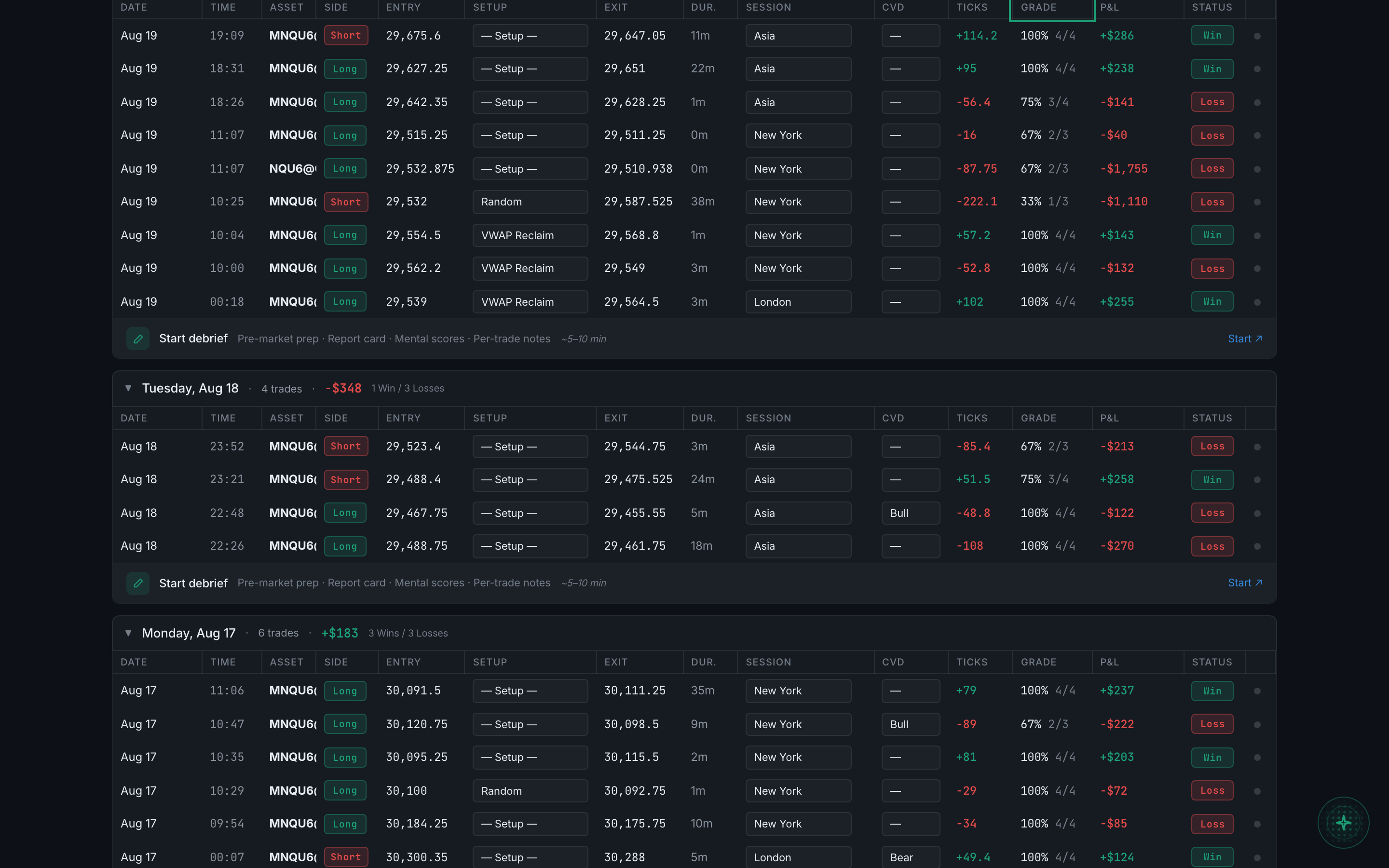
Click Columns, scroll to the bottom, and click Add custom column. It behaves like a built-in column from then on — and if a CSV you later import has a column with the same name, its values load straight into it.
Yes, if you've set up an AI key. It reads the notes you've written and fills in the emotion tag, 50 trades at a time.
Open the trade and click the red trash icon at the top-right of the detail panel. The deletion itself cannot be undone, but an account snapshot taken beforehand can put the trade back — see Getting things back at the end of this page.

Almost always edit. Only delete when the trade record itself is wrong — a duplicate import, or a fill that never happened.
+ Trade as usual, then press the Options pill under the symbol. The single entry/exit price pair is replaced by a leg builder, and you add one row per contract.
Read the full guideBecause side describes the premium, not your market view. Money in is short, money out is long. The form says so under the field.
Read the full guideUnits of the structure, not contracts. Three iron condors is 3, not 12.
Read the full guideBecause the position genuinely has no worst case. A naked short call can lose as far as the underlying can run, so there is no number to put there.
Read the full guideIts contract multiplier is unknown. Set it on the instrument in Settings → Asset registry and the P&L computes.
Read the full guideAn Options tab appears in Analytics, but only when the trades you are looking at actually include an options position.
Read the full guideA periodic copy of your whole journal, kept with your account. It is on by default, takes one a day, and keeps 30. It exists so that deleting something is not final.
Read the full guideSettings → Import / Export → Account snapshots, find a snapshot from before you deleted it, press Compare to now, then Put back N deleted rows.
Read the full guideNothing. Neither restore option deletes anything, and anything created since the snapshot is left exactly as it is.
Read the full guideThirty, on a sliding scale — one a day for the last week, one a week for the last month, one a month for the last six, then the most recent fill whatever is left.
Read the full guideThat snapshot stores only its changes, and the full copy it builds on has been deleted. It cannot be opened or restored from.
Read the full guideTwo, if you use the desktop app. Every snapshot also writes a full file to Documents/TradePerformance/Backups, and any snapshot can be downloaded as JSON with Download.