Which columns can I show or hide?
Click Columns at the right-hand end of a day's header row. Six columns are permanent; everything else you can switch on or off.
Step by step
- Click the Columns button, at the right-hand end of a day's header row next to + Trade.

the Columns button in the day header row, highlighted - The panel has three sections. Always visible at the top lists the six that cannot be turned off: Date, Asset, Setup, Side, P&L and Status.
- Toggle on / off below it holds everything else the app tracks: Time, Entry, Exit, Duration, Session, Ticks, Grade, Stop, TP1, Emotion, Entry Level and Levels 2 and 3, Account, Contracts, Risk $, Risk %, Exp R:R and Act R:R.
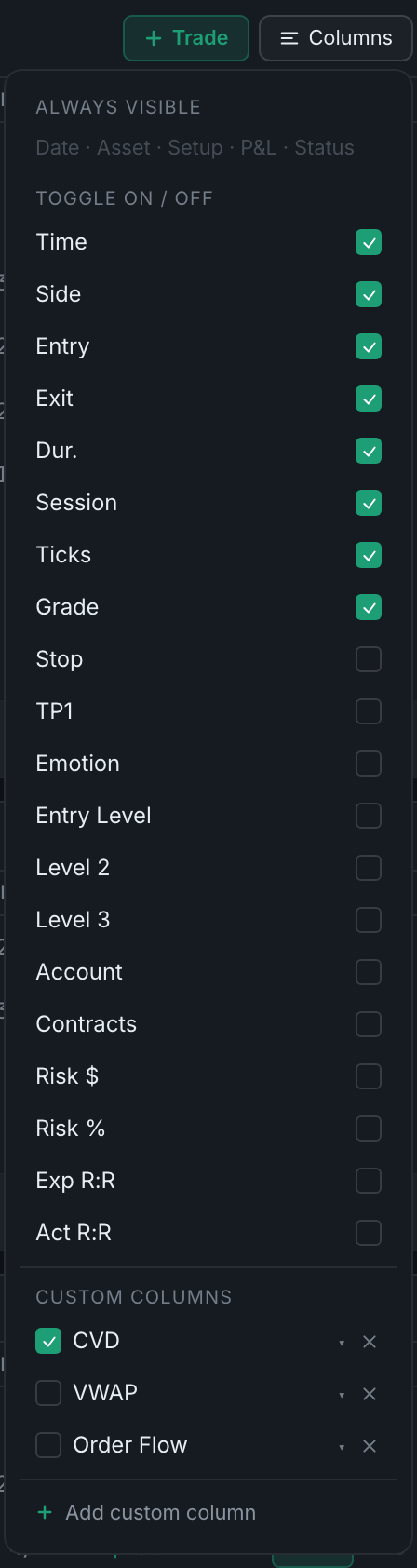
the column panel open, showing the always-on group and the toggle list - Custom columns is the last section — any column you made yourself, each with a ▾ to edit its options and an ✕ to delete it.
- Click any toggle to show or hide that column. The table updates straight away.
Your choices are saved and also apply to the trade table on the Dashboard.
If you cannot find the Columns button at all, you are on the flat list. It lives in the day headers, so switching grouping back on brings it back.