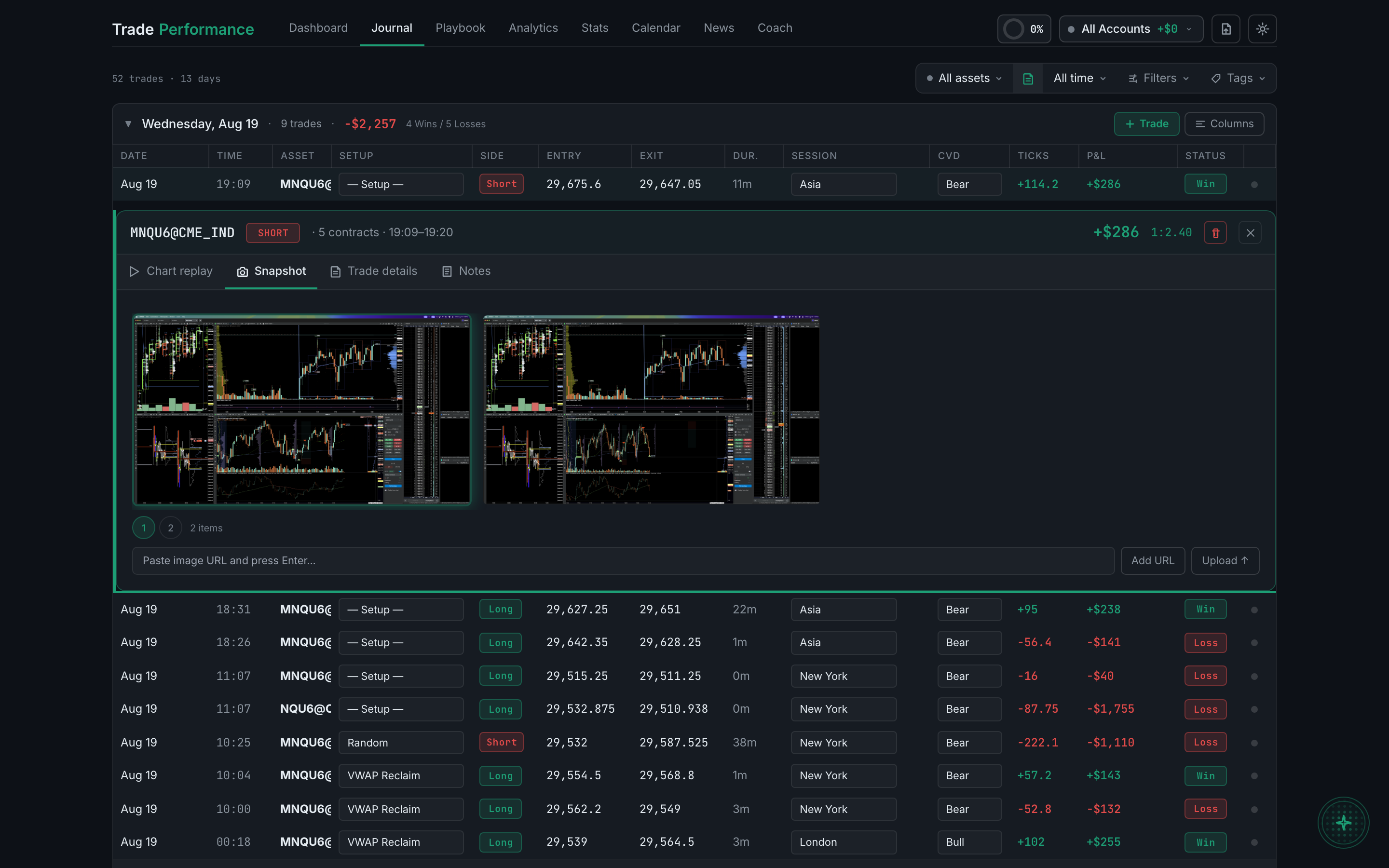
How do I watch a video of my trade?
In the desktop app, on the Snapshot tab. Clips recorded by the desktop companion are stored on the machine that recorded them, and the web app does not list them at all.
Video only exists if you are running the desktop companion with capture turned on, or pushing clips in by webhook. The web app on its own cannot record your screen.
Where a clip lives decides where you can watch it. The desktop companion writes each clip to a local folder on that machine and stores a local reference against the trade. That reference means nothing to a browser on another machine — or to the browser on the same machine — so rather than show you a tile that cannot play, the web app leaves the clip out of the gallery entirely. Open the same trade on the web and you will see the entry and exit stills and nothing else, even though the clip exists.
So if you recorded a session and cannot find the video, you are almost certainly looking in the browser. Open the trade in the desktop app on the machine you recorded it on.
When capture is running you generally get two clips per trade, and they are deliberately separate:
- PRE-TRADE covers roughly the last 30 seconds before you entered. This is the one that answers "what was I actually looking at when I decided?"
- TRADE CLIP covers entry through exit, plus a short tail afterwards, so you can see what the market did immediately after you were out.
Because a clip can start well before your entry, the player marks the moment you entered with a tick on the timeline, and a Jump to entry button seeks straight to it. That saves scrubbing to find the only moment you actually care about.
The two are played as one sequence, pre-trade first, so playing straight through gives you the decision and then the outcome in order. The gallery shows a single tile for the pair rather than two.
Watching one, in the desktop app:
Open the trade and go to the Snapshot tab. The clip sits alongside the stills with a TRADE CLIP or PRE-TRADE badge on it. Click it to open the player, then use the tick on the timeline — or Jump to entry — to skip the run-up. Watch the pre-trade portion when you are reviewing a decision, and the trade clip when you are reviewing management.