How do I add a trade by hand?
Click the green + Trade button in the header of the day you want to add it to. It sits at the right-hand end of each day's header row, next to Columns.
Step by step
- On the Journal, find the day you want the trade to belong to. Each day has a header row showing the date, the trade count, and that day's profit or loss.
- At the right-hand end of that row, click the green + Trade button.
the + Trade button, in the day header row where it lives - A form opens. Fill in the required fields: the symbol (start typing and it suggests instruments you already trade), Long or Short, the date, entry and exit times, entry and exit price, number of contracts, and fees.
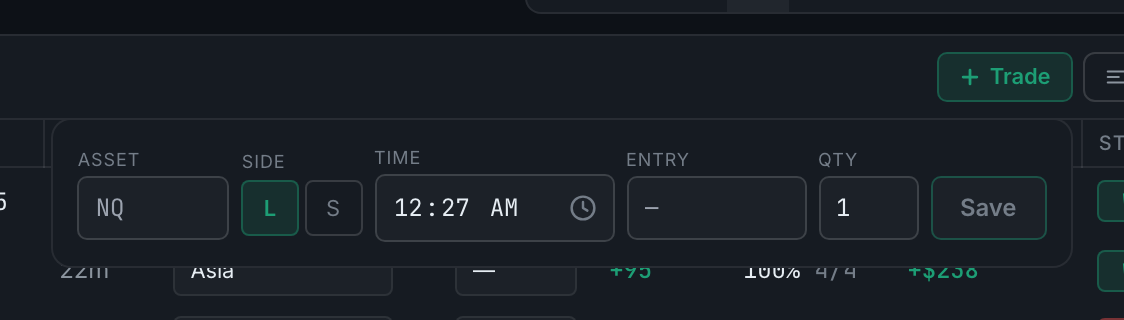
the pop-out that opens under + Trade: asset, side, time, entry, quantity, Save - As you type prices and contracts, the form works out the P&L and shows it live from what one point of that instrument is worth. If it shows nothing, that is deliberate and it is telling you something — see the next guide. You can always type your own figure instead.
- Everything else is optional and sits under More details: stop loss, take profit, which Playbook setup this was, market context, a note, and an emotion tag.
- Check the account shown before saving. It defaults to whichever account you're viewing, and you can change it here to file the trade elsewhere.
- Click Save trade.
The button only appears when trades are grouped by day. If you've switched to the flat list, there are no day headers, so switch grouping back on first.
Trades you enter by hand stay editable — you can change price and contracts in the detail panel later. Trades from a CSV or a broker lock those fields.