How do I delete a trade?
Open the trade and click the red trash icon at the top-right of the detail panel. The deletion itself cannot be undone, but an account snapshot taken beforehand can put the trade back — see Getting things back at the end of this page.
Step by step
- Click the trade row to open its detail panel.
- In the top-right corner of the panel header, click the small red trash icon.

the red trash icon in the detail panel header - A confirmation appears naming the symbol and the date — "Delete MNQU6@CME_IND on 2026-08-19?" — and spells out that it removes the trade along with its notes, context and images, and cannot be undone. Cancel backs out; Delete trade goes through.
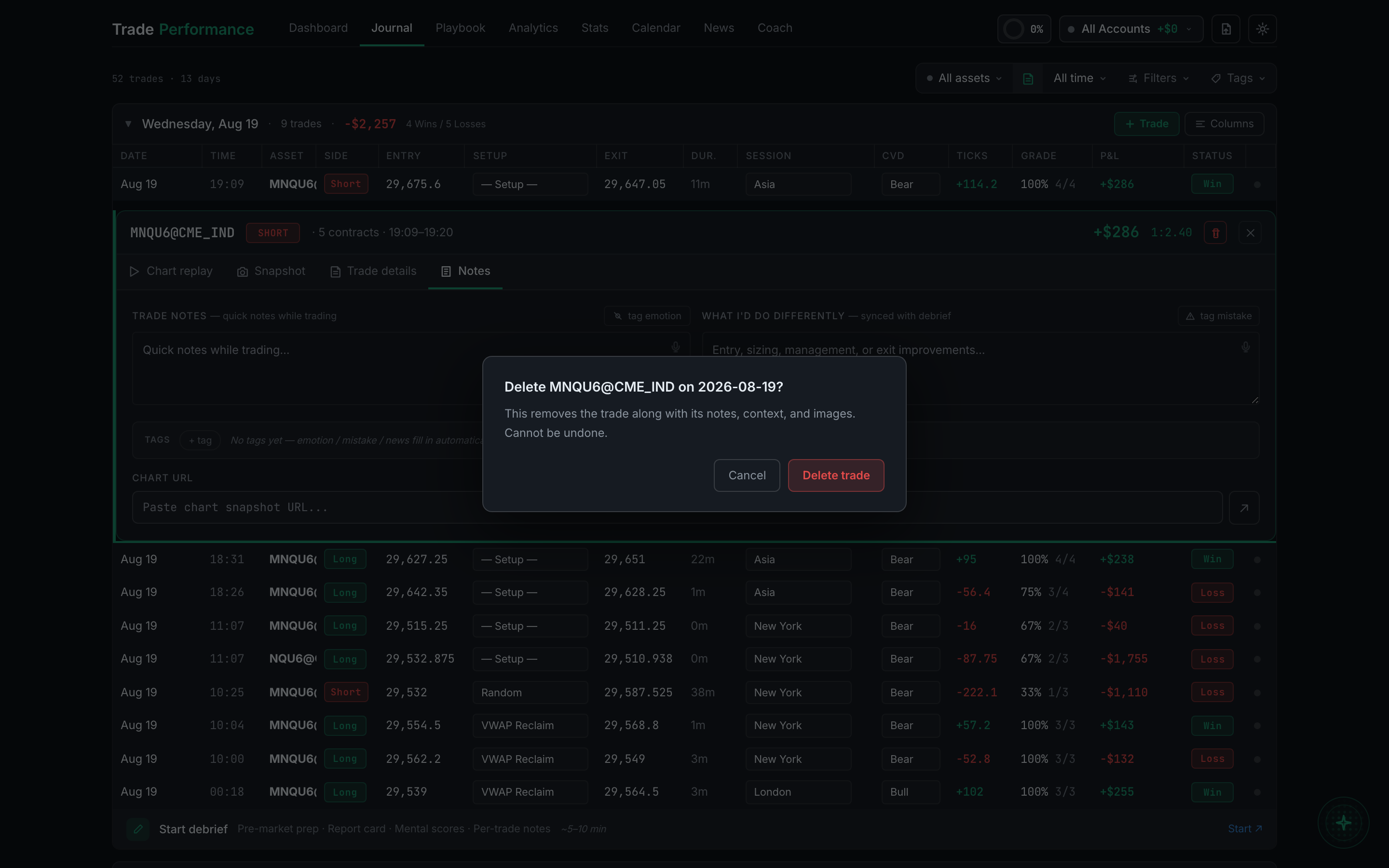
the delete confirmation, naming the trade and warning it cannot be undone
This deletes permanently. There's no recycle bin and no undo on the button itself. It removes the trade, every note you wrote on it, all the market context, every tag, all attached screenshots and your drawings on them, and any custom column values.
Two things survive, because they belong to the date rather than the trade: that day's debrief report card, and that day's pre-market prep answers.
There is one way back, and it is not the CSV. If an account snapshot was taken while the trade still existed, restoring from it re-creates the trade under its original identity, so its notes, context and image links all reattach. Snapshots are on by default and taken daily, so in practice a trade you deleted today is usually recoverable. Re-importing the broker CSV gets the prices back but not a word you wrote. See Getting things back at the end of this page.