How do I add, fill in and delete a custom column?
Click Columns, scroll to the bottom, and click Add custom column. It behaves like a built-in column from then on — and if a CSV you later import has a column with the same name, its values load straight into it.
The built-in columns cover what most people track, but every trader has something of their own — an RSI reading, ATR, the market structure they were trading, which news cycle it was. Custom columns are for exactly that, and they are proper columns rather than a notes field: you can filter on them, they appear in the trade detail panel, and they come through in exports.
Each custom column works as a dropdown that teaches itself. The first time you type a value it is saved as an option, and from then on it is offered on every future trade. So the list builds from what you actually use rather than from options you had to define up front.
There is one thing worth doing in the right order. Create the custom column before you import a CSV that contains it. If your export has an "RSI" column and you have already made a custom column called RSI, the importer can map straight onto it and every value in the file loads in — and each distinct value it finds is registered as an option, so your dropdown arrives pre-populated from your own history. Import first and you will be mapping that column to nothing, and you will be typing those values back in by hand later.
Step by step
- Click Columns above the trade table, on the right of a day's header row.

the Columns button in the day header row, highlighted - Scroll to the bottom of the panel and click Add custom column.
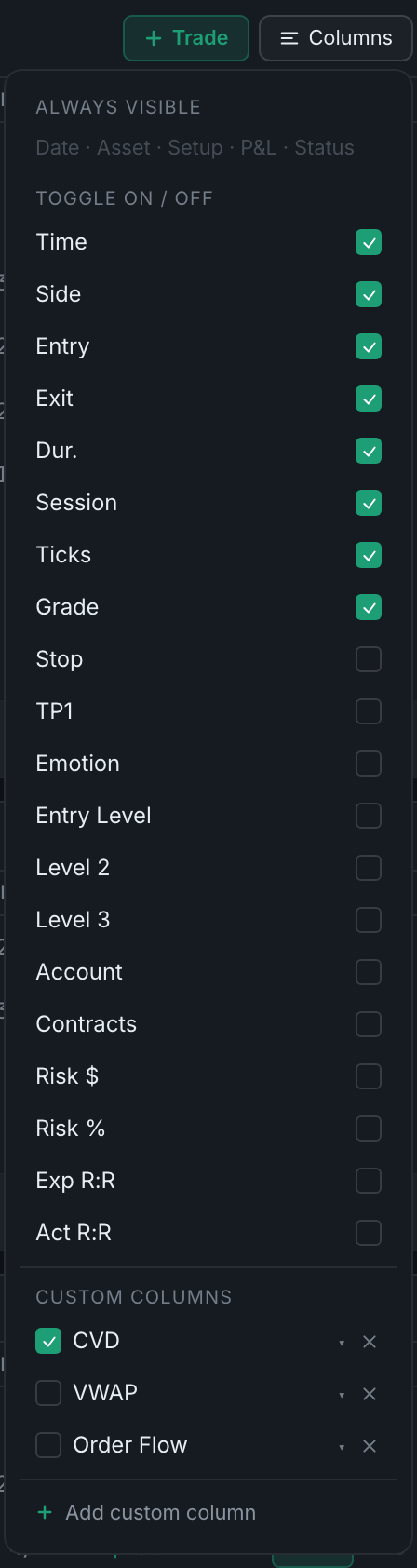
the Columns panel, with the always-on columns, the toggles, and Add custom column at the foot - Type a name — "RSI", "ATR", "Market structure" — and press Enter, or click the green tick beside the field. The column appears in the table straight away.
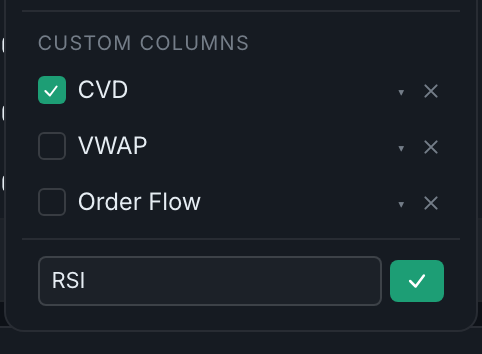
the name field open at the foot of the panel, with the custom columns you already have listed above it - To fill it in, click that cell on any trade row. Pick a value you have used before, or choose + Add detail… to type a new one. Anything new is remembered and offered next time.
- You can also fill it in from inside a trade, under Trade details → Market context.
- To tidy the option list, reopen Columns, click the ▾ beside your column, and use the ✕ next to any option to remove it.
- To delete the whole column, click the ✕ beside the column's name in the Columns panel. That removes the column and the values stored in it, so do it deliberately.
If you are about to bring in history from another platform, make your custom columns first, then import — see Importing trades for how the column mapping step lets you point a CSV column at one of yours.