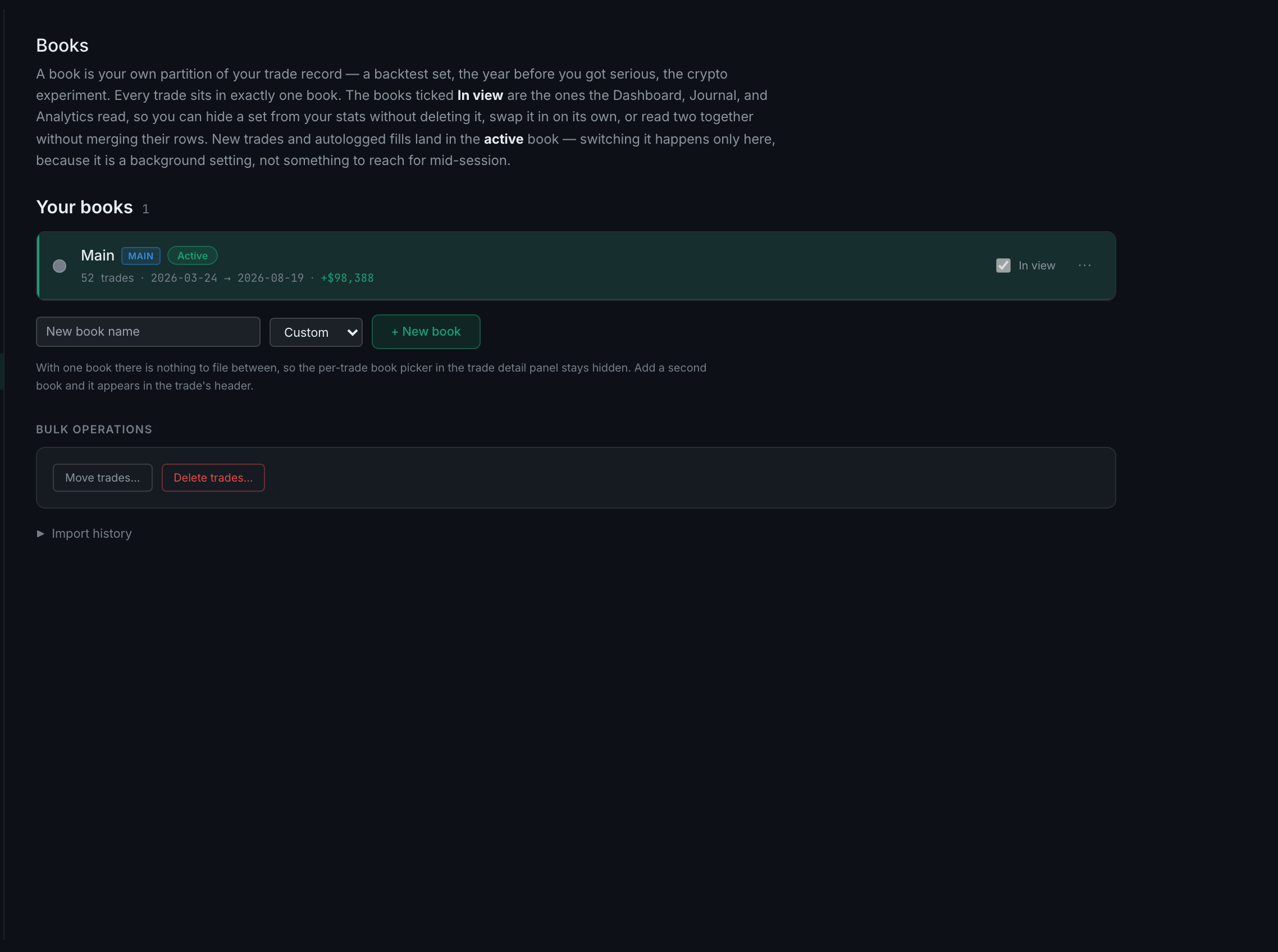
What is a Book and how is it different from an Account?
An Account is where the money is. A Book is how you choose to divide your trade record. Every trade sits in exactly one Book.
The record-keeping layer: which pot a trade belongs to, what the firm lets you risk, which levels you trade off, what a tick is worth, and when your sessions run. Most of it is set once and then forgotten, which is exactly why it is worth setting correctly.
No questions on this page match that. Search all 15 areas
An Account is where the money is. A Book is how you choose to divide your trade record. Every trade sits in exactly one Book.
The active Book. One Book is active at a time, and every new trade — typed in by hand or logged automatically by a connector — lands there.
Put both In view. The trade views read a set of Books, so several can be read at once and taken out again with nothing moved and nothing rewritten.
From the Book row's overflow menu. Archived Books are tucked behind a disclosure rather than deleted, and their trades stay where they are.
Live, Funded, Evaluation, Demo and Backtest. The last two are practice and are kept out of your live headline statistics.
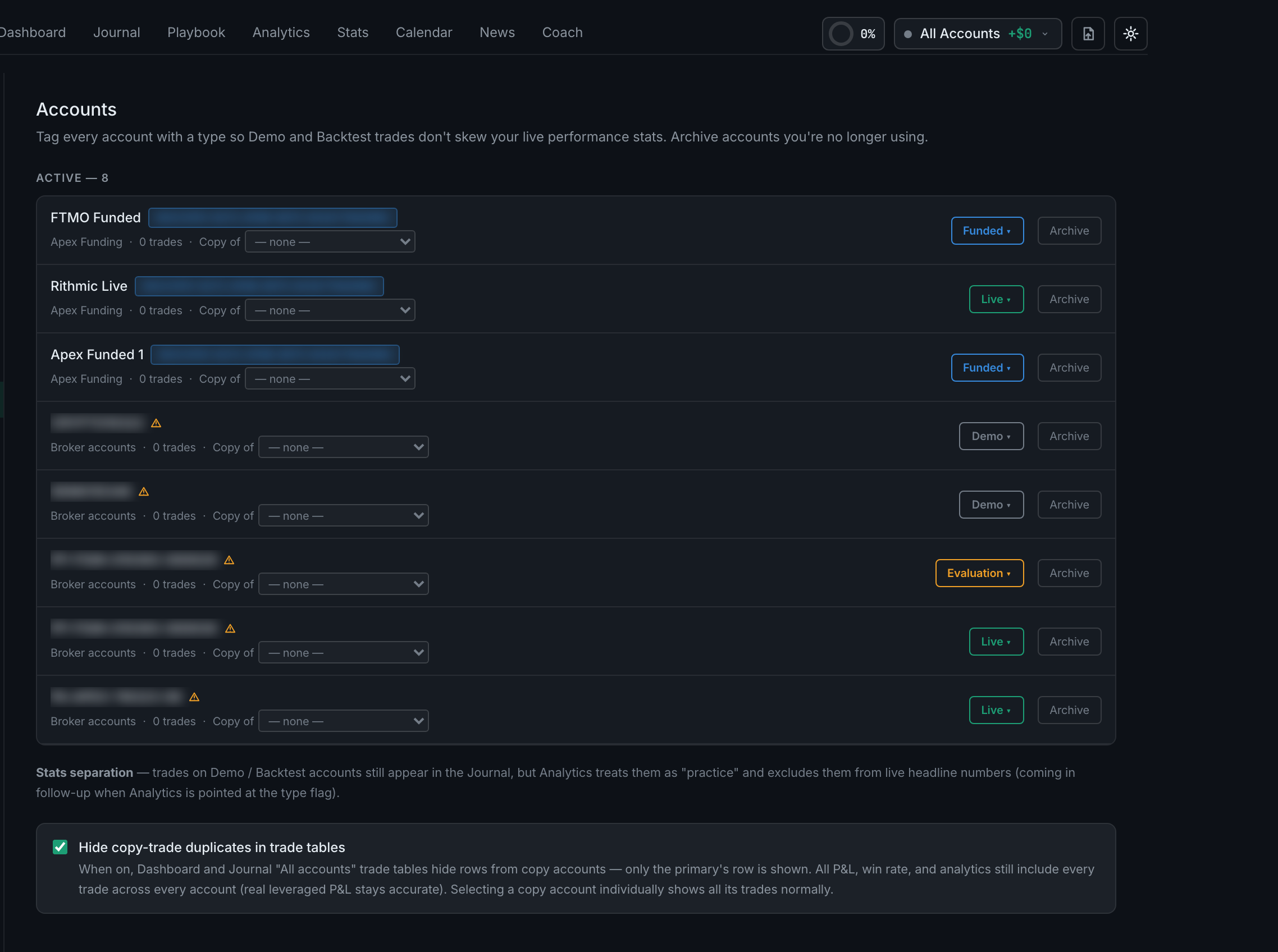
Archive from the account's row in Settings → Accounts; archived accounts move to their own list below, with a restore control. Accounts themselves come from a connected broker — you do not type one in here.
A toggle, on by default, that stops a mirrored trade appearing twice in your trade tables. It changes what you see, never what is counted.

The limits you must not breach, and a live check that warns you as you approach one rather than after you have broken it.
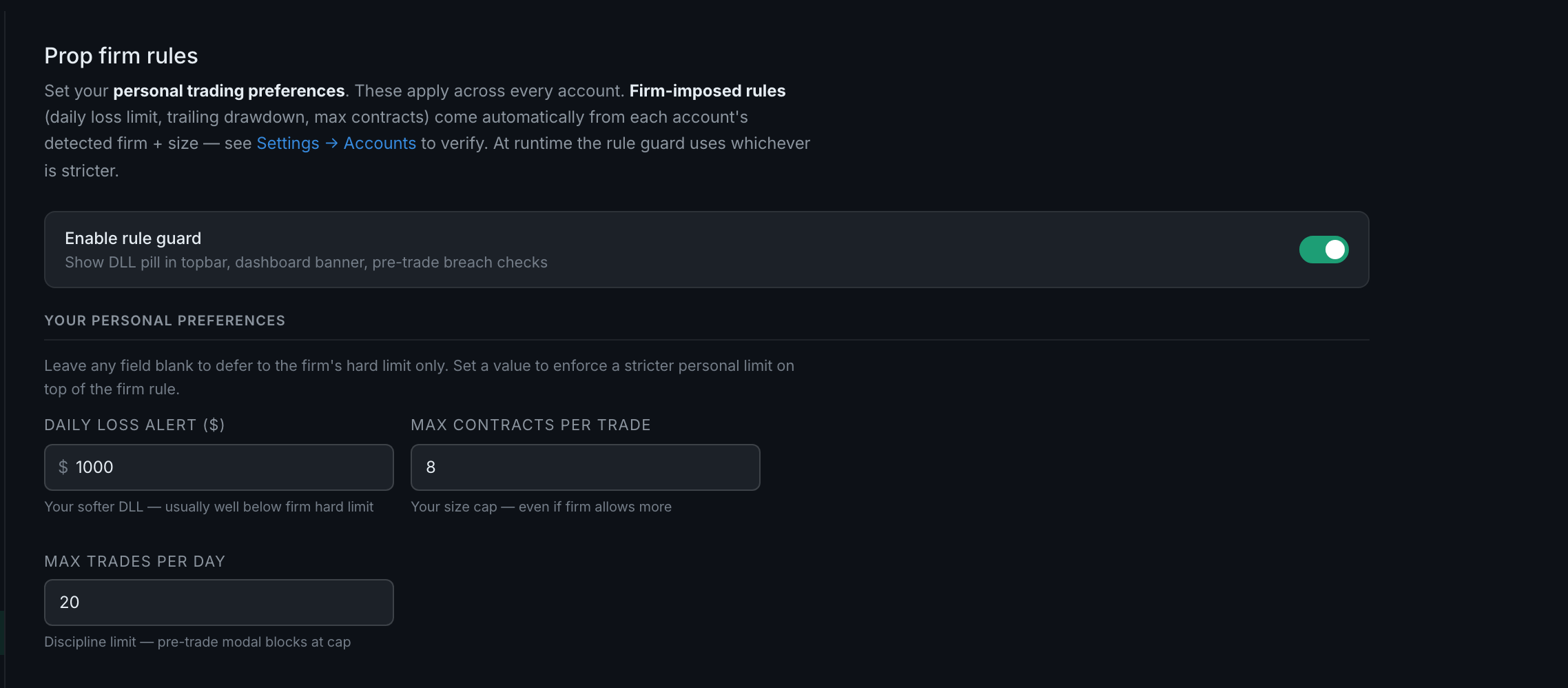
Firm rules come from the account automatically. Personal preferences are yours and apply to every account. When the two disagree, the guard uses whichever is stricter.
They are your named price references — previous-day high, overnight low, VWAP — and they are what lets the app tell you which levels you actually trade well.
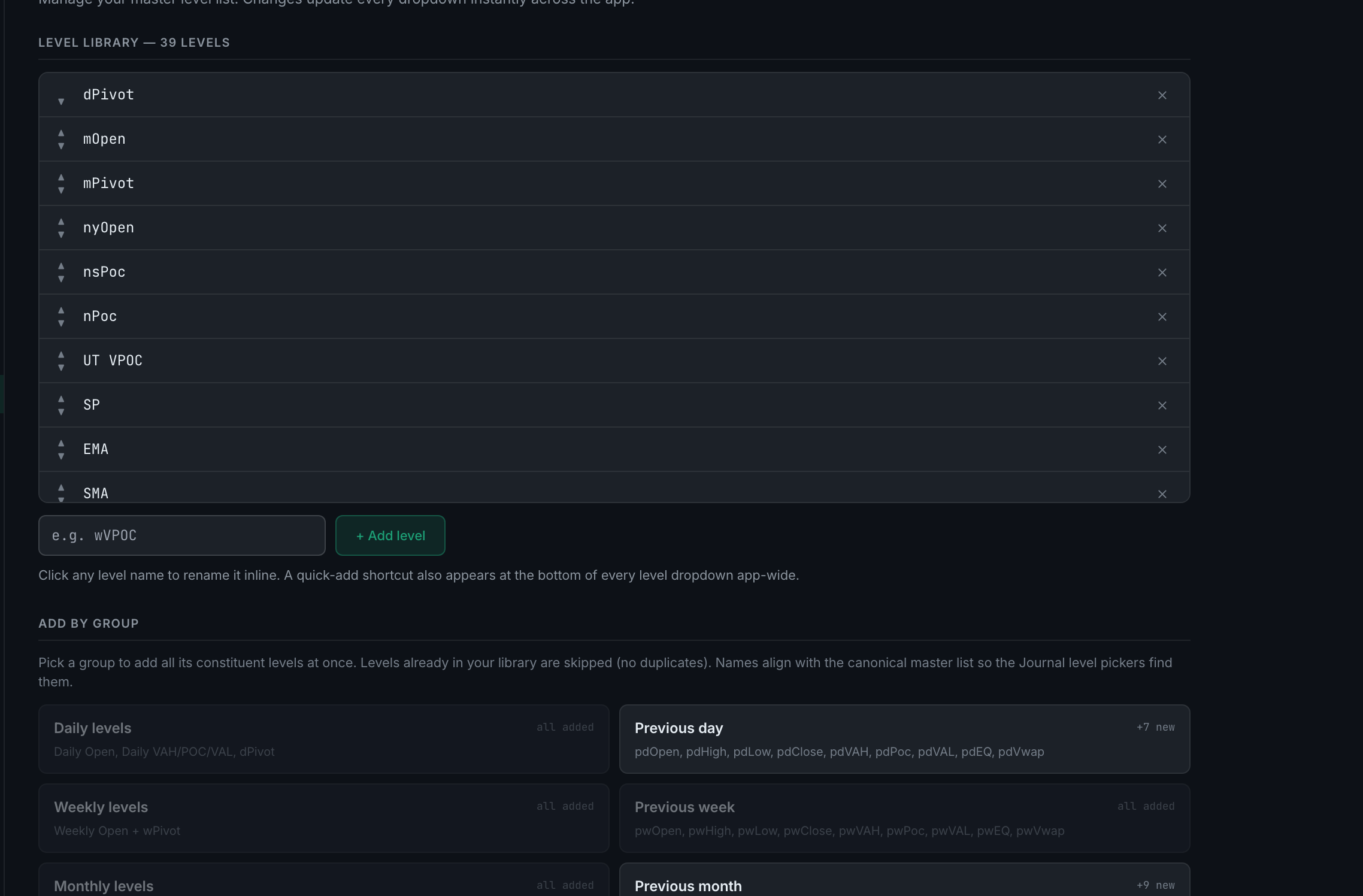
No. Your key levels are always yours — seeded from the groups you pick during setup, then managed by hand. Nothing pushes levels in from a platform or a broker.
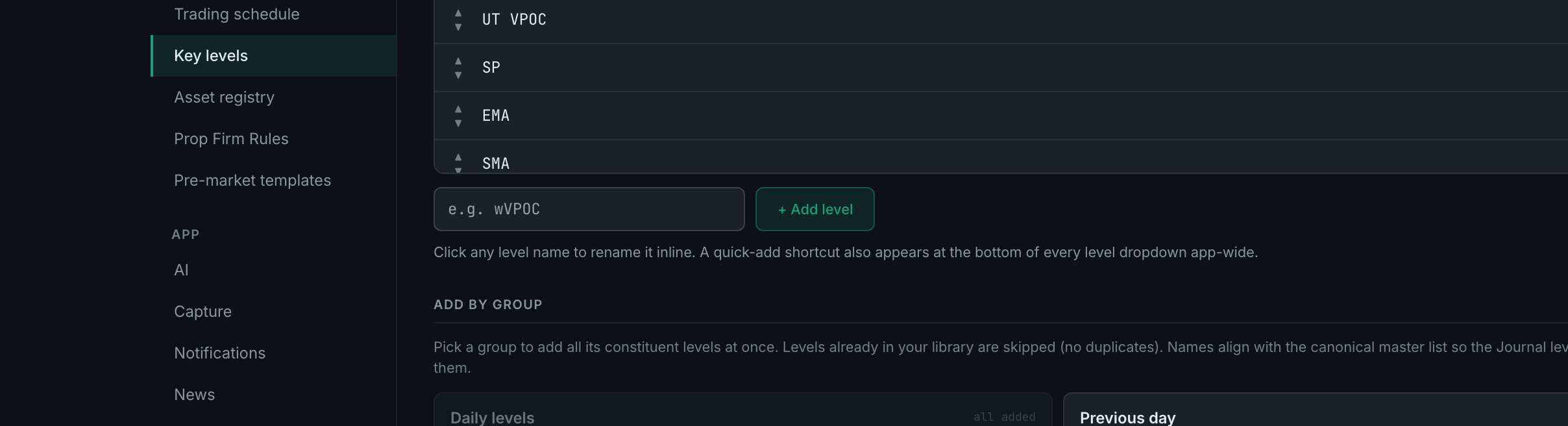
Type the name into the box on Settings → Key levels and press + Add level. It appears in every level dropdown in the app straight away.
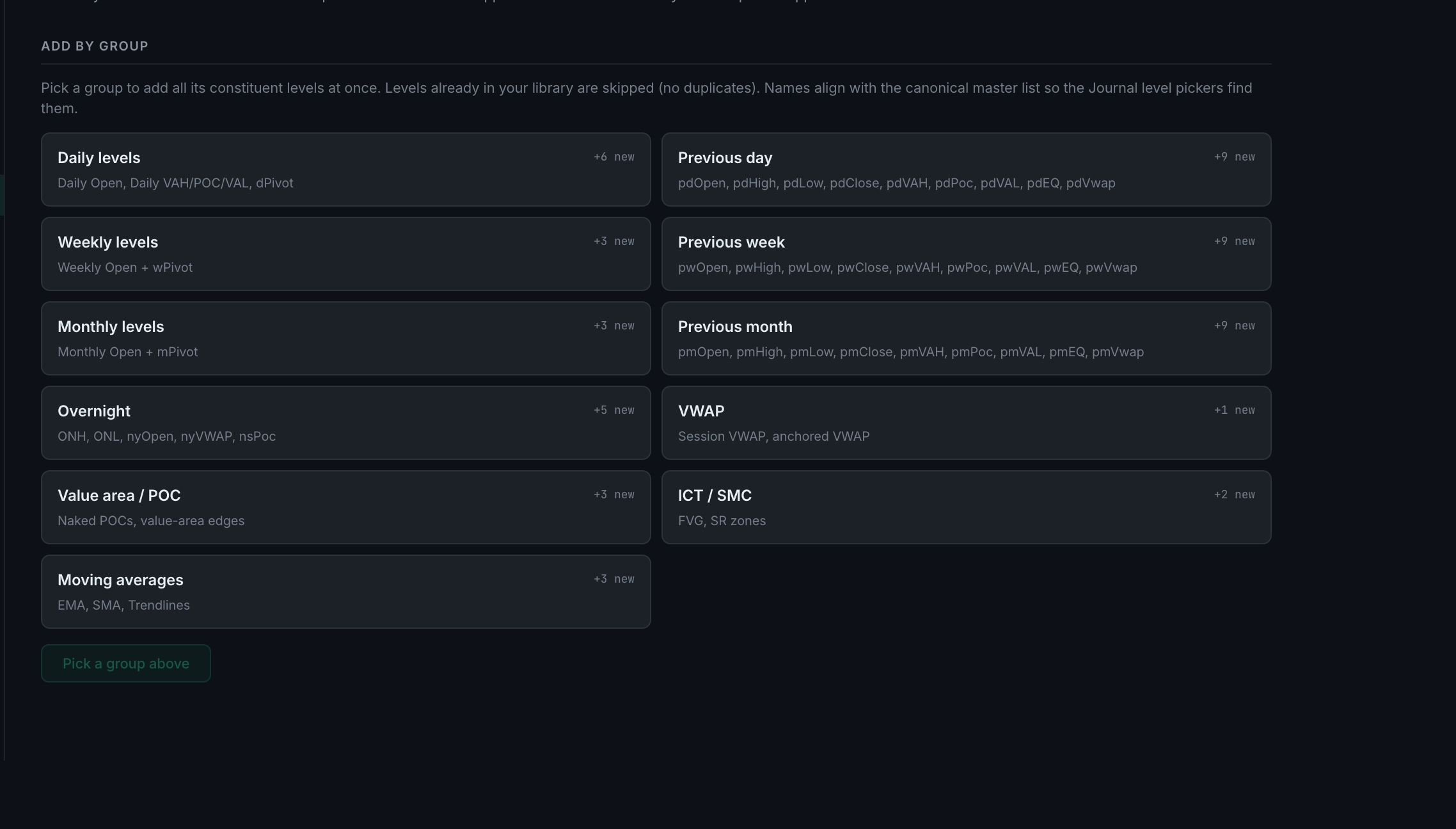
Twelve groups, each expanding to its constituent levels in one click. Picking Previous day gives you nine levels at once.
It is archived, not deleted. Every trade that carries the level keeps it; the level just stops appearing in the pickers so you cannot tag new trades with it. A level nothing uses is deleted outright.
Read the full guideFrom the trade's own detail panel, where the level fields read from this master list.
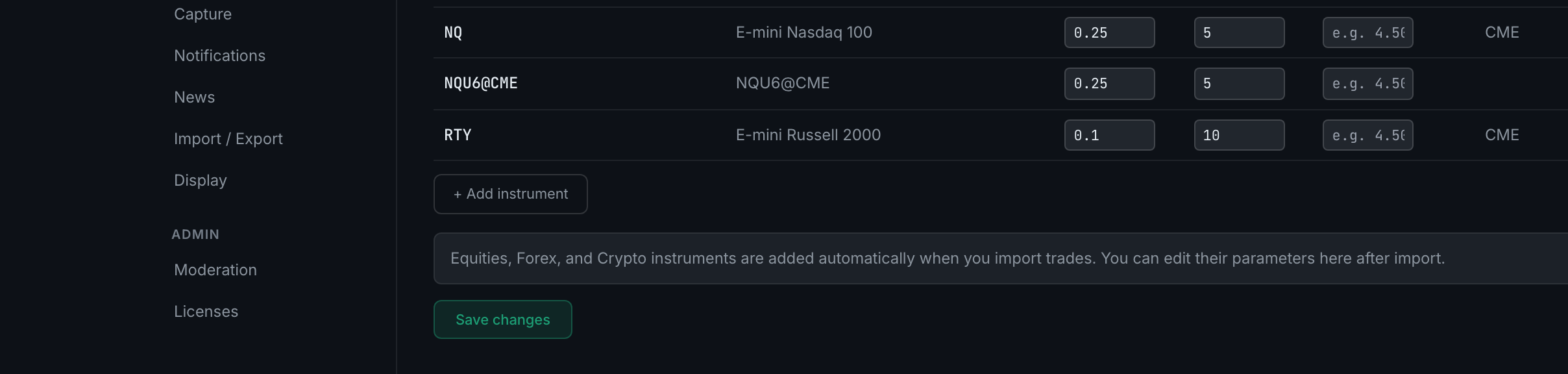
Your instrument list. Each row holds tick size, tick value, an optional commission and the exchange. The first two drive P&L, R:R and position calculations.
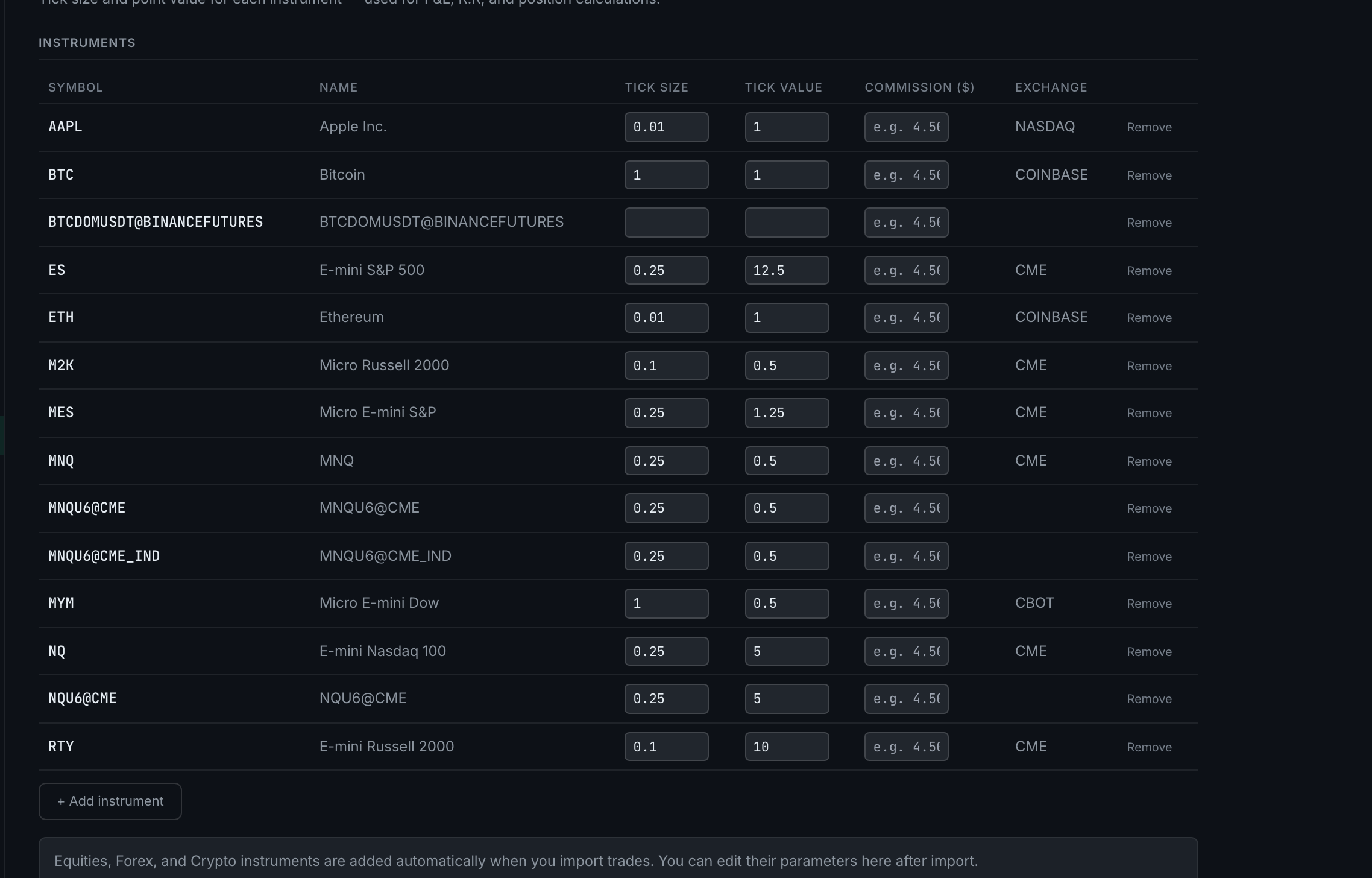
Partly, and the part it leaves out is the important one. A new instrument is added automatically the first time a trade carrying that symbol arrives — but only its name and asset class. You set the tick size and tick value yourself.
+ Add instrument on Settings → Asset registry, then fill in the symbol, name, tick size and tick value — and press Save changes.
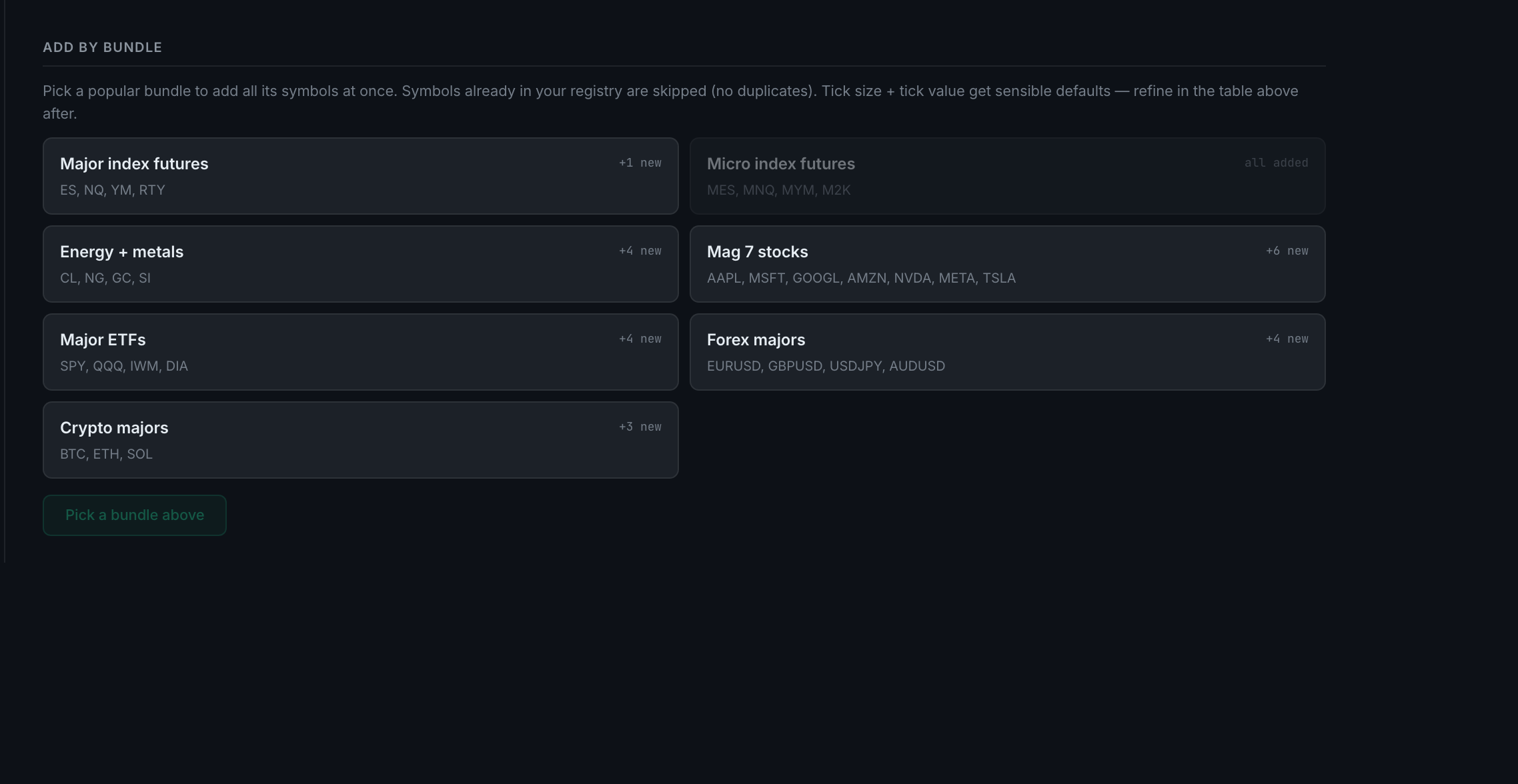
Bundles of common instruments, added in one click from Add by bundle. The futures bundles arrive complete — the right tick size and the right tick value. Stocks, forex and crypto arrive with a tick size but no tick value, because what one tick is worth depends on a contract size the app cannot know, and you fill that in yourself.
Settings → Trading schedule. Turn on the sessions you trade; each arrives with default segments you can rename, retime, reorder or add to.
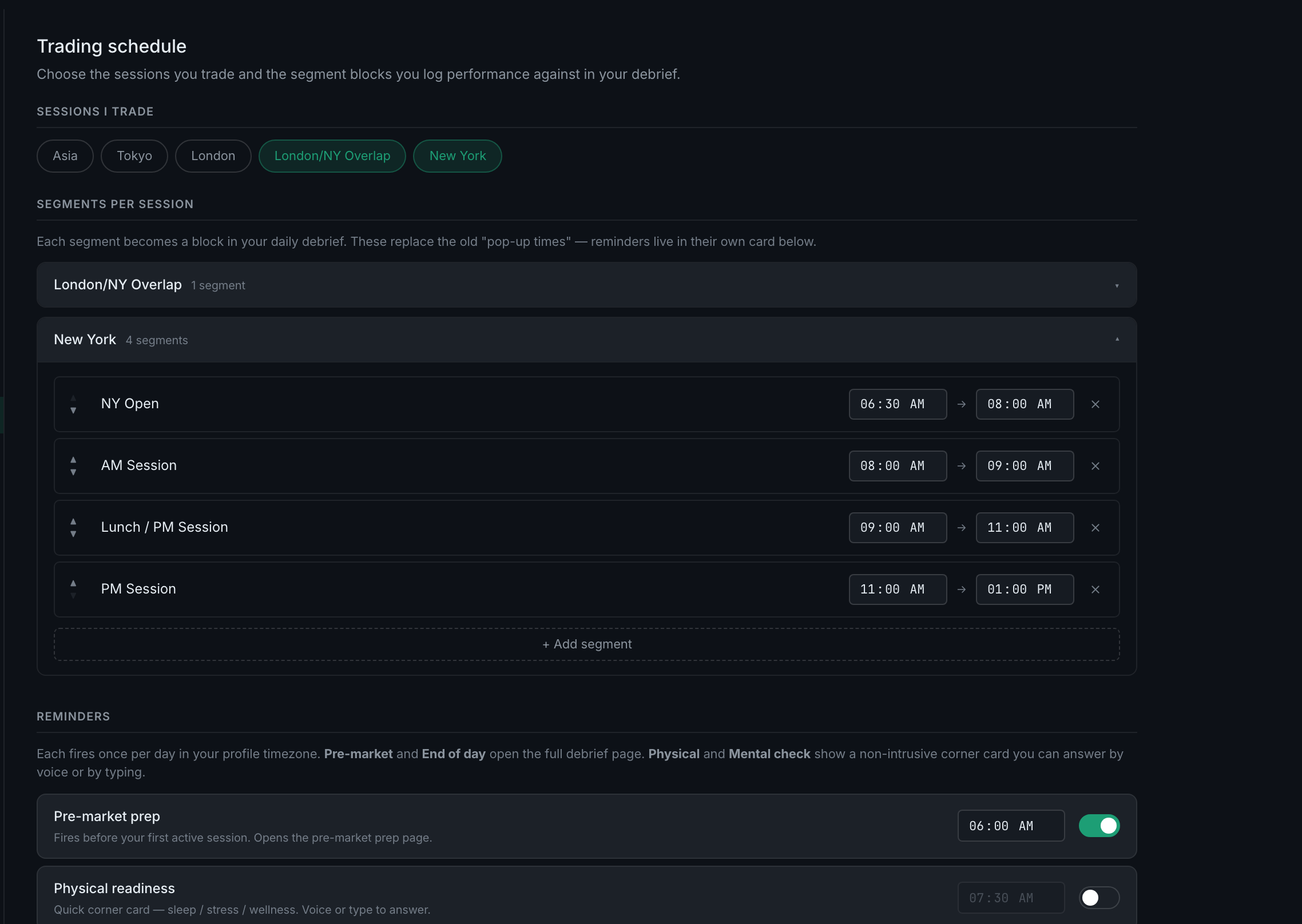
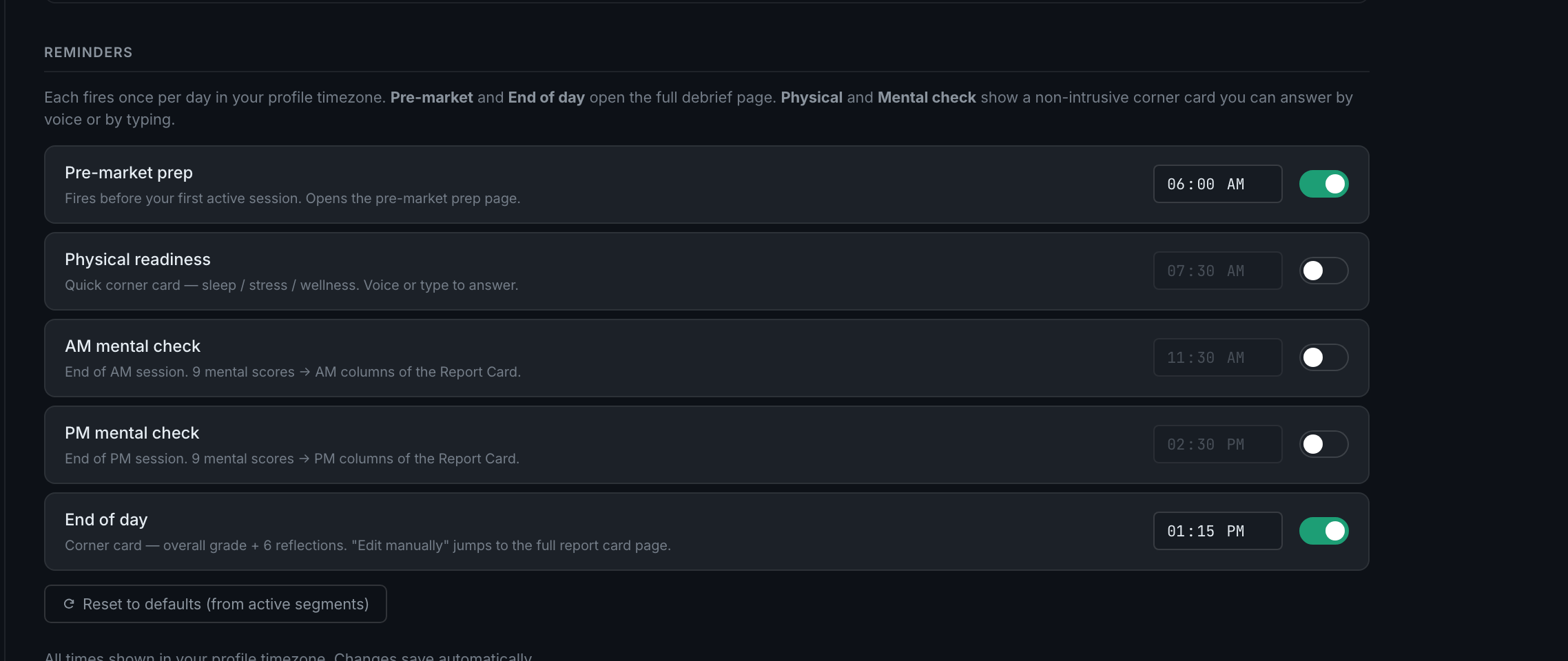
Pre-market prep, Physical readiness, AM mental check, PM mental check, and End of day. Each fires once a day in your profile's timezone.