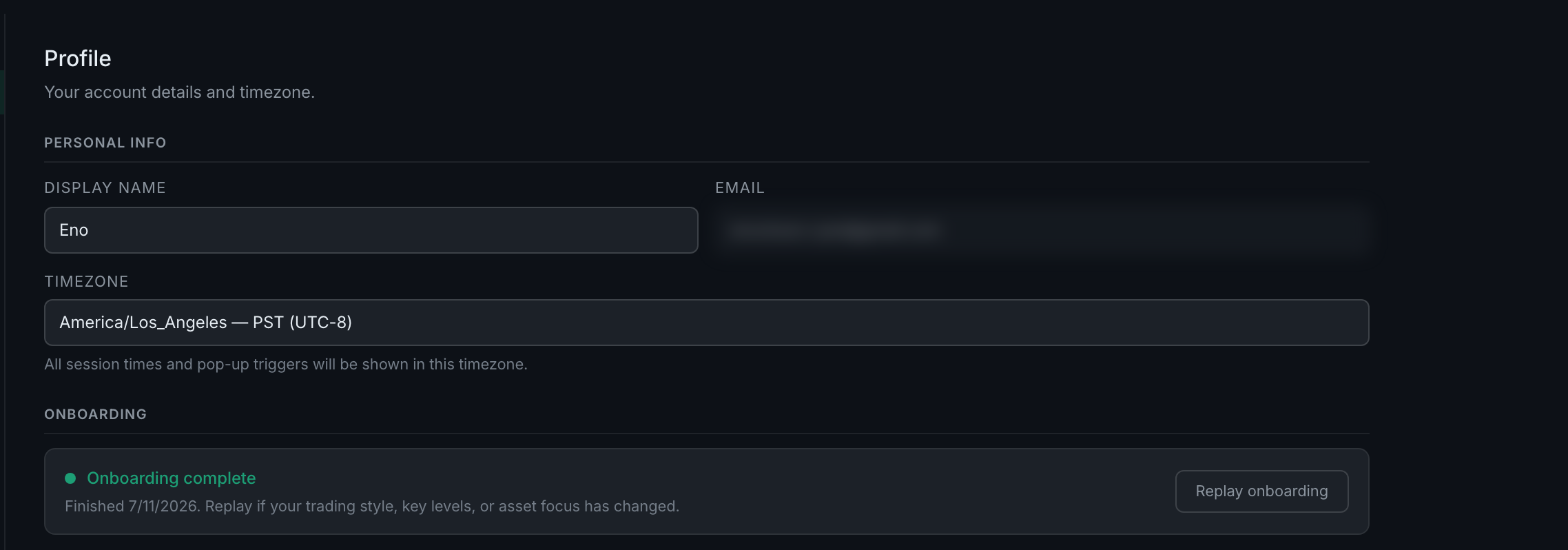
What is on the Profile tab?
Your display name, your email, your timezone, an onboarding status with a replay button, and a change-password pair. The timezone is the one that matters most — everything else in the app is timed against it.
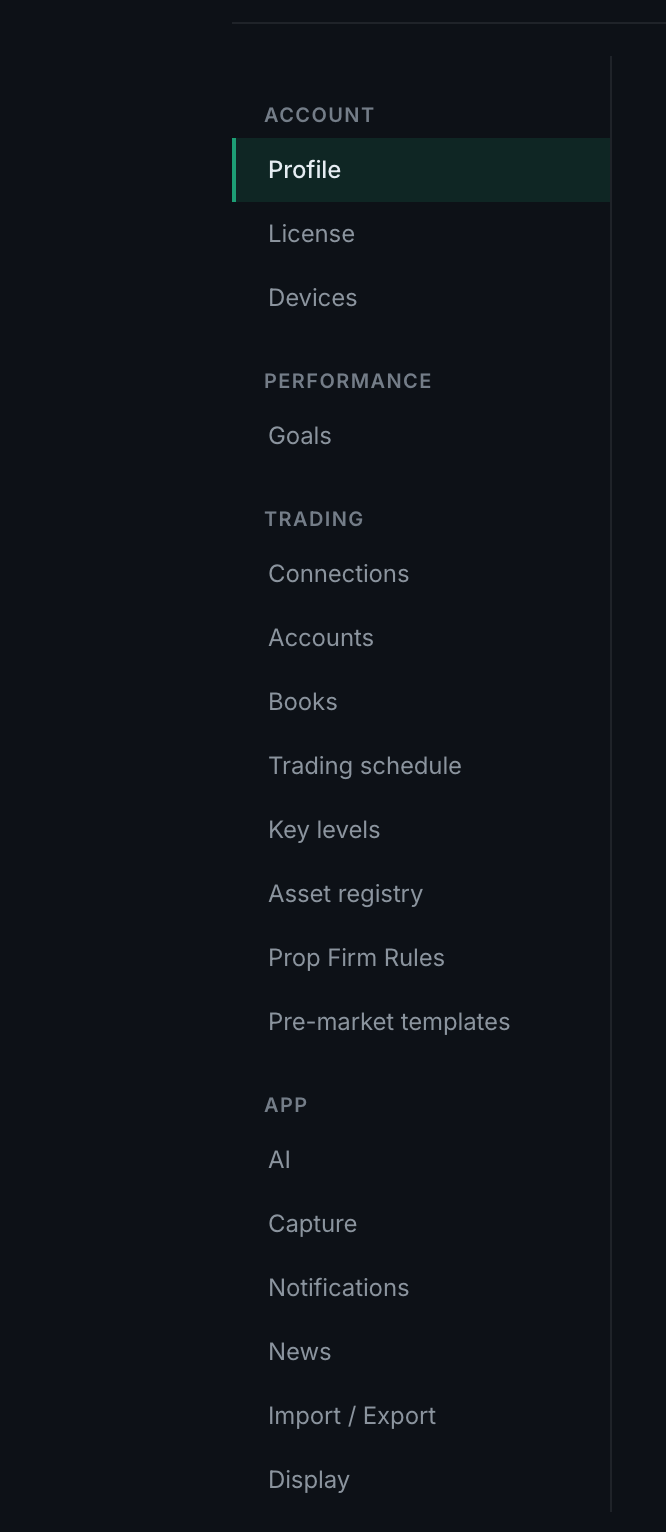
The settings sidebar is grouped, and the grouping is the map. Account holds who you are and what you have paid for. Performance holds your goals. Trading holds everything about your instruments and accounts. App holds the software's own behaviour — AI, capture, notifications, display.
This page covers Account, Performance, and the App tabs that are not AI or capture: display, notifications, and your pre-market templates.
No questions on this page match that. Search all 15 areas
Your display name, your email, your timezone, an onboarding status with a replay button, and a change-password pair. The timezone is the one that matters most — everything else in the app is timed against it.
Settings → License, paste the code into the field under Activate a new code, press Activate. Codes look like TP-XXXX-XXXX-XXXX. The same field is how you move an install to a different machine.
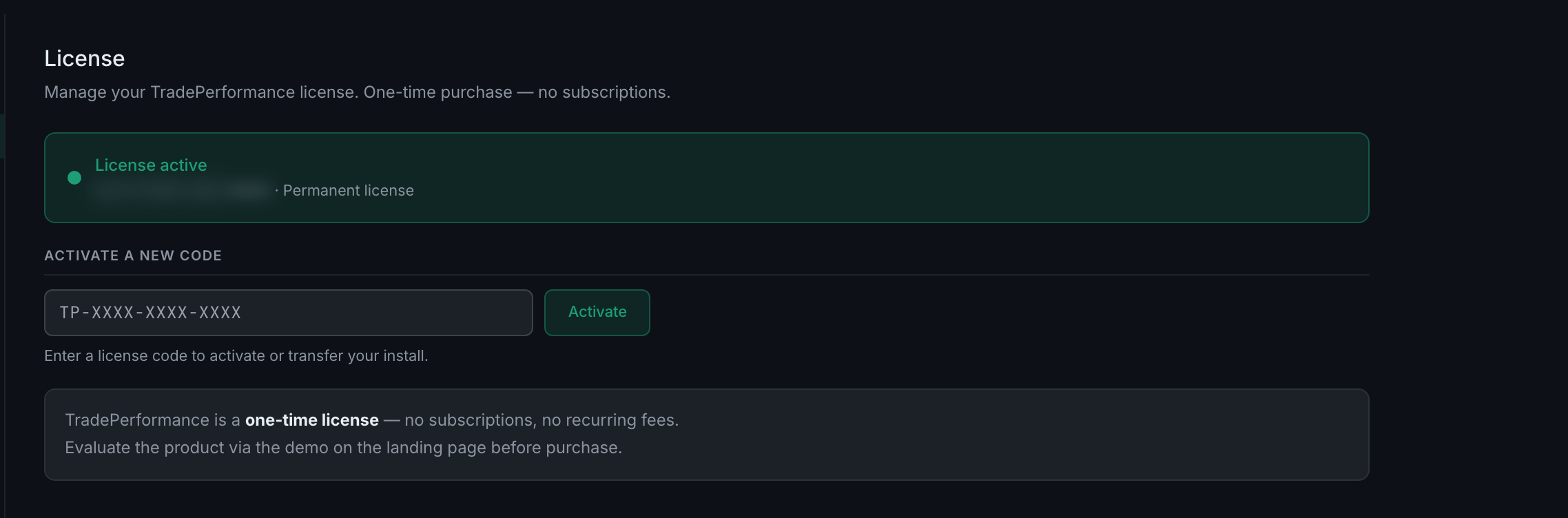
A one-time licence, valid on up to three devices, with no subscription and no recurring fee. The tab states it: "TradePerformance is a one-time license — no subscriptions, no recurring fees."
Settings → Devices. It lists every browser and computer your licence is currently active on, marks the one you are using, and shows the count as N of 3 active.
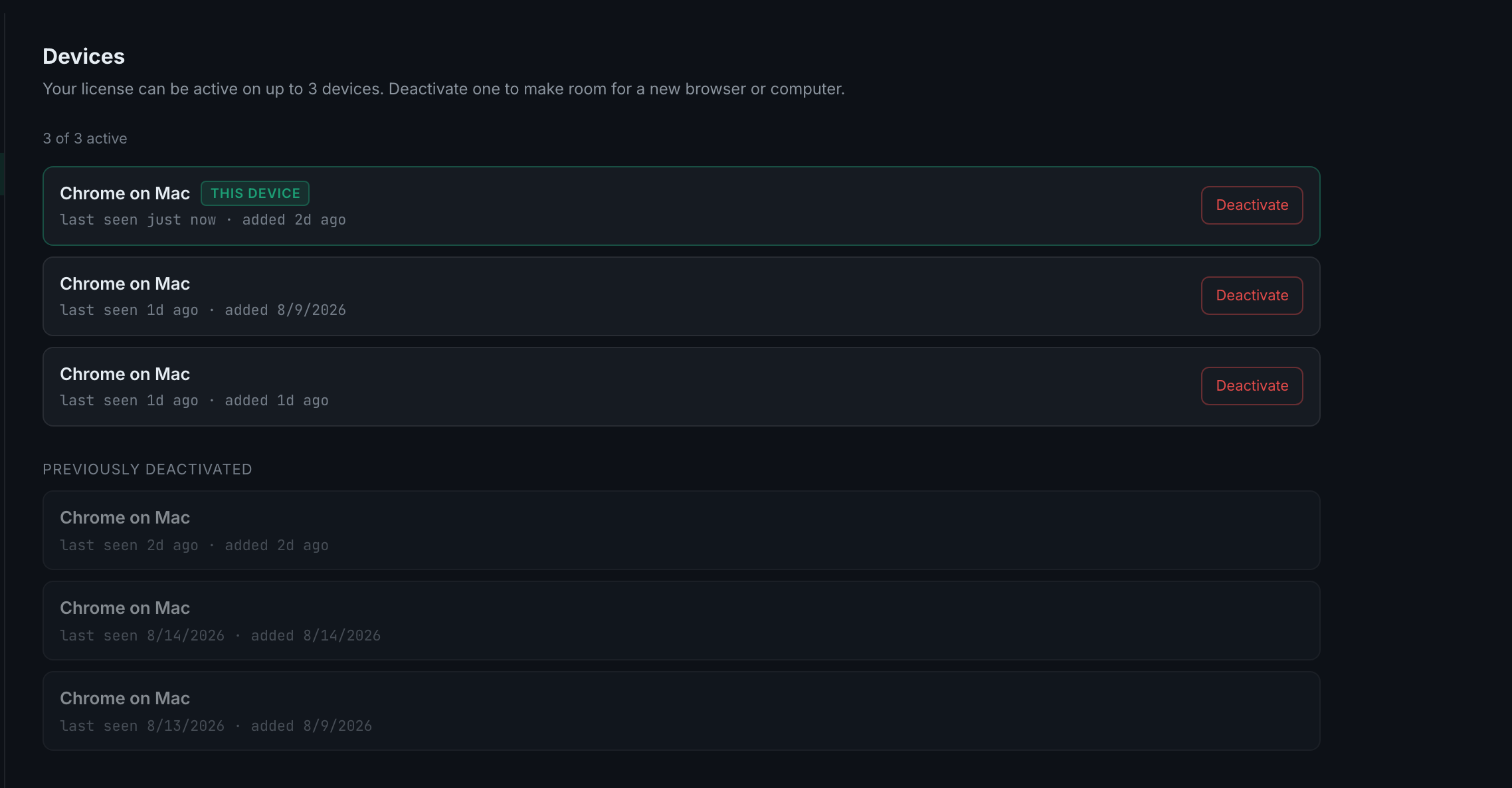
On Settings → Devices, press Deactivate on the row you no longer use. The slot frees immediately and the next sign-in on a new machine takes it. A Device deactivated toast confirms.
Both, and they are the same goals. Settings → Goals is where you create, edit and archive them. The Dashboard shows their progress while you work.
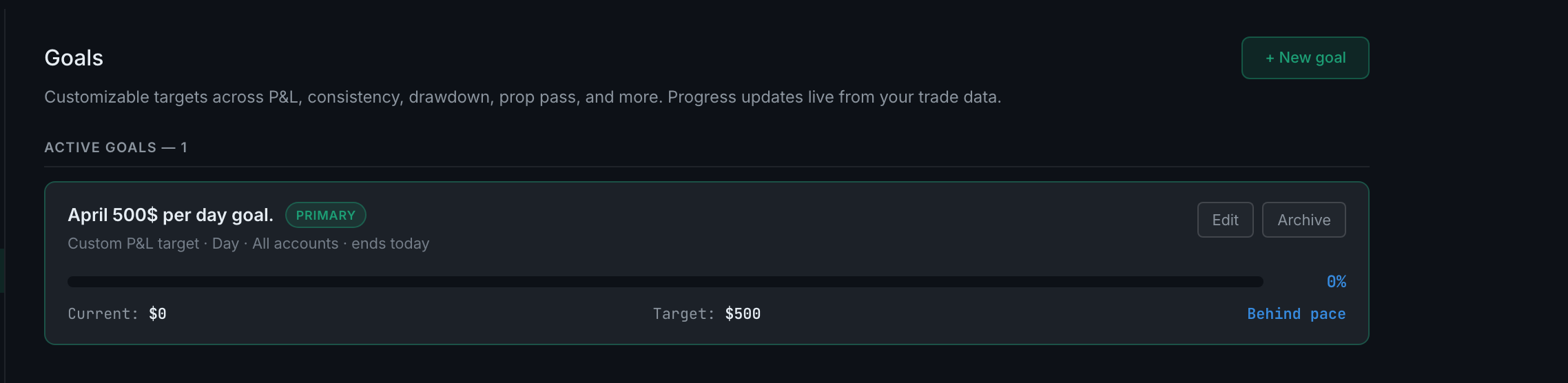
Five are targets to reach and two are ceilings to stay under, with the remaining two being custom variants. They are: daily P&L, weekly green-day %, monthly net P&L, max drawdown ceiling, prop firm pass, custom P&L, custom win rate, trade count cap, and profit factor.
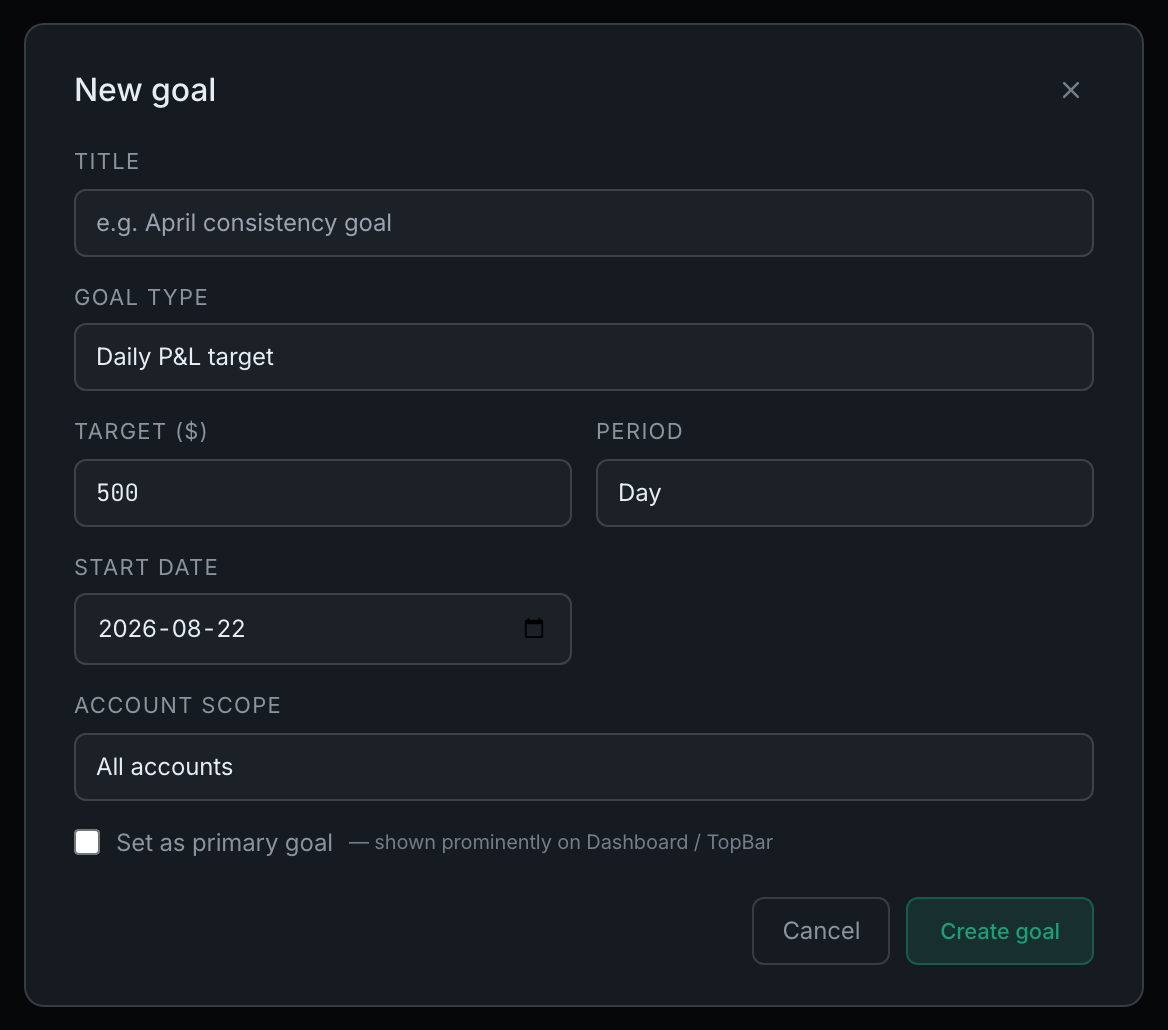
Day, Week, Month, Quarter, or Custom. Custom takes explicit start and end dates.
The primary goal is the one you want in front of you all the time. It is pinned to the top of the Dashboard's goal list with a ★, and it is the goal shown in the top bar on every page. Only one goal can be primary at a time.
Press Archive on the goal's row. Archived goals collect under an Archived disclosure with a count, and nothing is lost. The same thing is available as a checkbox inside the goal editor, where it reads uncheck to archive without deleting.
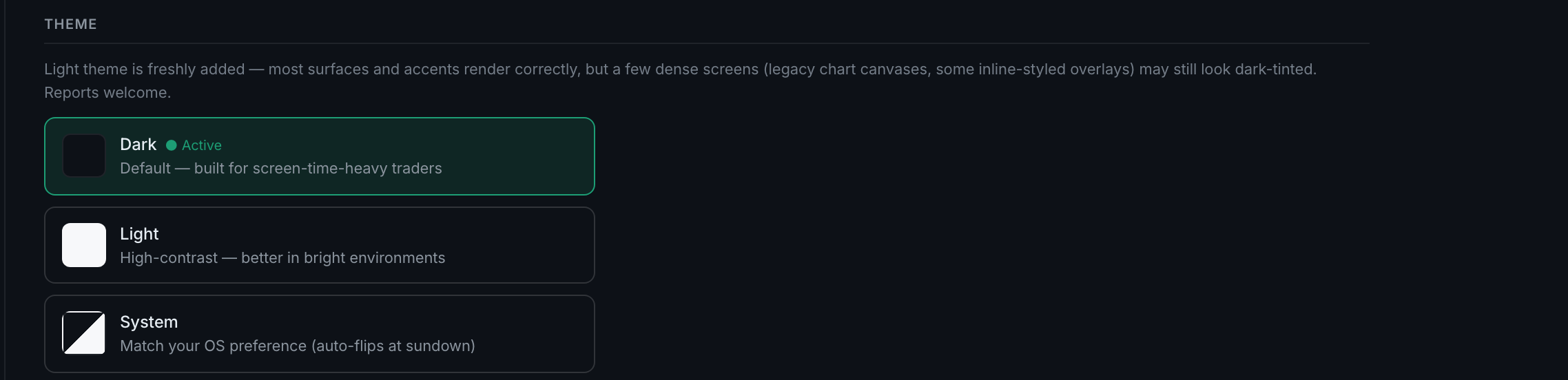
Settings → Display → Theme. Three choices: Dark, which is the default, Light, and System, which follows your operating system and flips with it.
Two formatting blocks — Number formatting and Date & time format — and a Save display settings button. That is the whole tab.
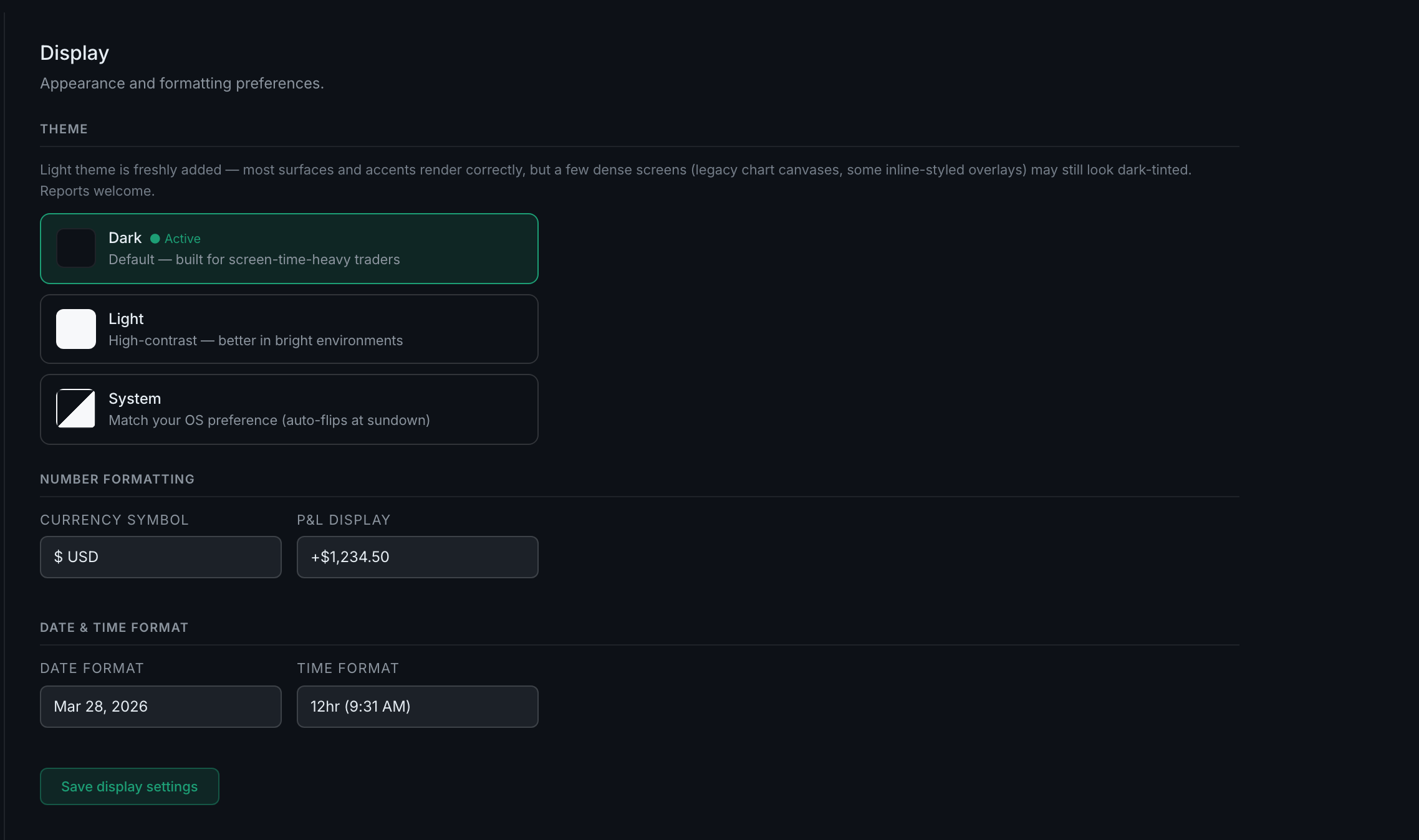
Under Number formatting and Date & time format on the Display tab. Five currency symbols, three P&L styles, four date formats, and 12- or 24-hour time.
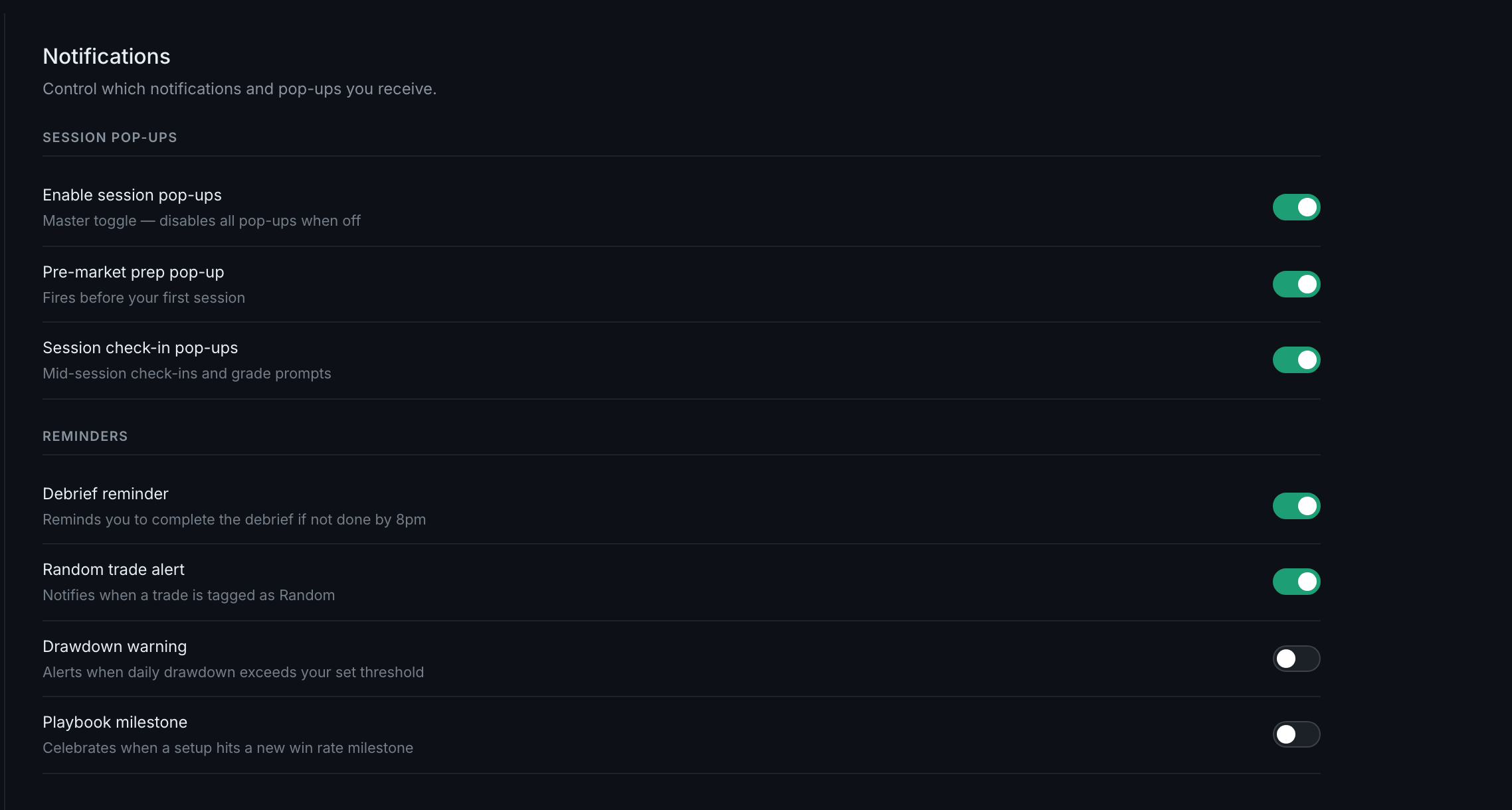
Two groups. Session pop-ups, with a master switch and two kinds under it, and Reminders, of which there are four. Everything here is in-app; nothing is emailed.
Settings → Pre-market templates, under Trading. Your library is the column on the left, the selected template opens on the right, and one is marked ACTIVE — the active template's questions are the ones that appear on today's prep.
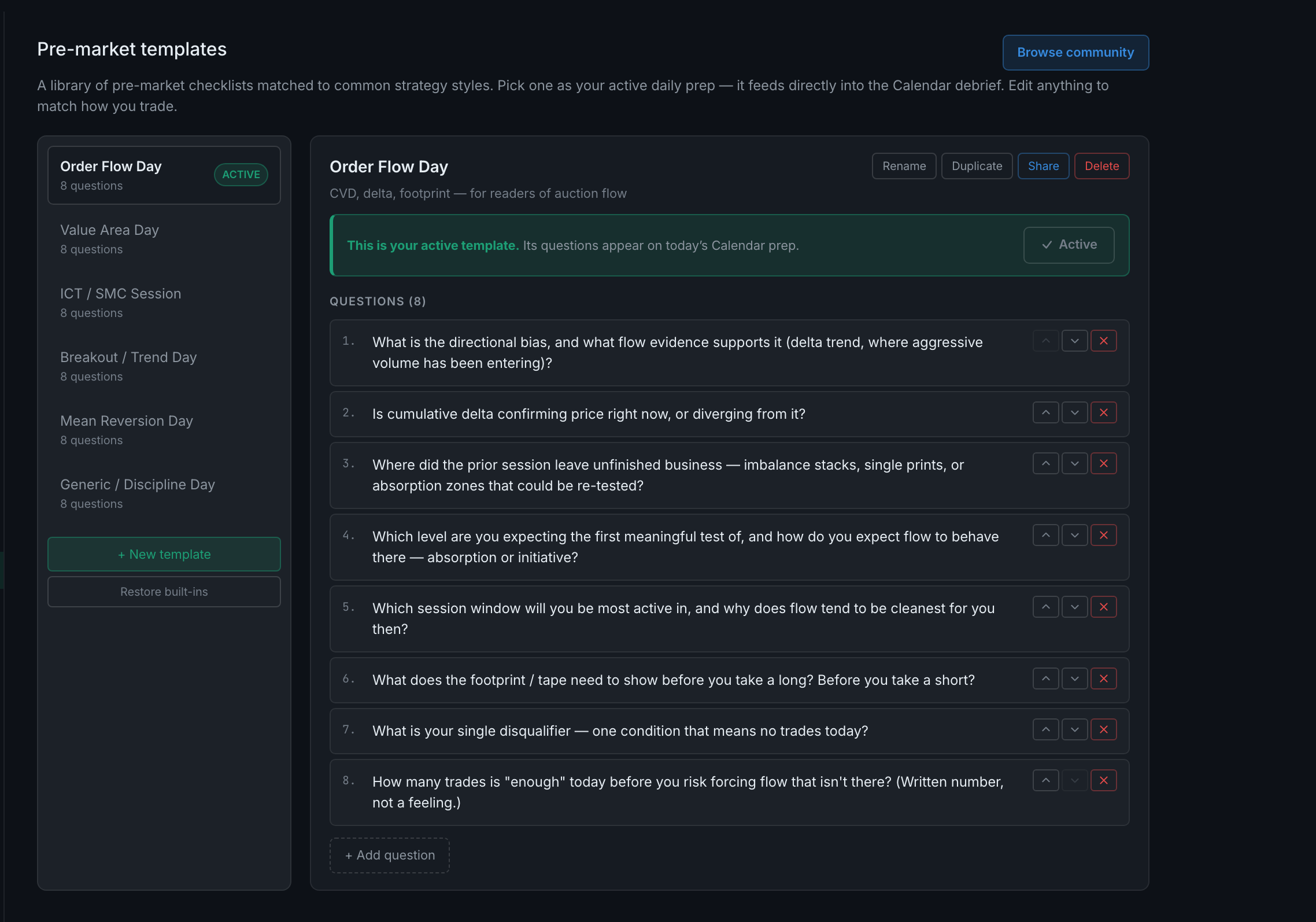
+ New template starts one. Questions are edited in place, reordered with the arrows beside each, and removed with the ×. + Add question adds one at the bottom. Four buttons across the top of the open template handle the template itself: Rename, Duplicate, Share and Delete.
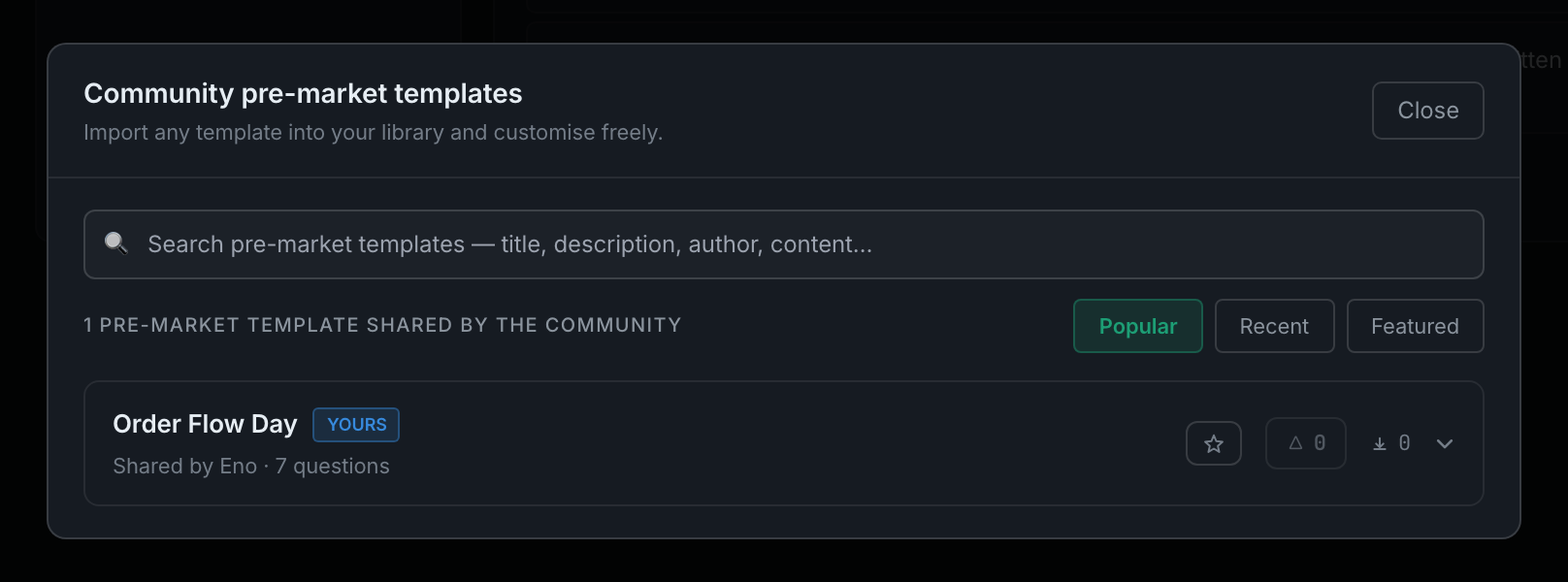
Share on an open template publishes it to the community library. Browse community, at the top right of the panel, is where you find other people's — search it, sort it, and import anything into your own library. An import is a copy, not a link, so you can change it freely.